A Complete Guide to Convert MSG to PST in Bulk?


User Query: “I have a bunch of MSG files that I need to convert to PST. Is there an easy and reliable way to do this without using Outlook?”
Summary: Have you been looking for an easy and dependable method to convert MSG to PST? This blog will cover both the basic manual methods for conversion as well as the use of an automated MSG Converter Tool that provides a quick and simple way without using Outlook directly. You will discover information here that will help you either do it yourself or utilize an alternative means to accomplish the process.
Reasons to Transfer MSG Files to PST
The following are the most common reasons for users to transfer their MSG files into a single PST file:
- The PST allows email messages to be stored within a single file instead of being spread over numerous MSG files.
- Email messages can be organized, searched, and accessed more efficiently.
- There is no need to individually open numerous MSG files to find an email.
- Some email messages may be very important and could be located in multiple folders.
- Also, the PST will be more suitable if users want to safely keep their archived email messages for many years.
Manual Methods to Convert MSG to PST
There are two main ways to convert your MSG files to PST: manually or by using a professional tool. The manual ways work well for smaller tasks, while tools help speed up the process and reduce errors. Below are simple explanations for each manual method.
Method 1: Convert MSG files to PST Via Drag and Drop
- Firstly, open Outlook and make sure your email account is set up.
- Then, create a new folder where you want to import the MSG files.
- Find the folder on your computer containing the MSG files.
- Select one or more MSG files and drag them into the new Outlook folder.
- At last, Outlook will automatically import those emails into the folder.
Method 2: Save MSG Files to PST Using Import/Export Feature
- To begin with, launch Outlook on your computer.
- Then, drag and drop your MSG files into an Outlook folder.
- Click File > Open & Export > Import/Export.
- Choose Export to a file and select Outlook Data File (.pst), then click Next.
- Thereafter, pick the folder with your imported MSG files.
- Choose where to save the PST file, then click Finish to complete.
Method 3: Import MSG Files to Outlook PST Save As Option
- Firstly, open the folder containing your MSG files.
- Double-click an MSG file to open it in Outlook.
- In Outlook, go to File > Save As and select Outlook Data File (.pst) as the format.
- Finally, repeat this for each MSG file you want to convert.
Limitations:
- All these manual ways require Outlook to be installed and set up on your computer.
- Doing things by hand means there’s a higher chance you might miss some files or import them wrong.
- Only the Import/Export method lets you work with multiple files at once, but you still have to drag the files into Outlook first.
- You also can’t choose specific emails to convert or filter them when using manual methods.
Professional Method to convert MSG to PST
The MSG to PST Converter is a trustworthy and easy-to-use tool for converting MSG files into Outlook PST format. It also supports other formats like EMLX, MBOX, and PDF. The software allows you to export your emails directly to popular cloud services such as Gmail, Office 365, and Yahoo. Throughout the process, it keeps your data safe and intact.
Steps to Convert Multiple msg Files to PST
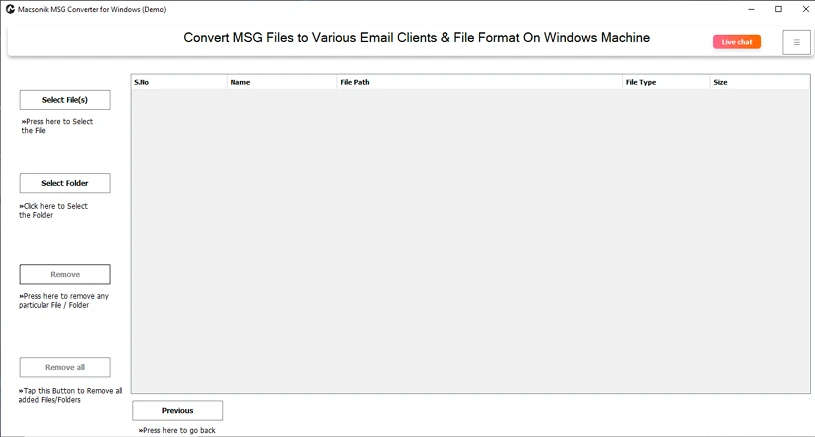
- Download and launch the MSG Converter Tool.
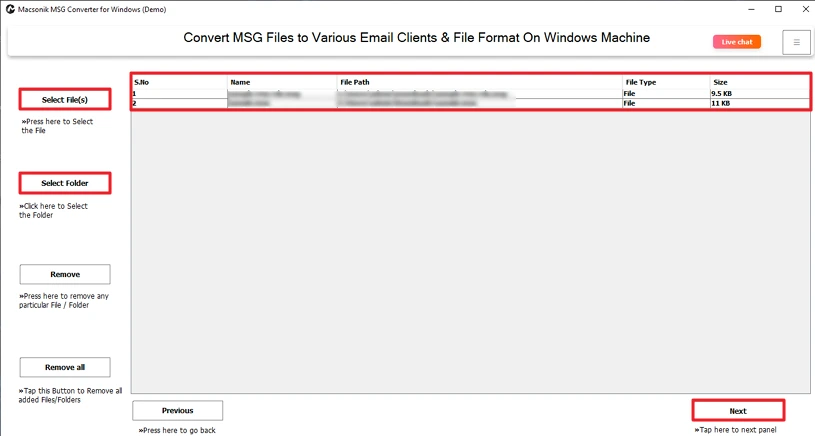
- Select the MSG file or folder you want to convert, then click Next.
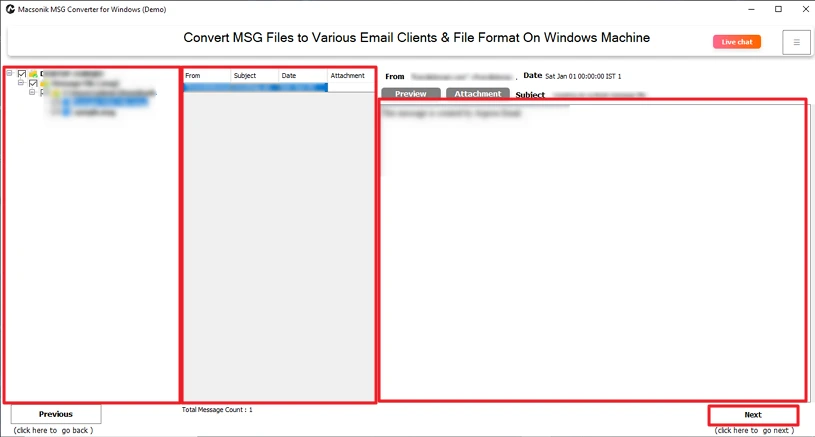
- Preview the MSG files, pick the ones you want to convert, and click Next.
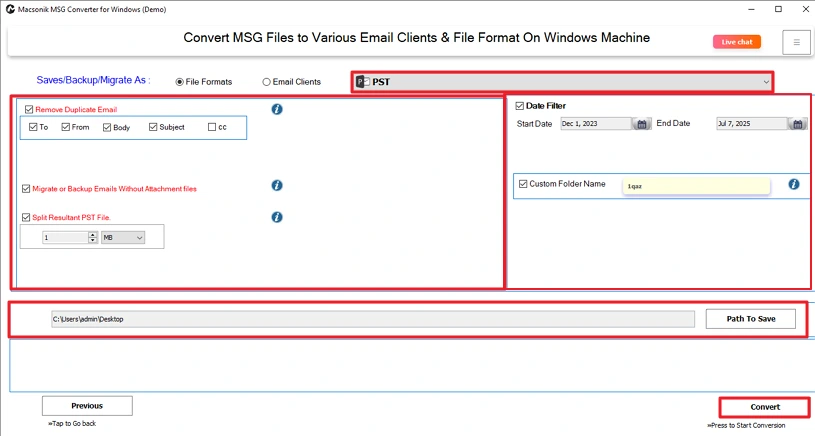
- Choose PST as the output format, apply any needed filters, and click Convert to start the process.
Also, read this to convert MSG to MBOX.
Conclusion
In conclusion, I have outlined the two methods above to convert MSG to PST: manual and using the MSG to PST Converter. Manual conversion can be unreliable when converting large batches of files. The automated process offers an easier, faster, and more efficient method to convert files over various platforms. In addition, MSG to PST Converter can handle different message sizes, thus providing users with a reliable option.
Frequently Asked Questions
Q1. Why do I need to convert MSG files to PST?
Q2. Can I convert MSG files to PST without Outlook?
Q3. Is it possible to move specific MSG files to PST?
Q4. Which is the best MSG to PST converter tool?
Related Post
