A Complete Solution to Convert MSG to Windows Live Mail?


User Query: “I recently stopped using Microsoft Outlook and now have a large number of MSG files that I can’t open in Windows Live Mail. How can I convert these MSG files to a format that Windows Live Mail supports without losing any of my email data?”
Summary: Many users who transition away from Microsoft Outlook find themselves stuck with a folder full of MSG files that simply won’t open in their new email client. If you’ve moved to Windows Live Mail, this is a problem you’ve likely already run into. MSG is a proprietary Microsoft Outlook format, and Windows Live Mail doesn’t recognize it natively, so getting those emails accessible again requires a conversion step first. This blog covers the way to convert Outlook MSG to Windows Live Mail that you need to know. We will introduce a manual solution and a professional MacSonik MSG Converter Tool.
Why Import MSG to Windows Live Mail?
The short answer is accessibility. MSG files are tied to Outlook’s ecosystem, which means they’re essentially locked unless you have Outlook installed. Once you move to Windows Live Mail, those files become dead weight — sitting on your drive but impossible to open without going back to software you may no longer use or have access to.
If you transfer email messages from Outlook to Windows Live Mail, it solves that. EML is a widely supported standard that Windows Live Mail reads without any issues. Your old emails stay intact, attachments come through, and you’re not dependent on Outlook anymore. For businesses or individuals managing years of archived correspondence, this matters.
Manually Convert Outlook MSG to Windows Live Mail
Windows Live Mail works with EML files, not MSG. So the manual process is essentially about resaving each MSG file out of Outlook in a compatible format.
What you’ll need: Microsoft Outlook installed on the same machine.
Step to Import Outlook MSG to Windows Live Mail
- Launch Microsoft Outlook.
- Drag your MSG files into any Outlook mail folder.
- Open the email you want to convert.
- Go to File -> Save As.
- In the format dropdown, select EML and choose a save location.
- Open Windows Live Mail, go to File -> Import -> Messages, and point it to your saved EML files.
This works cleanly for small batches. If you’re dealing with five or ten emails, the manual route is perfectly reasonable.
Limitations
- Microsoft Outlook must be installed on your system; without it, this method simply won’t work.
- Converting a large number of MSG files one by one eats up a serious amount of time.
- Email formatting can get distorted when saving files manually through Outlook.
- Attachments don’t always carry over properly and may get lost in the process.
- There’s no batch conversion option; every single file has to be handled separately.
Pro Method to Convert Outlook MSG to Windows Live Mail
The MSG Converter Tool lets you turn MSG files into EML format. This makes your MSG file suitable for Windows Live Mail. It handles multiple files at once, keeps your data intact after conversion, and doesn’t require any technical background to operate. It also allows users to import MSG to Zoho Mail and other email clients.
Steps to Transfer Outlook Emails to Windows Live Mail
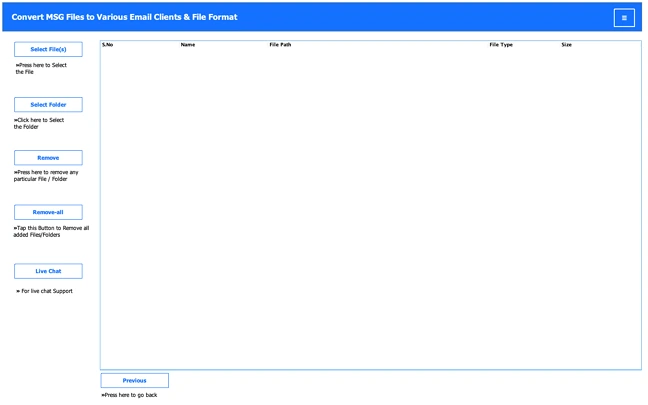
- Download the MSG Converter Tool.
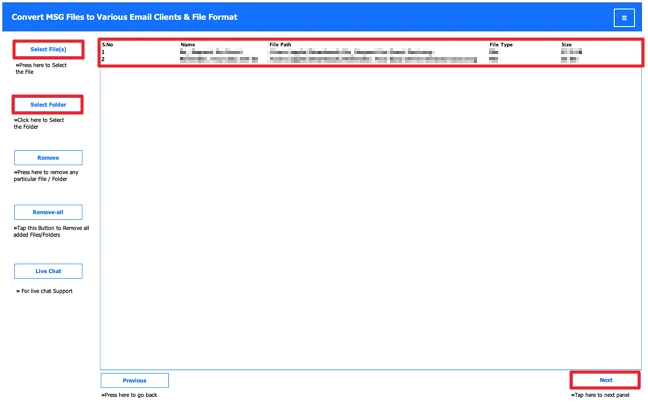
- Add your MSG files and click Next.
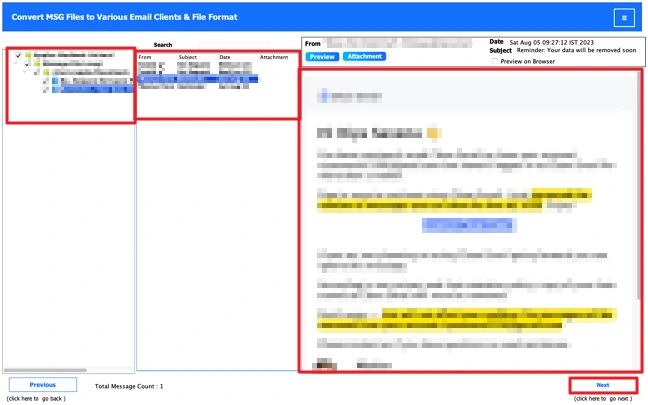
- Preview the files, select the ones you want, and hit Next.
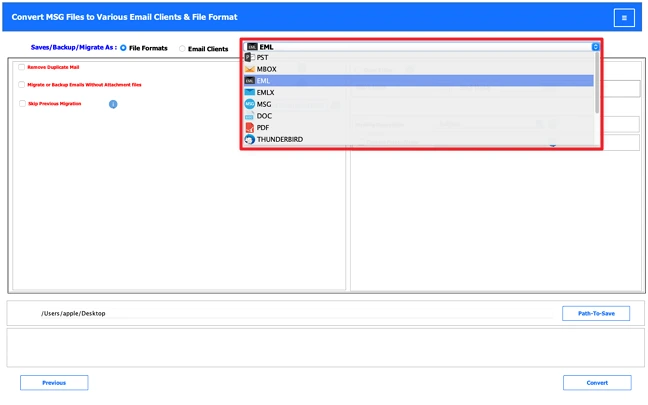
- Choose EML as the output format.
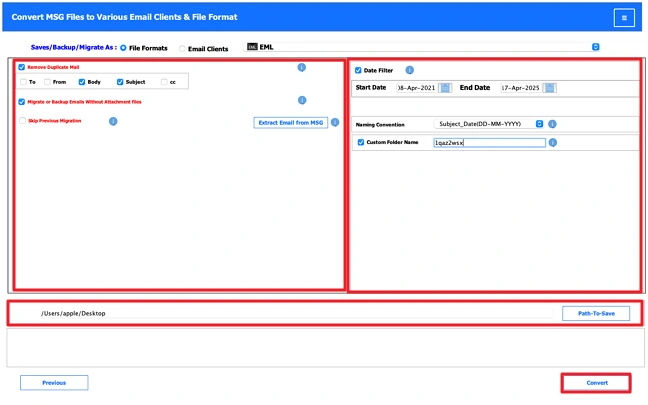
- Apply filters, set your save location, and click Convert.
Successful User Case
Michael works at a small logistics company in Canada. His team had years of emails stored as MSG files from their time using Outlook. When they moved over to Windows Live Mail, those files stopped being accessible altogether.
He started by trying the manual route, opening MSG files in Outlook and saving them one by one as EML. It worked, but with the number of emails he had, it turned into a slow, repetitive grind pretty fast.
He then switched to the MSG Converter Tool. He loaded all the MSG files at once, ran the conversion in a single pass, and moved everything into Windows Live Mail without any of the back-and-forth the manual method required.
Conclusion
This blog covered both the manual approach and a dedicated tool to convert Outlook MSG to Windows Live Mail. If you’re only working with a few emails, doing it manually is perfectly fine. But for larger volumes, the manual route comes with real limitations that slow things down. That’s why the MSG Converter Tool tends to be the go-to choice when the file count starts adding up.
Frequently Asked Questions
Ans: Yes, you can. If you use a proper tool like the MSG Converter Tool, it keeps attachments linked with the emails during conversion. Manual methods may miss some attachments.
Ans: Yes, the MSG Converter Tool offers options to skip duplicate emails during conversion. This helps avoid repeated files when you’re dealing with large amounts of data.
Ans: You can either use Outlook to save MSG files as EML one by one, or use a tool like MSG Converter Tool to convert all files at once and then import them into Windows Live Mail.
Ans: If you have only a few files, the manual method works. But for bulk emails, using the MSG Converter Tool is the easier and faster option since it saves time and keeps data intact.
Related Post
