Convert ICS File to Excel for Calendar Reporting | Simple Guide


“I have some ICS files downloaded from my Apple Calendar that I want to save in an Excel file for reporting and analysis purposes. Being from a non-technical background, I am not sure where to start. Can you suggest a feasible solution for a simplified and direct way to convert ICS to XLSX?”
-Camille Bridgerton
Summary: ICS (Internet Calendar Scheduling) files hold an operational value for major businesses, enterprises, and other individual users. From meeting schedules, project timelines, compliance events, to audit checkpoints and more, everything s stored within them and is crucial for continued operations. While ICS files play a major role in scheduling and managing events, it isn’t suitable for analysis, reporting, and documenting records. Therefore, users find a need to convert ICS file to Excel for filtering, analysis, and reports. Explore the guide here to identify the free solutions and a dedicated ICS Converter Tool for optimal results.
What Makes Organizations Convert ICS to Excel?
ICS files are beneficial for interoperability between multiple calendar applications like Google, Outlook, Apple, etc. Excel stores data in rows and columns (a table) for structured analysis, reporting, sorting, and visualization. Therefore, particular reasons to perform this ICS to Excel conversion are:
- Generating a report frequently for attendance and meetings
- Auditing the timelines and milestones of the projects
- Tracking the recurring events across several teams
- Creating bills and reports for legal and compliance purposes
- Analyzing calendar data outside of the specific application
- Save, share, and store data across platforms and devices
- Edit changes without codes or tags in the events and schedules
Therefore, Excel provides actionable datasets for smart decision-making to organizations, unlike the static calendar entries, which are not easily understandable at times. Furthermore, check out the appropriate methods for this conversion and decide accordingly which one suits your needs the best.
Classic Method to Convert ICS File to Excel
The only free manual method available to convert an iCalendar file into spreadsheet data is using a Text Editor. Steps are:
- Initially, right-click your ICS file and choose to Open With → Notepad.
- Then, select all the data with Ctrl+A and use Ctrl+C to copy it.
- After that, open the Excel application and use Ctrl+V keys to paste the data.
- Now, choose the data pasted and click on Data to turn Text to Columns.
- Further, select Delimited as type and : as your Delimiter. Tap Finish.
- Also, remove any unnecessary events such as BEGIN: VEVENT, END: VEVENT.
- Later, organize your fields (summary, dtstart, dtend, location, and description) in columns.
- At last, from File, choose Save As, select XLSX, and click Save to export ICS file to Excel.
Drawbacks of the Method:
- Lengthy and time-consuming process with lots of manual effort.
- Not feasible for large or multiple calendar files export.
- Risk of missing fields, timezones, or patterns, etc.
- High chances of inconsistency and data loss.
- No advanced custom options and requires technical skills.
- Non-tech users may find it difficult for complex datasets.
Modern Method to Convert ICS File to Excel
Even though a manual method is available, it has so many shortfalls that can be easily overcome with the MacSonik ICS Converter Tool. It allows instant conversions with precision and no data loss for multiple ICS files at once. Additionally, it keeps the original data fidelity maintained and is very easy to use across all major OS versions. Moreover, users can download the Demo Version to convert upto 50 files for free and evaluate the tool’s features and performance.
Quickly Convert Calendar ICS file to Excel
- Start ICS File Converter as an admin on Windows/Mac/Linux OS.
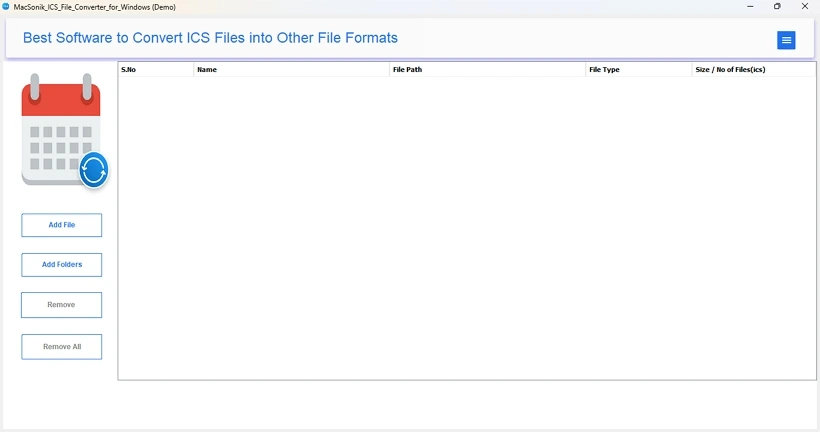
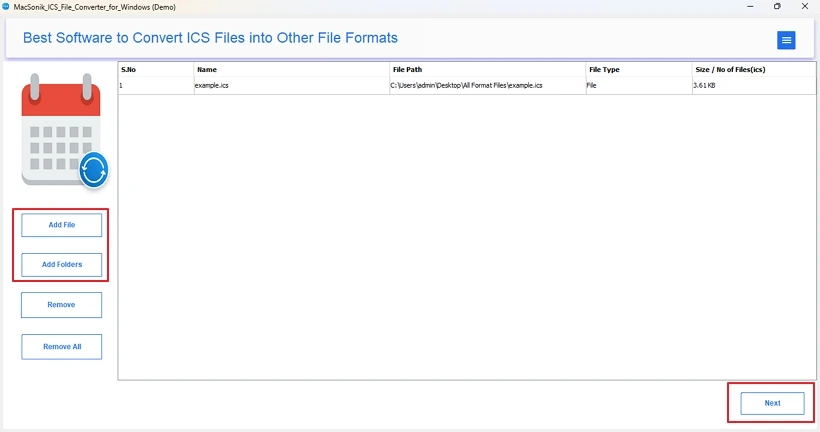
- Then, tap Add File or Add Folder and choose ICS files. Click Next.
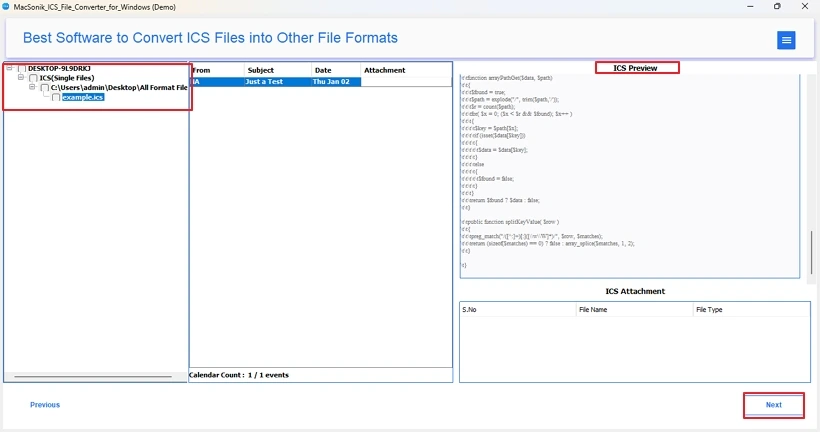
- Further, from the tree view, select the folder, preview it, and hit Next.
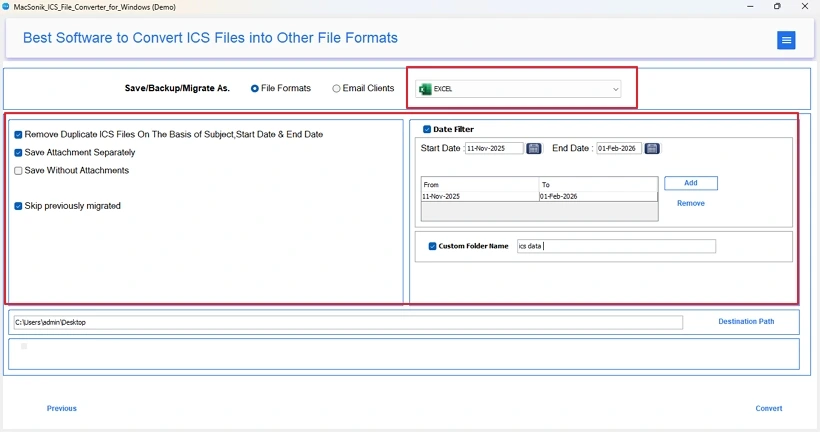
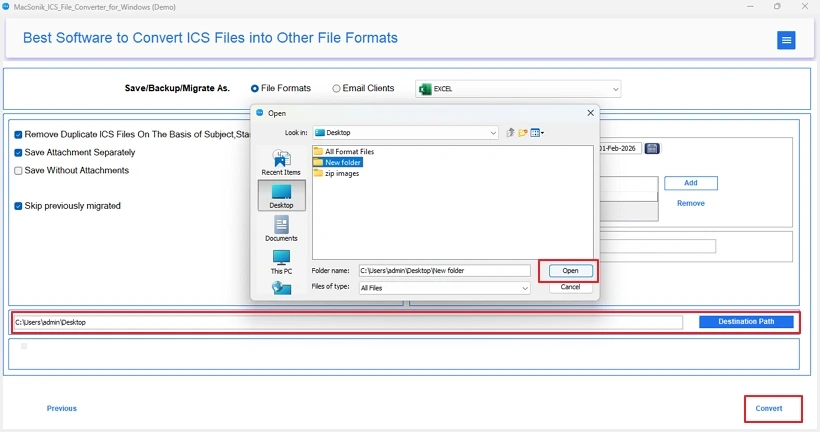
- Afterward, opt for the Excel file format from the list and use filters.
- Finally, select a Destination to save the Excel and click Convert.
Why ICS to Excel Converter Tool?
|
Preserve Calendar Data The software ensures to preserve all the crucial calendar components, such as:
|
User-Friendly Software The software is very easy to use and ensures that no data loss occurs. With a few simple steps, it directly saves the data in Excel format and also allows you to convert ICS to CSV for a more detailed analysis within Excel. You can choose the formats as per your choice and securely convert the data without any technical knowledge or skill. |
100% Accurate Export This excellent tool allows you to convert ICS to MSG and many other formats with complete data preservation in minimal time. It also supports batch processing and delivers guaranteed outcomes. You also get the 24*7 Expert Technical Support for any concerns, and can rest assured that the conversion is flawless and as desired. |
Conclusion
Convert ICS file to Excel to unlock the potential of calendar data with advanced analysis and reporting. The manual method may work at a small scale, but it fails when you have large and bulky files. Therefore, using a dedicated ICS Conversion Tool is more beneficial to ensure the structure, accuracy, and scalability needed for professional data management. With the right approach, you can keep your calendar data accessible, analyzable, and ready to use for critical decision-making.
Frequently Asked Questions
Ans. Yes, you can perform the conversion without losing event details with the MacSonik ICS File Converter Software.
Ans. For multiple conversions, use the dedicated ICS to Excel Converter. It has no restrictions on the size or count of iCalendar files you are uploading to the tool.
Ans. No, you do not need Outlook or Excel installed to convert ICS to Excel with a professional tool. These are only required if you are using the manual method of conversion.
Ans. Yes, both manual and professional software work across all versions of Windows and Mac OS.
Related Post
