Best Way to Convert ICS to CSV on Windows & Mac Safely


Summary: The problem starts when you want to open that data in Excel or actually work with it. ICS files aren’t very friendly when it comes to sorting or reviewing details. That’s why many people look for a way to convert ICS to CSV. This post walks through a few simple ways to do that, including manual options using Excel, Google Calendar, and Outlook. It also covers an easier option using an ICS Converter Tool for anyone who wants to save time and avoid extra steps.
User Query: How can I convert ICS calendar files to CSV so I can open them in Excel and easily sort or review the data? Now the ICS file becomes the problem for me. I want an early and quick solution.
Common Reasons to Convert ICS Files into CSV
- You can review large calendars faster in spreadsheet form.
- Sharing data is easier since CSV works everywhere.
- Editing dates, times, or titles is more straightforward.
- Useful for reports, audits, or record keeping.
- No need for a calendar app to view the data.
Traditional Methods to Convert ICS to CSV File Format
There are some basic ways to convert a file without using any extra tools. Along with that, we have the limitations of each method as well.
Method 1: Convert iCalendar Files to CSV Using Outlook
- Start Outlook and go to File > Open & Export > Import/Export.
- Then, choose Import from another program or file and click Next.
- Thereafter, select the ICS or VCS file and import the calendar file.
- After that, open Import/Export again.
- Afterwards, choose Export to a file and select CSV format.
- Pick the calendar folder and choose a location to save the file.
- Finally, click Finish to complete the conversion.
Limitations of Using Outlook
- You need Outlook installed and properly set up.
- The process takes many steps and can feel confusing.
- Large ICS files may take a long time to import.
- Some calendar details may not export correctly.
- Not practical if you have multiple ICS files.
Method 2: Convert ICS to CSV Using Excel
- Firstly, open Microsoft Excel and click File > Open.
- Thereafter, browse and change the file type to All Files.
- After that, select the ICS file from your system.
- Afterwards, when the Text Import Wizard opens, choose Delimited.
- Further, choose Comma as the delimiter and click Next.
- Finally, click Finish to open and save the file as CSV.
Limitations of Using Excel
- Excel doesn’t really understand ICS files.
- Events can appear messy or unorganized.
- Date and time fields often need manual fixing.
- Not suitable for complex or large calendar files.
- You need to clean and format the data yourself.
Method 3: Convert ICS Calendar to CSV Using Google Calendar
- Firstly, open Google Calendar in your browser.
- Then, go to Settings or click the + icon next to Other calendars.
- Further, choose Import, then upload the ICS file.
- After that, go to Import & Export.
- Thereafter, click Export to download a ZIP file.
- Lastly, extract the ZIP file to get the CSV file.
Limitations of Using Google Calendar
- You must upload events before exporting them.
- Exported data comes in a ZIP file, not directly as CSV.
- You can’t export only selected events easily.
- Not ideal if you’re handling many ICS files.
- Requires an active Google account.
Convert ICS to CSV on Windows & Mac: Advanced Tool
The ICS Converter Tool helps change ICS files into CSV and other formats. It also supports other file formats and allows you to convert ICS to PST and other formats. The data stays the same after conversion. It works with small and large calendar files, even in bulk. You don’t need technical skills to use it. It runs on all Windows versions. In addition, if you want a reference to convert ICS to EML, you can use this reference.
Steps to Convert Bulk ICS Files into CSV format
- Firstly, download the ICS Converter Tool.
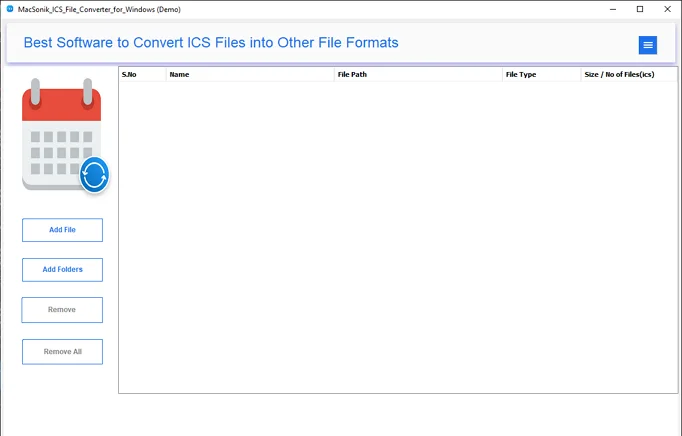
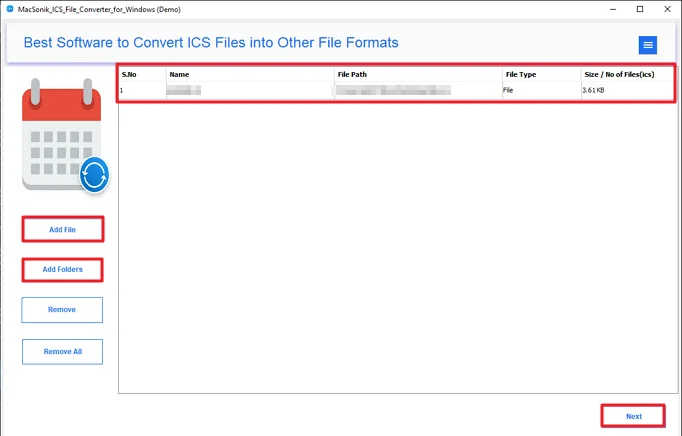
- Then, add ICS files and click Next.
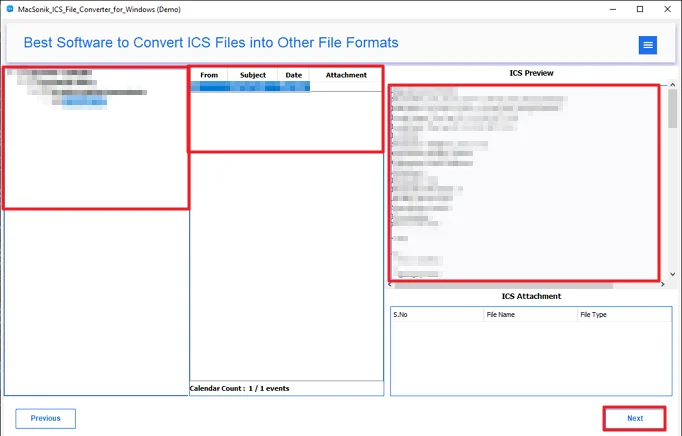
- Preview and select files, and click Next.
- Further, choose CSV format from the list.
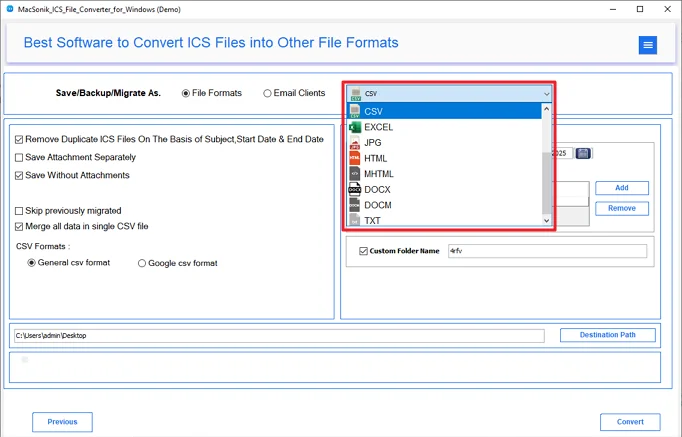
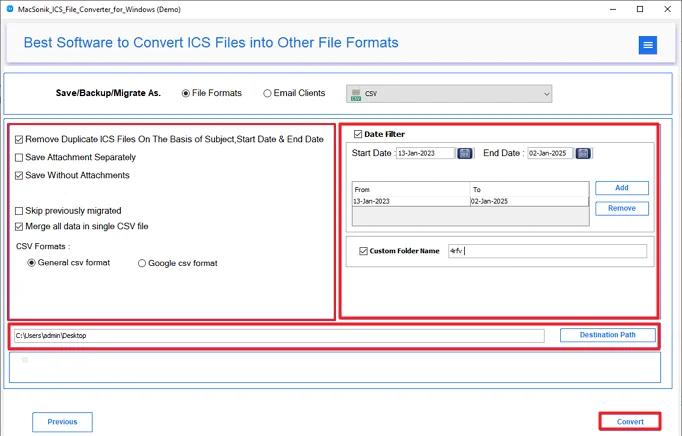
- Finally, use filters, choose a path, and click Convert.
Conclusion
To conclude, ICS files are good to keep the track of your meetings and other events. But when you need to use it in one place, that time a CSV file is a better option. You can easily convert ICS to CSV format by using the provided method above. The main thing is to choose the right methods according to youre needs.
Frequently Asked Questions
Ans: The ICS File Converter is the best tool to convert an ICS file to CSV format. It requires minimal effort and provides accurate results.
Ans: Yes, the professional tool lille ICS File Converter Tool, assures that there will be no data corruption. This utility also ensures that no data will be changed and harm after conversion.
Ans: Manual methods require technical knowledge, but a professional tool does not need any specific technical knowledge. The utility has easy to use interface that provides a smooth experience to users.
Ans: The demo version of the ICS File Converter Tool allows you to migrate only a limited number of files. But the paid version allows you to migrate your whole folder for migration.
Related Post
