Migrate Kerio Connect to Gmail With Attachments: Top Methods


User Query: We’re thinking about moving everything from Kerio Connect to Gmail. The problem is, we’re not really sure what the easiest or safest way is to handle the migration.
Summary: As companies grow, their email data grows too. More employees mean more mailboxes, folders, and daily emails. Kerio Connect works well for smaller setups, but sometimes it starts to feel limited. Because of this, many teams decide to migrate Kerio Connect to Gmail. In this blog, we’ll look at a couple of ways to migrate Kerio Connect emails to Gmail. We’ll also go through a manual approach and explain how a tool like the MacSonik IMAP Backup Tool can help with the process.
Why Migrate Emails from Kerio to Gmail?
- Gmail allows staff to open emails from any system easily.
- Enterprises shift to Gmail when the number of users starts to increase.
- Gmail connects well with tools like Google Drive, Calendar, Docs, and Meet.
- There are many users who believe that Gmail is easy to understand and familiar.
- Gmail does not allow spam and unwanted emails and blocks them immediately.
- It gives users enough space to keep emails and attachments.
- Gmail often feels easier to work with when the email traffic increases.
Manual Method to Migrate Kerio Connect to Gmail
If you want to move emails from Kerio Connect to Gmail, you can try a manual approach. This method usually involves using IMAP settings to connect both accounts.
Things to Check Before Migrating Kerio to Gmail
- Check that your Kerio Connect account is active and accessible.
- Make sure IMAP access is enabled in the Kerio account settings.
- Verify that the Gmail account has enough storage space.
- Keep a backup of important emails before starting the migration.
- Ensure you have a stable internet connection during the process.
Steps to Transfer Kerio Connect to Gmail
- First, sign in to your Gmail account.
- Go to Settings and open the Accounts and Import section.
- Click on Import mail and contacts or choose Check mail from other accounts.
- Enter your Kerio Connect email address and continue.
- Provide the Kerio IMAP server details, username, and password.
- Allow Gmail to connect and start importing the emails.
- Wait for the process to complete and then check the messages in your Gmail inbox.
Limitation
- Users have to set up the IMAP details correctly, which may confuse some people.
- The process depends on a stable internet connection; the import may stop.
- It may not work well when there are multiple user mailboxes to migrate.
- Some emails or folders may not appear in the same order after the transfer.
- The process usually needs to be repeated for every mailbox.
Quick Way to Migrate Kerio Connect to Gmail With Attachments
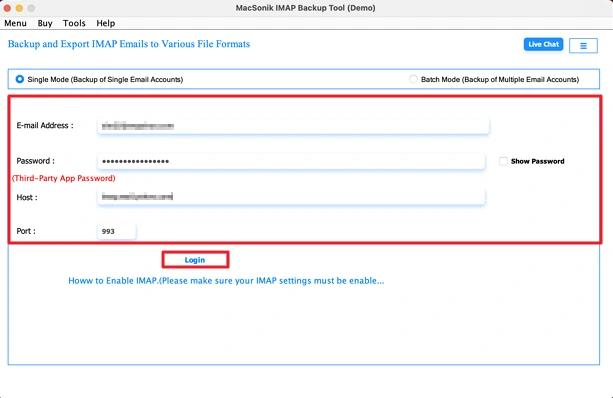
The IMAP Backup Tool is used to move emails from Kerio Connect to a Gmail account. It logs in to the mailbox and transfers the emails to the selected account. The tool also lets users save emails in formats like PST, MSG, EML, MBOX, and PDF. This helps when someone needs a copy of their emails on a computer. It can also move emails to other services such as Gmail and Thunderbird. The steps are simple. Users add the account, choose the format or destination, and start the process. Also, read this to export IMAP to PST.
Steps to Migrate Emails from Kerio to Gmail
- Firstly, download the tool and log in with Kerio credentials.
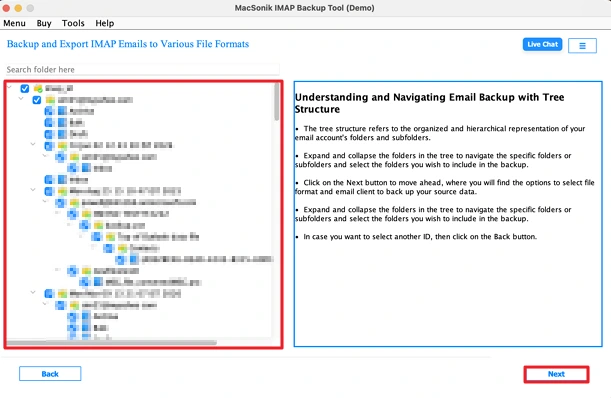
- Then, preview or select your files and click Next.
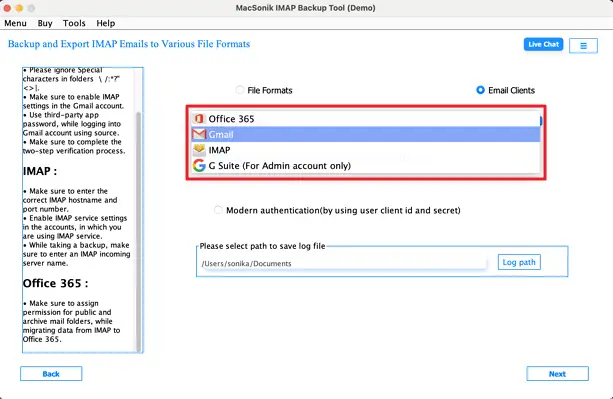
- After that, choose Gmail from the list.
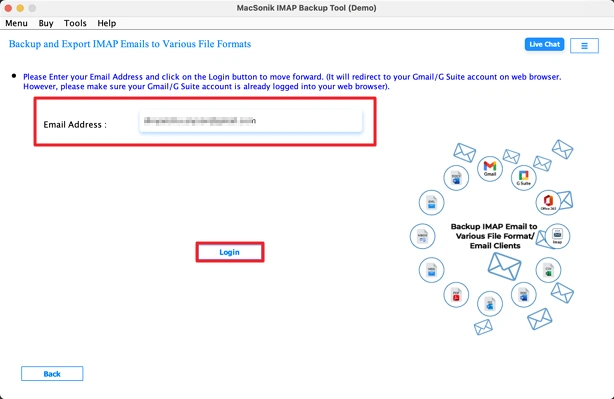
- Thereafter, log in with Gmail credentials.
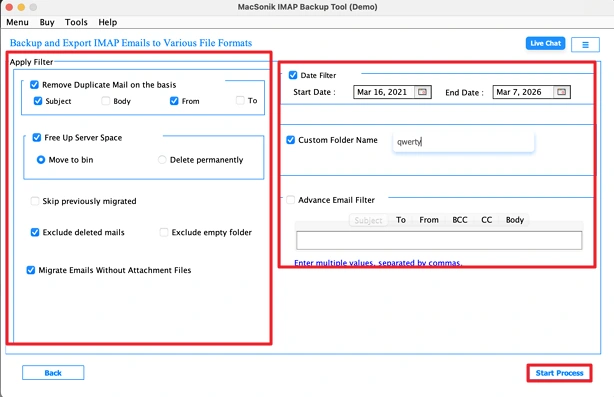
- Lastly, apply filters and click Start Process.
Conclusion
To conclude, many companies move from Kerio Connect to Gmail when their email setup starts to feel limited. Gmail is easier to manage and also works well with other Google tools. In this blog, we looked at a simple way to migrate Kerio Connect to Gmail. The automated method helps transfer emails from one account to another without too many manual steps.
Frequently Asked Questions
Ans: You can use the IMAP Backup Tool mentioned in the blog. It connects to your Kerio Connect account and transfers emails to Gmail in one process, which helps when there are multiple emails or mailboxes.
Ans: Yes. While setting up the migration in the IMAP Backup Tool, users can apply different filters before starting the process, which helps manage the data during the transfer.
Ans: The tool transfers emails directly from the Kerio mailbox to the Gmail account and keeps the emails, attachments, and folders during the process.
Ans: The manual method works for small mailboxes, but for larger data or multiple accounts, the IMAP Backup Tool is a simpler option.
Related Post
