How to Import OST to IMAP? Easy Solution


User Query: “I have multiple OST files that contain important business emails. I want to transfer OST file to IMAP so I can access these emails from any device and keep everything in sync. What is the safest way to do this without losing attachments or folder structure?”
-Aaron K. Miles
Summary: Email data becomes more valuable when it can be accessed anytime, from anywhere. However, an OST file only works on the same system and the same Outlook profile where it was created. Therefore, users choose to import OST to IMAP for easy accessibility, independent of any platform. This guide explains the most reliable methods for conversion, including both manual and automated solutions. The professional MacSonik OST to PST Converter Tool provides a safe way to export OST data while keeping the folder structure intact.
Why Users Choose to Import OST Files to IMAP?
Here are simple, clear reasons why users choose to import their OST to an IMAP account:
- IMAP stores data on the server, so users can access emails from any device, without any limitations.
- IMAP keeps everything updated in real time. Any change you make syncs everywhere instantly.
- OST files become useless when the Outlook profile, account, or system changes.
- Emails stored on the server are safer from system crashes, corruption, or hardware failure.
- IMAP makes it easy to manage the same mailbox from multiple systems or users, unlike OST, which is strictly local.
- OST is bound to the original Outlook profile. IMAP removes this dependency and allows free access.
How are OST and IMAP different?
The table below gives a simple comparison showing why many users prefer IMAP for improved accessibility.
|
Point of Comparison |
OST File |
IMAP |
|
Type |
Local Outlook data file |
Online, server-based email storage |
|
Accessibility |
Limited to the same computer |
Accessible on any device using IMAP |
|
Security |
Depends on the local system |
Stored on a secure IMAP server |
|
Sharing |
Not directly shareable |
Can be accessed across multiple clients |
|
Sync |
No auto-sync |
Real-time synchronization |
Manual Methods to Import OST to IMAP
This section covers all available manual methods. You can choose the method that suits your requirements.
Method 1: Export OST Files to IMAP Using Outlook
If Outlook is able to open your OST file, you can manually move emails to your IMAP mailbox.
Follow the steps:
- First, open the Outlook application on your system.
- Thyen, go to File > Add Account and add a new IMAP account.
- After that, Outlook will create a new IMAP mailbox in the folder pane.
- Now, open the OST mailbox and select the emails or folders you want to export.
- Further, drag and drop the data into the IMAP inbox or any other IMAP folder.
- At last, Outlook will sync the data with the IMAP server.
Method 2: Move OST Files to IMAP Using Outlook Archive
Another way is to archive OST data and then import the archived PST into the IMAP account.
- Initially, Open Outlook and go to File > Options > Advanced.
- After that, click on the AutoArchive Settings.
- And, export the OST file into PST format using File > Open & Export > Import/Export.
- Further, add your IMAP account to Outlook.
- Lastly, import the PST file and move selected emails to your IMAP mailbox.
Limitations of the Manual Methods
- They cannot import an orphaned or damaged OST file.
- There is no direct method to import your OST file to an IMAP account.
- Folder hierarchy may not remain the same as the original file.
- It is a time-consuming process for large OST files.
- No option for bulk OST import and high chances of errors or missing data.
Proficient Method to Import OST to IMAP Mailbox
For users who need a safe, accurate, and simple way to move their OST files to IMAP, the MacSonik OST to PST Converter Tool is the most reliable solution. The tool allows you to export OST files into IMAP along with all attachments, metadata, and folder structure. You can also transfer multiple OST files at once without losing any data. Additionally, the software includes smart filters such as date range, selective folder export, and duplicate email removal. Moreover, its secure login ensures your IMAP account remains protected throughout the process. Also, users can easily use this tool to import OST into Office 365 and other email clients.
Professional Steps to Transfer OST File to IMAP
Follow the steps below to import OST data file to IMAP using the CloudXena tool:
- First, download, install, and launch the OST to PST Converter Tool on your PC.
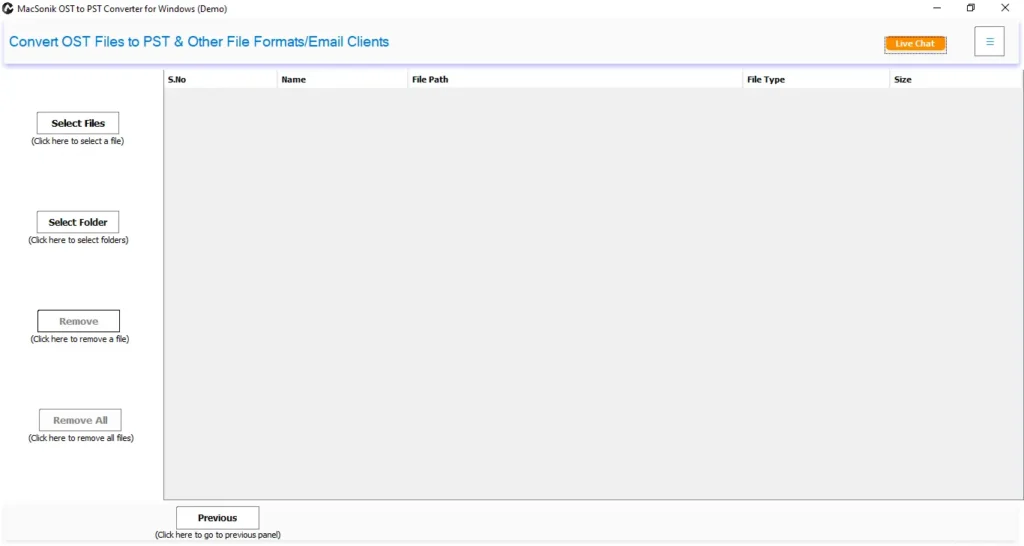
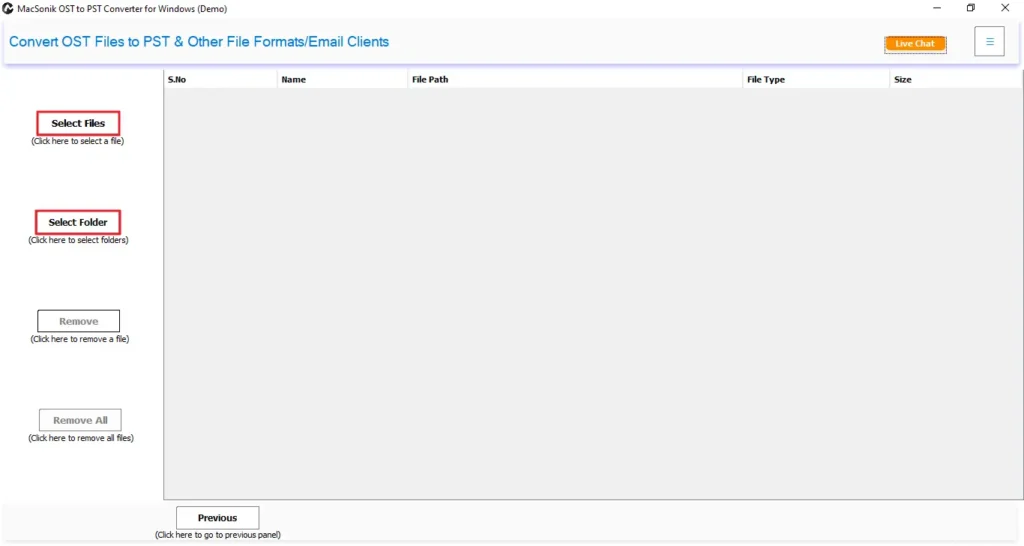
- After that, click on the Select File or Select Folder option to start browsing your OST files.
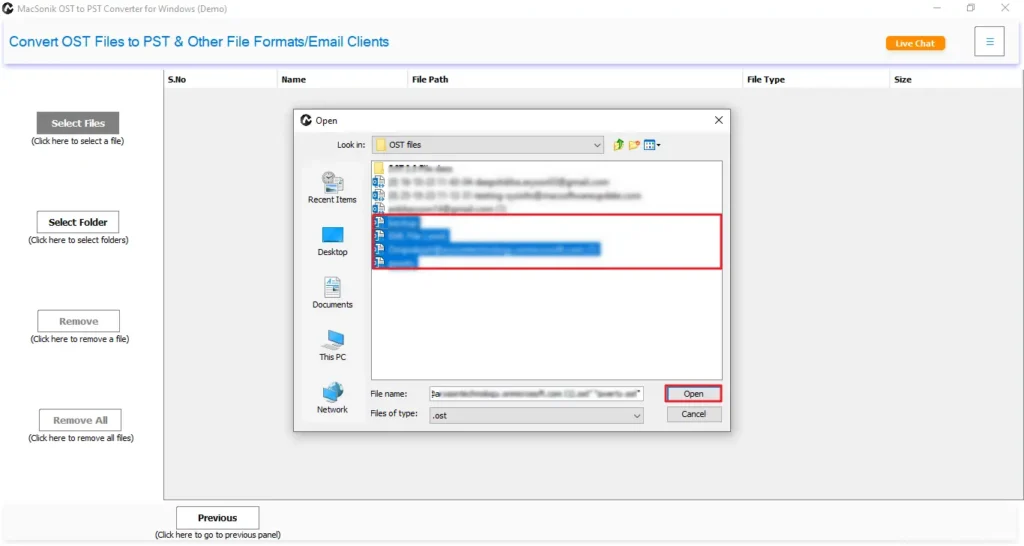
- Then, browse, select, and open the OST files in the software, and then click Next.
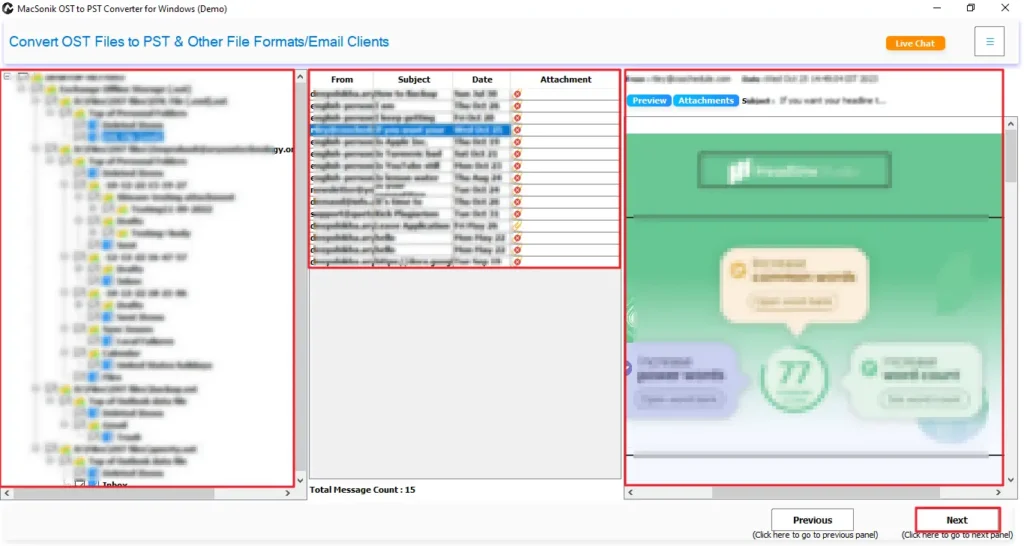
- Now, select the file or folder and preview data and attachments, then click Next.
- Further, choose IMAP from the list of Email Clients and sign in with your IMAP credentials.
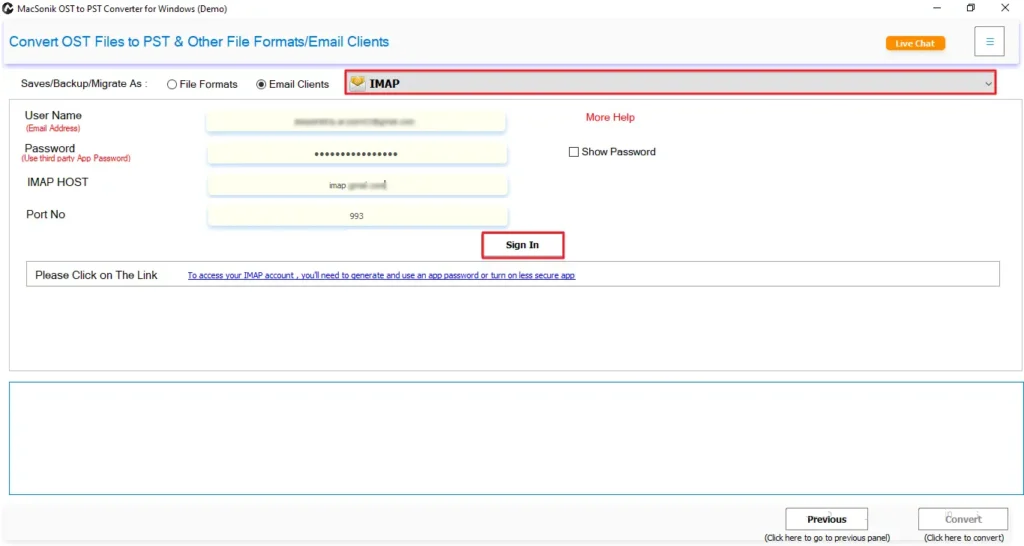
- Finally, choose the advanced filters and click Convert to export OST to VCF.

Conclusion
OST files are stored locally and can only be accessed within the same Outlook profile, which limits their availability. Hence, this blog discusses the best methods to import OST to IMAP server. Since manual methods have multiple drawbacks and work only in limited situations, it’s better to choose a professional tool. The MacSonik OST to PST Converter Tool ensures a smooth, secure, and complete migration while preserving attachments and folder hierarchy. Moreover, the tool comes with advanced features such as duplicate remover, date filters, attachment management features, and more.
Frequently Asked Questions
Q1. How to Import OST to IMAP with attachments?
Q2. Can I export OST files to IMAP in bulk?
Q3. Is it possible to move OST files to IMAP without disrupting data security?
Q4. Does transferring OST File to IMAP require any technical skills?
Related Post
