How to Import OST to iCloud With Attachments? Quick Guide


User Query: “I have an old Outlook OST file from my previous job, and I need to access those emails in my iCloud account. So, I want an easy way to import OST files to iCloud without losing attachments or formatting. What is the safest way to do this?”
-Grace R. Morgan
Summary: Email data becomes helpful only when you can access it whenever required. However, OST files store Outlook mailbox data locally, which limits accessibility, especially in cloud-based platforms like iCloud. Therefore, users choose to import OST to iCloud and access it from any Apple device. Hence, this guide explains simple ways to upload your OST files to iCloud using both free and specialized solutions. The professional MacSonik OST Converter Tool efficiently completes migration while maintaining attachments, formatting, and folder structure.
Why Users Choose to Import OST files to iCloud?
Here are the reasons why users pursue migration of OST emails to iCloud:
- Easily access your OST emails on all Apple devices like iPhone, iPad, and Mac.
- No dependency on Outlook or the original system where the OST was created.
- Provides strong cloud security with Apple’s encrypted environment.
- iCloud automatically backs up and syncs data across all Apple devices.
- Simple email management through Apple Mail and iCloud.com.
- Useful when switching from Windows/Outlook to the Apple ecosystem.
Traditional Methods to Import OST to iCloud
In this section, we will discuss the available manual methods to transfer OST files to iCloud. You can choose any method that fits your requirements.
Method 1: Migrate OST to iCloud Using PST File
This indirect method requires Outlook and a series of steps.
- To start, open the Outlook account where your OST file is configured.
- Then, click on the File tab → choose Open & Export → click Import/Export.
- After that, choose Export to a File → Outlook Data File (.pst) and proceed.
- Next, save the PST file locally on your system.
- Moving on, open Apple Mail and import the downloaded PST file.
- At last, add your iCloud account to Apple Mail and move the imported emails to iCloud folders.
|
Note: This method needs Outlook, Apple Mail, and multiple manual steps. |
Method 2: Move OST to iCloud with the Drag & Drop Method
If the OST mailbox is still active in Outlook, you can do this:
- Initially, configure your iCloud account in Outlook through IMAP settings.
- After that, let Outlook sync iCloud folders.
- Then, open the mailbox containing OST emails.
- Lastly, drag and drop emails from the OST folders into your iCloud mailbox.
Limitations of Manual Methods
Manual approaches for migration come with multiple drawbacks:
- Folder structure may not remain intact after transferring emails.
- These methods cannot sync attachments or inline images properly.
- They need Outlook, Apple Mail, and a good amount of technical knowledge.
- No filtering options such as date range, selective folders, or duplicate removal.
- Manual approaches are very time-consuming for users with large OST files.
Proficient Method to Import OST to iCloud With Attachments
For a safe, simple, and fast migration, the MacSonik OST to PST Converter Tool is the most reliable solution. It allows you to transfer OST files to iCloud in bulk without affecting the data integrity. The tool preserves attachments, formatting, and metadata while maintaining the original folder hierarchy. Additionally, it offers options to filter specific emails, avoid duplicates, and export selected folders only. Moreover, the tool uses advanced login methods that are completely secure, providing safe migration without data loss or corruption. Furthermore, users can easily import OST to Hotmail or other email clients and file formats using the same tool.
Professional Steps to Move OST to iCloud
Follow the steps given below to move OST files to your iCloud mailbox using the professional tool:
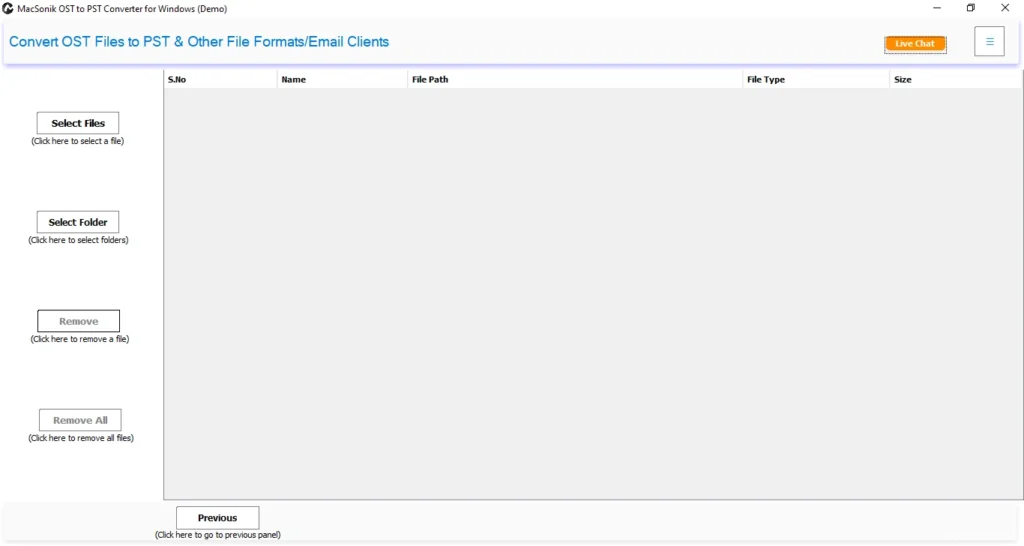
- First, download and run the OST to PST Converter Tool on your system.
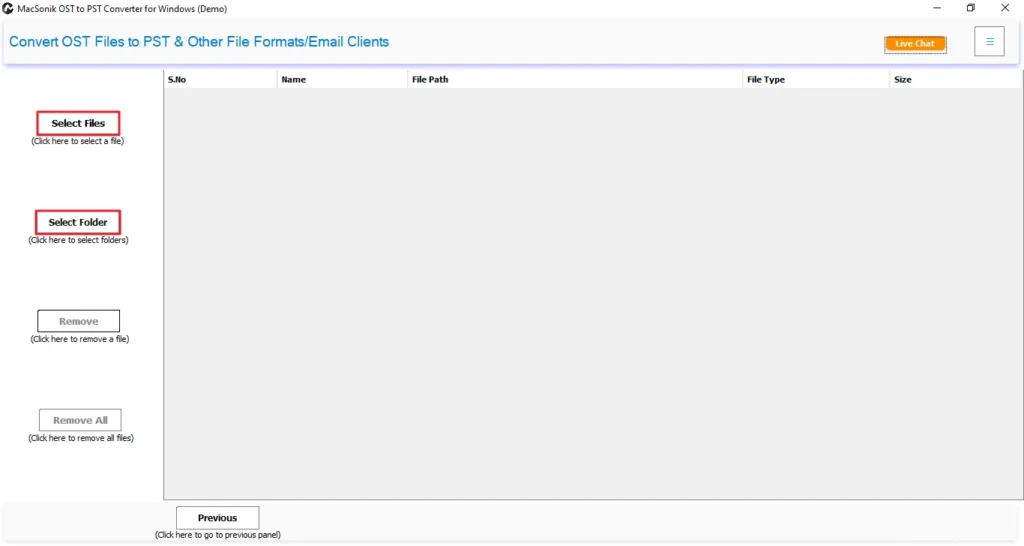
- After that, click Select File or Select Folder to open the selection window for OST files.
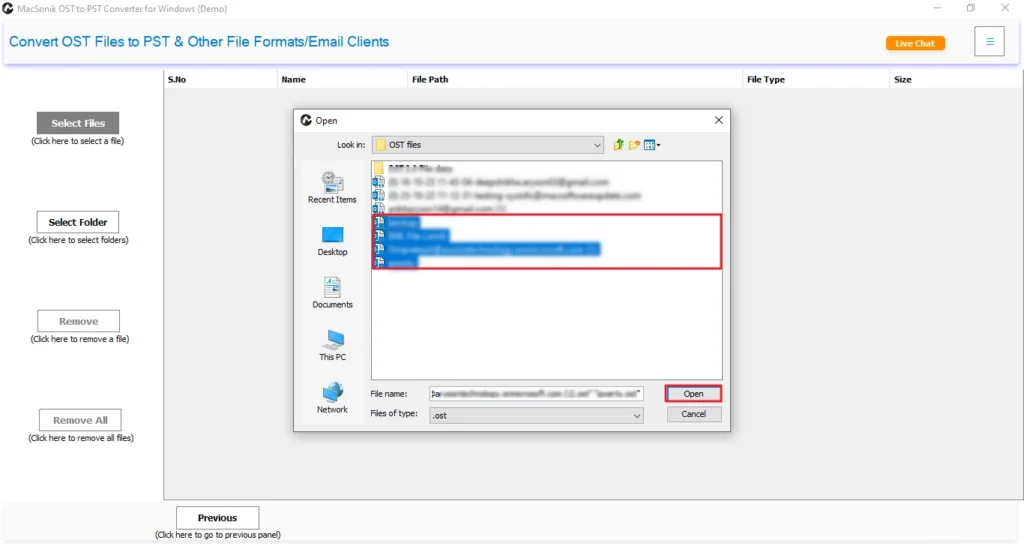
- Now, select your OST files and click Open to upload them into the software.
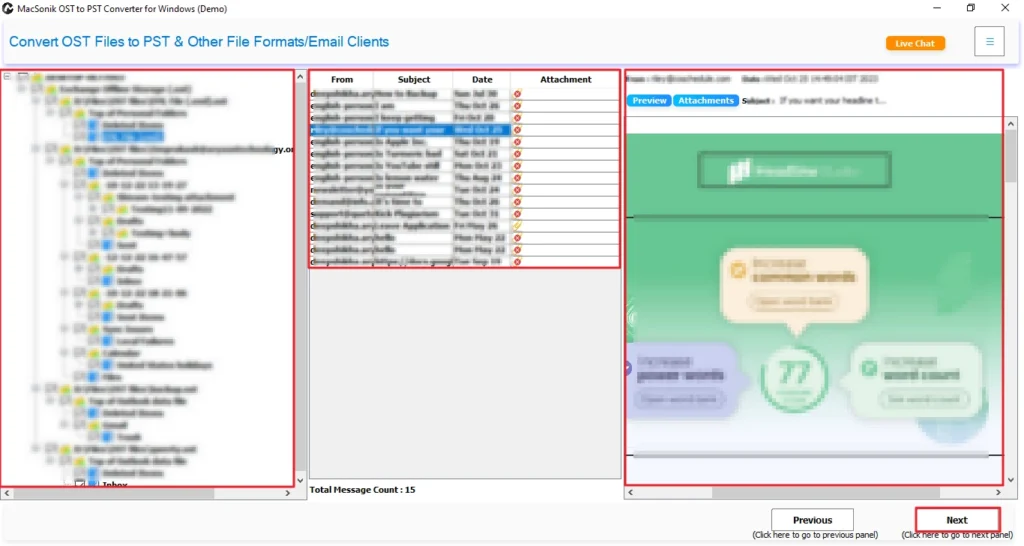
- Then, choose the emails and folders you want to export, enable the preview option, and click Next.
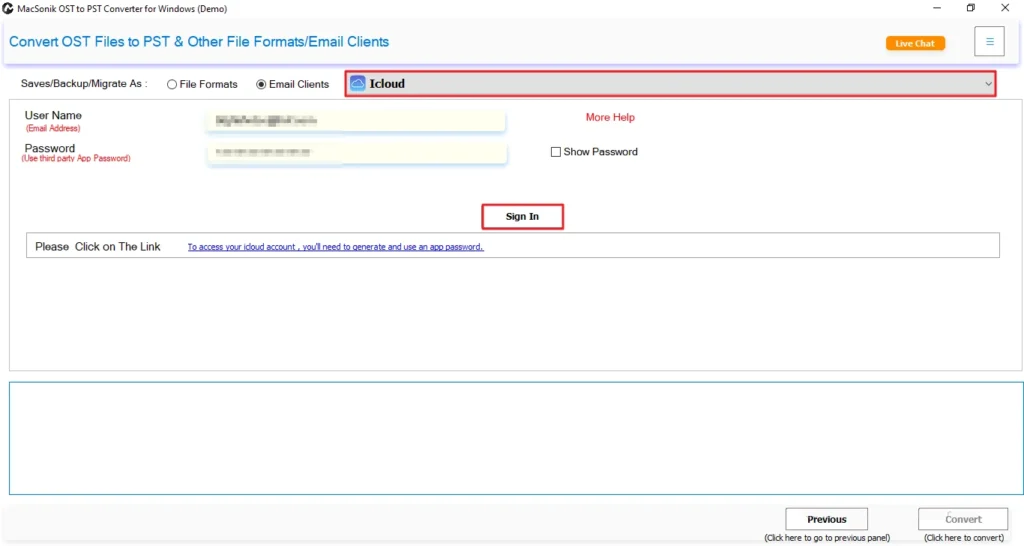
- Further, choose iCloud from the list of Email Clients, and enter your iCloud Mail sign-in credentials.
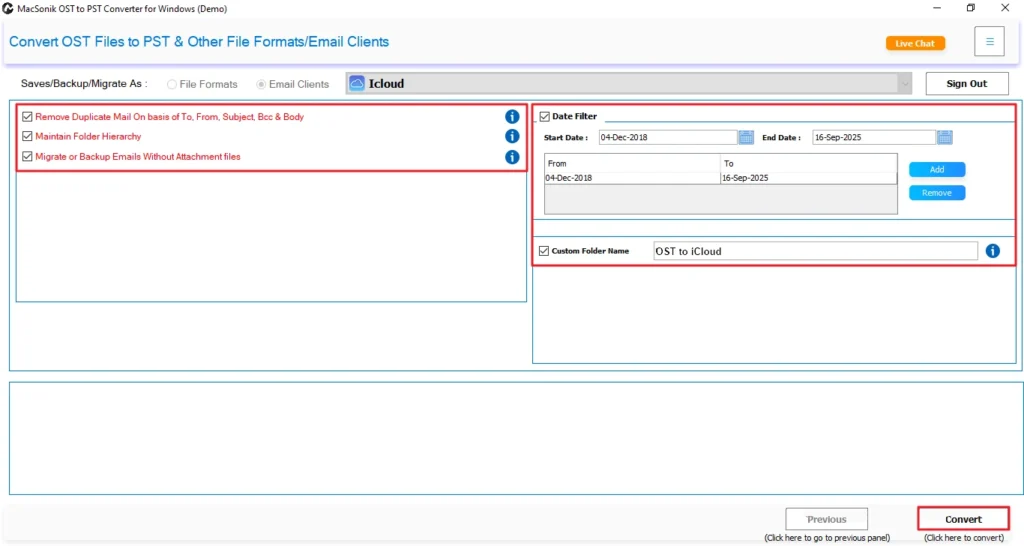
- Finally, apply the advanced filter you need to apply and click Convert to start the migration.
Conclusion
OST files can only be accessed on the system and Outlook profile where they were created. So, users find it harder to access them on any other system or cloud platforms. Therefore, this article has discussed the best manual methods to import OST to iCloud. Since manual methods are complicated, lengthy, and limited, users should choose the OST Converter Tool. The tool provides a fast, accurate, and risk-free transfer while keeping all attachments and folder structure maintained. Additionally, the tool comes with multiple advanced features that help users in selective imports.
Frequently Asked Questions
Q1. How to import OST files to iCloud with attachments?
Q2. Which is the best method to migrate OST to iCloud for a specific date?
Q3. Is it possible to move OST to iCloud without technical skills?
Q4. Can I import OST files to iCloud without duplicate emails?
Related Post
