How to Import MSG to Gmail with Attachments? Complete Guide


User Query: “How can I open or view my MSG emails easily in Gmail, so I can read them properly without any hassle?.”
Summary: MSG files are a common email format used by MS Outlook, but opening them in Gmail isn’t always easy. If you have received an MSG file and don’t know how to view it through your Gmail account, this guide has you covered. We’ll walk you through simple ways to import MSG to Gmail and show you how using the MacSonik MSG Converter Tool can make the entire process smoother and more manageable.
Main Cause to Import MSG Files to Gmail
- Many users switch from Outlook to Gmail and wish that all their old MSG files were in a single place for ease.
- Storing emails in Gmail eliminates the need for Outlook or a desktop app just to open MSG files.
- Some people need to keep work emails backed up in Gmail for safety, long-term access, or compliance purposes.
- Sharing or forwarding MSG emails becomes simpler once they’re imported into Gmail’s web interface.
- Importing MSG files to Gmail also prevents file corruption or compatibility issues that often happen with standalone MSG files.
How to Import MSG to Gmail Through Manual Methods?
If you prefer using Outlook, you can manually move your MSG files into Gmail by adding your Gmail account to Outlook. Once configured, you only need to drag the MSG files into the desired Gmail folder. Follow these steps:
Step 1: Add Your Gmail Account to Outlook
- To begin with, open MS Outlook on your system.
- Then, click File -> Add Account.
- Afterwards, select the manual setup or additional server types and then hit Next.
- After that, select POP or IMAP and continue.
- Now, enter your User, Server, and Login Information.
- Check the option Require logon using Secure Password Authentication (SPA).
- Thereafter, click More Settings to configure advanced options.
- In the Outgoing Server tab, enable My outgoing server (SMTP) requires authentication.
- Go to the Advanced tab and enter:
- IMAP (Incoming): 993
- SMTP (Outgoing): 587
- Encryption: SSL for both
- At last, click OK, then Next, and Outlook will configure your Gmail account.
Step 2: Open MSG File in Gmail via Outlook
Once Gmail is successfully added to Outlook:
- Open the Gmail folder in Outlook where you want the MSG emails to appear.
- Then, browse to the location of your MSG files.
- Finally, select and drag them directly into the Gmail folder inside Outlook.
Outlook will then sync these messages to your Gmail account automatically.
Limitations:
- You must have MS Outlook installed; without it, this method won’t work at all.
- Adding a Gmail account to Outlook can be confusing, especially for users not familiar with server settings and ports.
- The process is slow if you need to import a large number of MSG files because each message has to sync through Outlook.
Fast & Secure Way to Import MSG to Gmail with Attachments
The MacSonik MSG Converter Tool is an easy and reliable way to batch import MSG files into a Gmail account in bulk. You can quickly move multiple MSG emails to Gmail without the headache of many complicated steps. Additionally, this tool helps you convert MSG to PDF, MBOX, PST, EML, etc. This means you have greater control over how you manage your email data. Lastly, it works with all versions of Windows OS, so it is accessible to all users.
Steps to Import MSG Files into Gmail
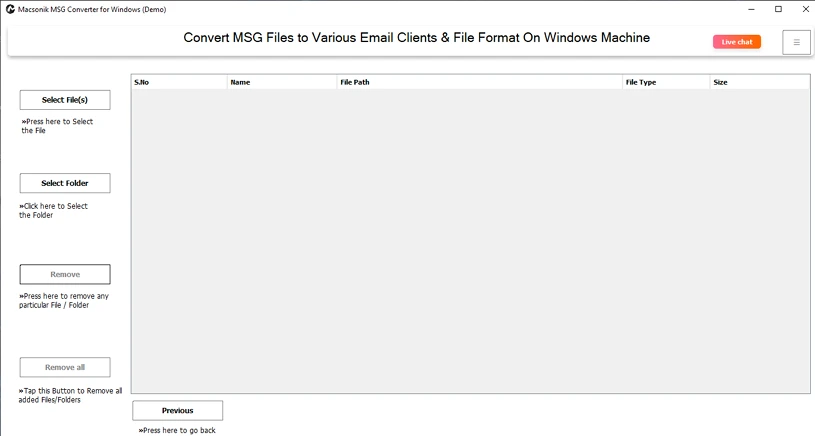
- Firstly, download and launch the MSG Converter Tool.
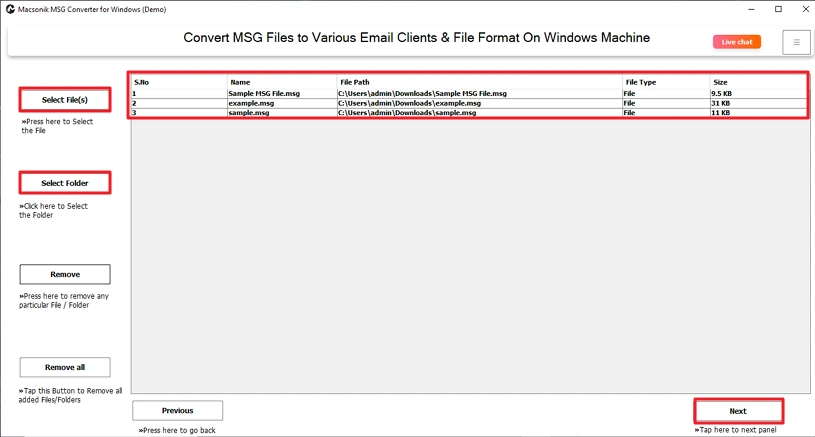
- Then, add your MSG Files or folders and click Next.
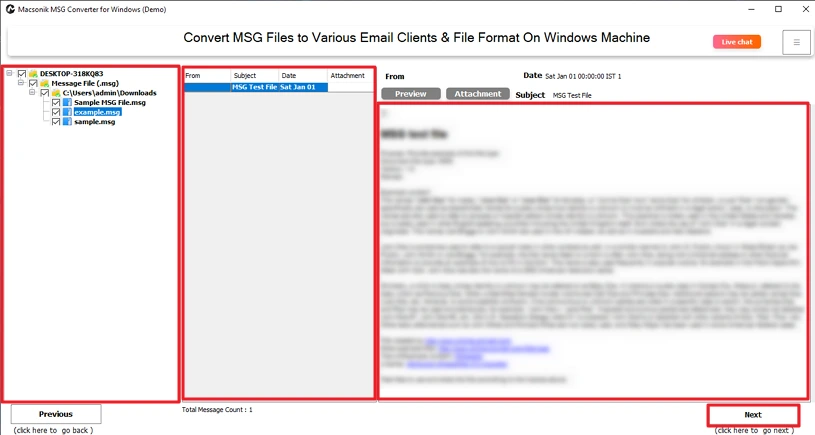
- After that, preview and select MSG files and click Next.
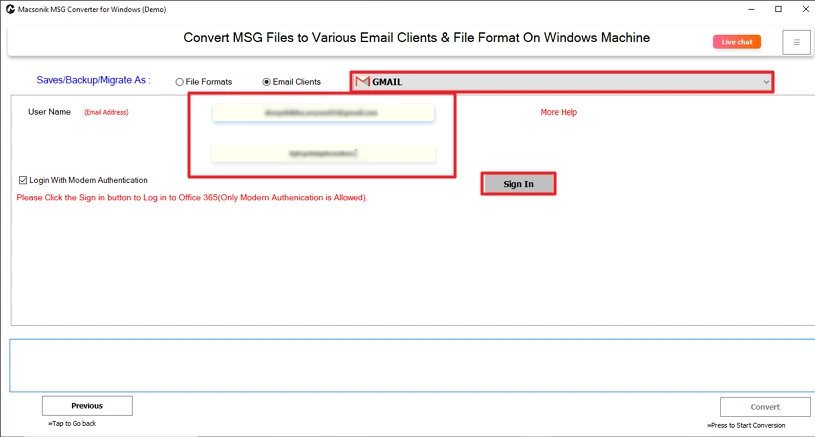
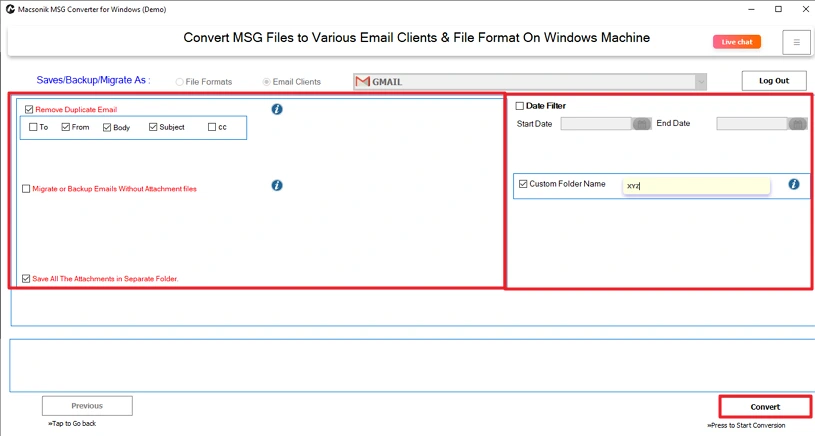
- Thereafter, choose Gmail as the destination and sign in with your credentials.
- Finally, apply filters and click Convert.
Final Words
You now have two reliable ways to import MSG to Gmail, but both work very differently. The manual method can get the job done, yet it often feels slow and a bit tricky, especially for someone who isn’t used to setting up accounts in Outlook. That’s why many users prefer a simpler route, such as a tool like MSG Converter. That makes the whole process much easier, faster, and safer. It handles multiple MSG files at once and keeps your attachments intact.
Frequently Asked Questions
Q1. Can I convert MBOX emails to Word documents without using Outlook?
Q2. Why should I import MSG files to Gmail?
Q3. Can I import selective MSG emails into my Gmail account?
Q4. What is the best tool to import MSG to Gmail without data loss?
Related Post
