Trusted Solutions to Export IMAP to PST Format in Bulk?


User Query: How can I export my IMAP emails into a PST file with no hassle in simple steps? What approach will be the best for it? I heard that PST files are commonly used for email backups.
Summary: A lot of email accounts work on IMAP, but taking a proper backup isn’t always that straightforward. Many users prefer saving their emails in a PST file since it works with Outlook and is easy to keep as a backup. In this blog, we’ll go through a simple way to export IMAP to PST. We’ll also mention the MacSonik IMAP Backup Tool that can help when you need to export many emails at once
Why Export IMAP Mailbox Data in Outlook PST?
- Many people export IMAP emails to PST so they can keep a local backup.
- A PST file lets users open and read old emails later in Microsoft Outlook.
- Some users create PST backups before closing an old IMAP email account.
- Exporting to PST helps when moving emails from one Outlook setup to another.
- PST files are useful for saving older emails outside the main mailbox.
- Many users keep PST copies so important emails stay stored on their computer.
- Businesses often export mailboxes to PST for keeping email records and archives.
- A PST file also helps when transferring emails to another computer easily.
How to Export IMAP to PST File Format Manually?
In this method, we are going to use MS Outlook to complete this export manually with no hassle. See and implement all the steps for accurate results.
Steps to Export IMAP Mailbox to PST
- Open Microsoft Outlook and click File.
- Further, choose Open & Export > Import/Export.
- Select Export to a file and click Next.
- Now choose Outlook Data File (.pst) as the export format.
- Select the IMAP mailbox or folder to export.
- Click Next, then choose a location on your system to save the file.
- Finally, click Finish to transfer IMAP emails to PST
Limitations of the Manual Method
- Some users find the Import/Export steps confusing, particularly if they rarely use Outlook settings.
- If the internet connection drops, the export may stop before all emails are saved.
- Large mailboxes sometimes slow down Outlook while the export is running.
- There is a chance that a few emails or folders may not export properly.
- Because of these issues, many users look for a simpler tool-based method instead.
Secure & Trusted Method to Export IMAP to PST in Bulk
IMAP Migration Tool is used to save or download emails from an IMAP server. The tool can export those emails into a PST file. It can also move IMAP emails to other email clients along with their attachments. Another option in the tool is saving emails directly to the computer in formats like PST, PDF, EML, MBOX, or CSV. Also, read this to migrate IMAP to Google Workspace.
Steps to Convert IMAP Data to PST
- Firstly, download the IMAP Backup Tool.
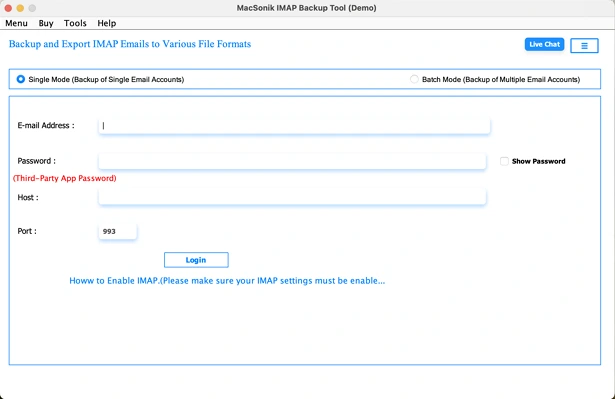
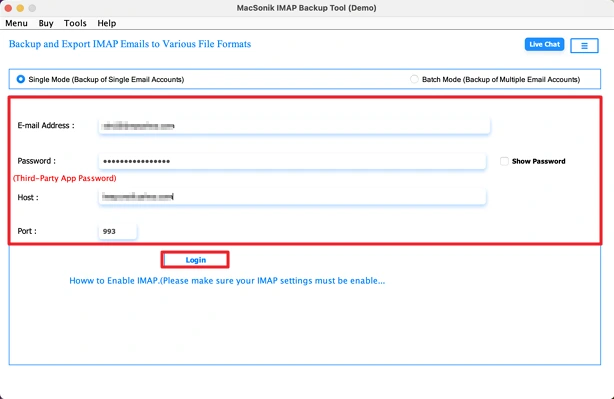
- Then, log in with IMAP credentials.
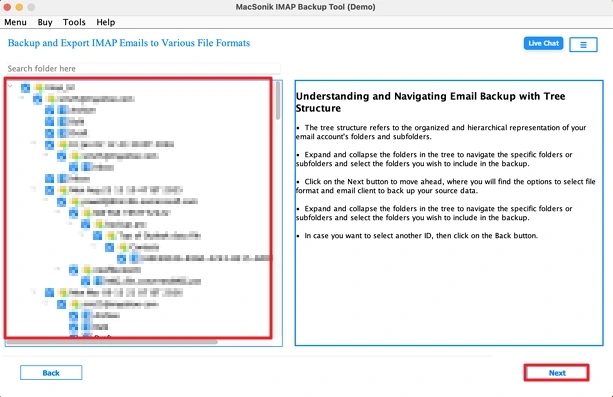
- Expand the tree and select the files, and hit Next.
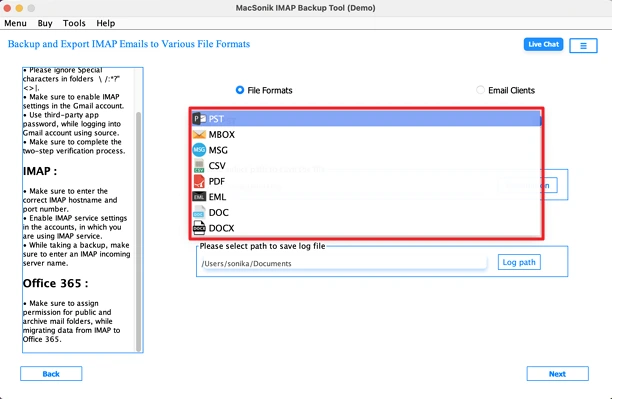
- Thereafter, choose PST from the dropdown.
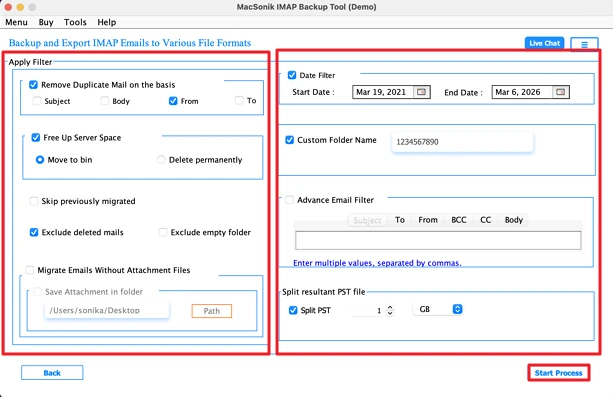
- Lastly, apply filters, set the path, and click Start Process.
Successful User Case
Situation:
A marketing team member had several years of emails stored in an IMAP account. They needed a safe backup of those emails before changing their email setup.
What They Did:
They used the IMAP Backup Tool to save IMAP emails in a PST file, which they could open later in Outlook. This helped them keep a local backup of important messages without losing the folder structure.
Conclusion
In this blog, we talked about two ways to export IMAP to PST file. One way is the manual option in Outlook. The other way is using a migration tool. The manual steps can work, but it is difficult for those users who don’t have technical knowledge. To overcome this mostly people who have a lot of emails usually go with a tool instead.
Frequently Asked Questions
Ans: You can use the IMAP Backup Tool mentioned in this blog. After logging in with your IMAP account, select the mailbox and choose PST as the output format to export emails with attachments.
Ans: Yes. The tool provides filter options, which allow you to select specific emails before starting the export process.
Ans: The blog explains two methods: the manual Outlook method and using an IMAP Backup Tool. The manual way works for small mailboxes, while the tool is more practical for exporting many emails.
Ans: The tool exports IMAP emails to PST while keeping the email data and attachments the same during the process.
Related Post
