How to Export Gmail to PDF File Format in Bulk? Easy Methods


User Query: “How can I save my Gmail emails as PDF files easily and without much effort? Are there easy ways to do this for backup or offline access? Is there a tool that can help make exporting Gmail emails simpler?”
Summary: Are you trying to save your Gmail emails as a PDF and feeling it’s tricky? Lots of users want to keep a copy for backup or to access offline. In this blog, I’ll show you free ways to export Gmail to PDFs. There’s also a professional MacSonik Gmail Backup Tool that can make the process easier. In addition to it, I’ll explain why having your emails saved on your computer is useful.
Benefits of Users to Save Gmail as PDF
- It helps you to see your emails anytime, and from anywhere without Gmail.
- The PDF files are easy to share, and you can easily print them.
- PDF files are used to create backups by users for any unexpected event.
- It’s simple for users to manage or organize saved emails on their computer in folders or archives.
- You can easily search PDF files and can quickly find what you need in them.
- Locally saved PDF files give you total control over your data.
How to Export Gmail to PDF with Manual Approaches?
These methods work fine if you only want to save a few Gmail emails. It uses the print option to save emails as PDFs, but it’s not useful for large numbers.
1) Using Print to PDF to Export Gmail Emails to PDF
- Firstly, log in to the Gmail account.
- Then, open the email you want to save as a PDF.
- After that, click the three-dot menu in the top-right corner and select Print.
- Thereafter, choose Save as PDF as the printer option.
- Further, if needed, click More Settings to adjust formatting options.
- Afterwards, click Save to start the creation of a PDF file.
- Finally, choose where to save the PDF and click Save again.
2) Using the Print ALL Option to Convert Gmail Email to pdf
- Firstly, log in to your Gmail and open the email you want to save.
- Then, click the Print All button.
- Choose Save as PDF as the destination in the print window.
- Afterwards, click Save to export the email.
- Thereafter, pick where you want to save and click Save again.
- At last, go to the folder you chose to find your saved PDF.
Limitations
- You can only save one email at a time, so the process feels slow.
- There’s no option to export many emails or whole folders together.
- Attachments don’t always get saved properly with the PDF.
- Gmail labels or folder structure are not kept.
- Email layout may change based on print settings.
- This method doesn’t work well if you have a large mailbox or business emails.
Export Gmail to PDF File Format in Bulk: Zero Data Loss
The manual methods are not a reliable solution because they come with a lot of limitations. The professional MacSonik Gmail Backup Tool lets you save many Gmail emails as PDF files at the same time. It handles bulk exports without taking too much time. The tool can manage large amounts of data smoothly. Moreover, many users use this tool to migrate Gmail to IMAP and many other email clients.
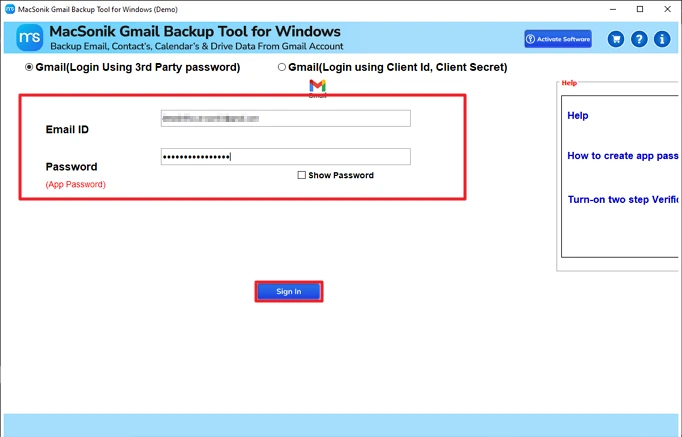
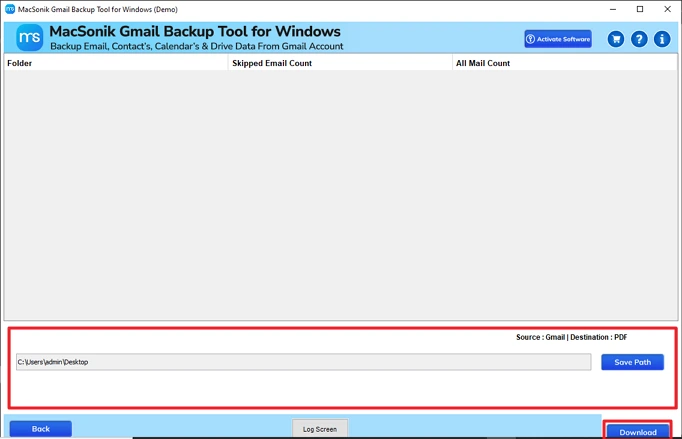
Quick Steps to Save Gmail as PDF
- Download the tool and log in with credentials.
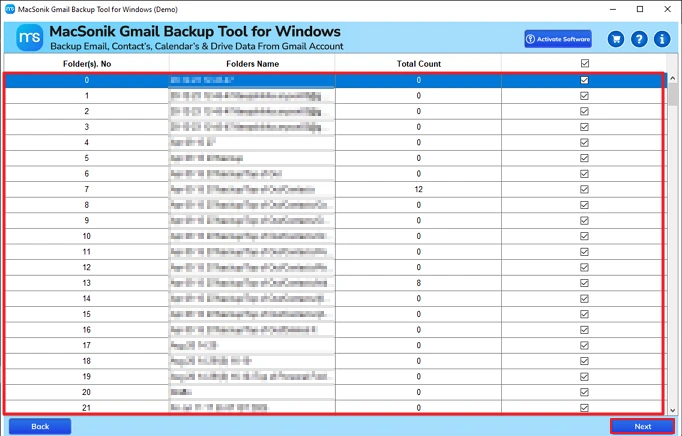
- Then, select the files to save in PDF and click Next.
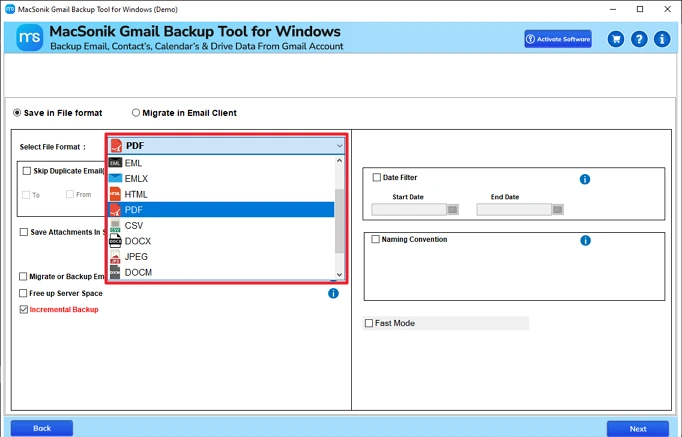
- After that, choose the PDF file format,
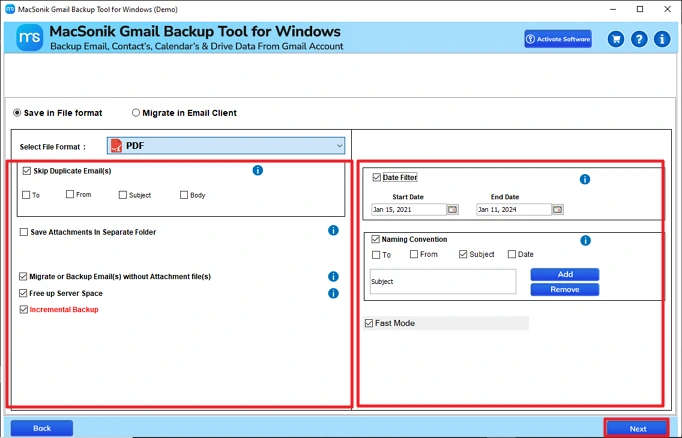
- Thereafter, apply filters and features as per the requirement.
- Finally, set the path and click Convert.
Conslusion
This blog covers different ways to export Gmail to PDF files, explained step by step. It has both the manual method and an automated option, best suited to the user. The manual approach can help in some cases, but not always, because it also has some clear limitations. A Gmail Backup Tool is an easy and effective option for faster and more secure results. It can deal with a large number of emails without any hassle.
Frequently Asked Questions
Q1. How do I export Gmail Emails to PDF directly?
Q2. Can I export Gmail to PDF with Attachments?
Q3. Is it possible to convert Gmail emails to PDF according to date range?
Q4. Which is the best method to save Gmail to PDF?
Related Post
