Quick Ways to Export Gmail Contacts to CSV Format?


User Query: “Due to some urgency, I want my contacts in CSV format that I stored in Gmail. Does anyone know about the process of this export? Is there any efficient method to solve this issue with 0 hassle?”
Summary: These days, most communication depends on having an internet connection. But there are some users who want to export Gmail contacts to CSV for offline access. The main issue is figuring out how to do it properly. Gmail doesn’t make the process very obvious. Some tools, like MacSonik Gmail Backup Tool let you export the Gmail contacts to CSV without missing any data. In this blog, we’ll also talk about why saving contacts in CSV format is useful and when it actually makes sense to do it..
Need to Import Contacts from Gmail to CSV
- A CSV file is a plain text file that is why it can easily be opened on any device.
- Users can open their files in Excel or another spreadsheet with no issue.
- CSV files are easy to clean up or organize.
- You can save the CSV on a USB or external drive, just in case something happens to your original contacts.
- Using a spreadsheet helps you sort through them and remove duplicates without much trouble.
- You don’t need the internet to see your contacts.
Manual Method to Export Gmail Contacts to CSV Format
There are two main ways to get your Gmail contacts into a CSV file. Manual ways are using Google Contacts or Google Takeout.
Method 1: Export Contacts from Gmail to CSV
- Firstly, open a web browser and go to Google Contacts.
- Then, sign in with your Gmail account.
- Pick either Contacts, Frequently Contacted, or a specific label.
- After that, select a few contacts or click Select all contacts/
- Thereafter, click on More Actions (three dots) > Export.
- Further, pick the CSV format, either Google CSV or Outlook CSV.
- Finally, click Export to download CSV
Method 2: Export Google Contacts to CSV Using Google Takeout
- Firstly, go to Google Takeout and log in with your Gmail account.
- Then, click Deselect all.
- After that, scroll down and select Contacts from the list of Google services.
- Furthermore, hit Next step and choose your export preferences.
- Afterwards, click Create export.
- At last, download the archive (a .zip file), unzip it to get contacts saved as CSV files.
Limitations
- Complex labels or groups might not export properly.
- Google Takeout includes extra data, making the process slower and more confusing.
- Not great for frequent exports since you repeat the whole process each time.
- Sometimes you get more info than needed, making it harder to find just contacts.
Professional Method to Export Gmail Contacts to CSV Format
The MacSonik Gmail Backup Tool helps you move your contacts to a CSV file easily. It keeps all the details accurate when exporting. Besides contacts, it can also convert emails into different formats, like export Gmail to PDF, and work with various email clients. The tool has options to filter contacts, remove duplicates, and handle attachments. At last, this tool is good enough to make your process simple and organized.
Simple Steps to Export Google Contacts to CSV
- Download the professional Gmail Backup Tool.
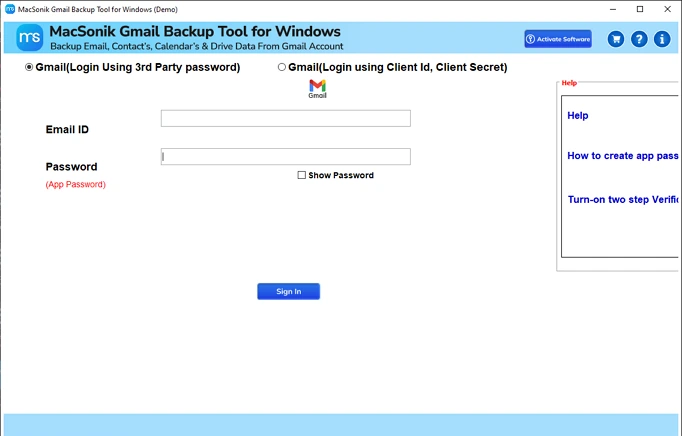
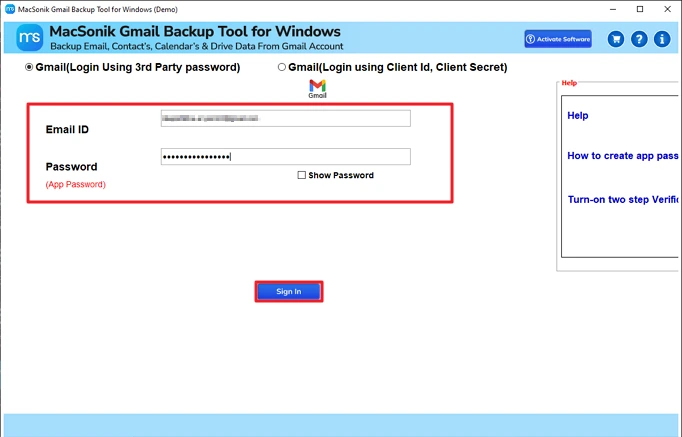
- Then, use Gmail credentials and click Sign in.
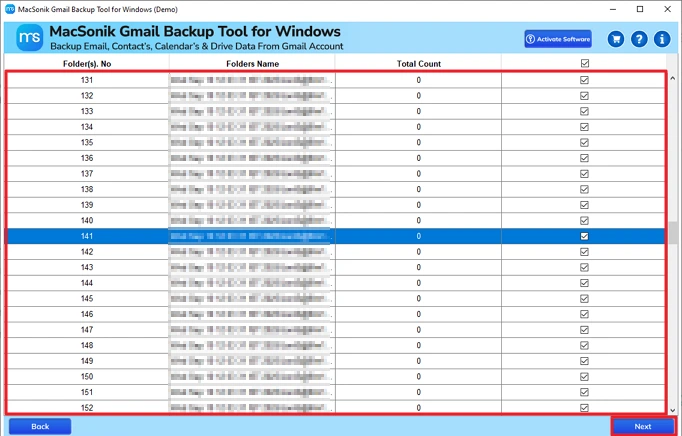
- Afterwards, select the folders and click Next.
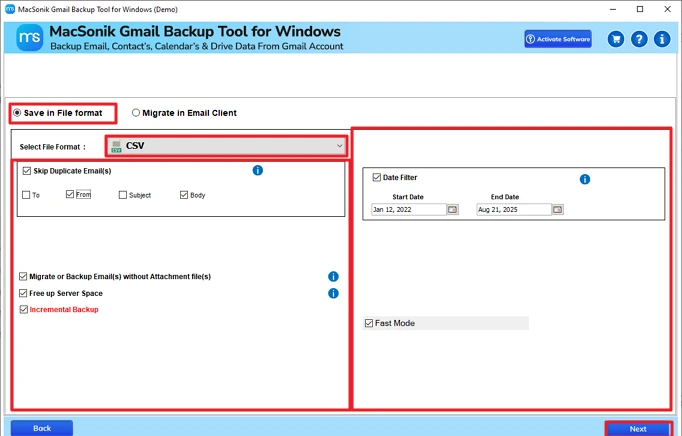
- Further, choose CSV format, apply filters, and click Next.
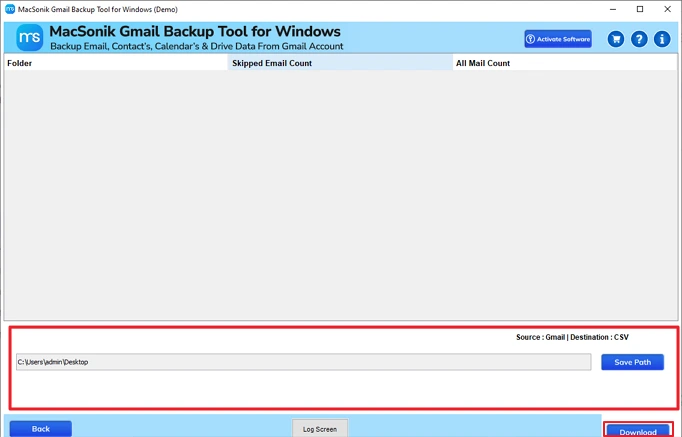
- Lastly, set the path and click Download.
When Should You Use the Manual Method?
- Only need to export a small number of contacts
- The export is a one-time task
- You are not in a hurry
- Don’t need advanced options like filters or duplicate removal
When Is the Professional Method a Better Choice?
- Have a large number of Gmail contacts
- Need the CSV file quickly
- Accuracy matters, and you want to avoid missing data
- You want options like filtering, removing duplicates, or selective export
- Plan to export contacts more than once
Conclusion
The process to export Gmail contacts to CSV makes managing a lot of contacts much easier. Manual methods are good for a few files. If you have many files, then it will take time and cause errors. The Gmail Backup Tool really helps when the user has too many files and a limited time for export. Additionally, this utility offers a free version for all to check whether it fulfills the user’s requirements or not.
Frequently Asked Questions
Q1. How do I Transfer Gmail Contacts to CSV in Bulk?
Q2. Is it possible to remove duplicates while exporting contacts from Gmail to CSV?
Q3. Can i Export Gmail Contacts to CSV on Mac?
Q4. Which is the best method to export Google Contacts to CSV?
Related Post
