How to Convert OST to VCF Format? Complete Solution.


Summary: Multiple users have OST files containing important Outlook contacts, but it becomes difficult for users to access them outside Outlook. Therefore, users search for a safe way to convert OST to VCF to access their contacts easily. VCF (vCard) is a universal format supported by almost every device and application. Hence, this guide explains the complete conversion process, including both free and professional methods. The advanced MacSonik OST to PST Converter Tool promises safe and accurate contact export while protecting fields and formatting.
Reasons for Users to Choose Export OST to VCF
- Users export their OST to VCF so they can open their contacts without using Outlook.
- It helps them use the contacts on mobile phones like Android and iPhone.
- VCF files make sharing contacts with others quick and easy.
- People move OST to VCF to keep a safe backup of all their contacts.
- It is useful when the OST file is damaged or Outlook stops working.
- Many email services like Gmail and iCloud accept VCF, so users can convert it for easy import.
Differences Between OST and VCF Files
The table below gives a clear comparison of why users prefer to convert OST file to VCF format.
|
Point of Comparison |
OST File |
VCF File |
|
Type |
Outlook data file |
Universal contact file |
|
Accessibility |
Requires Outlook & Exchange | Opens in phones, Gmail, iCloud, Outlook |
|
Portability |
Limited |
Easily shareable and transferable |
|
Usage |
Bound to the system environment | Supported by all devices |
| Backup | Depends on Outlook |
Offline, portable contact backup |
Free Methods to Convert OST to VCF Format
In this section, we will discuss the available manual ways to export OST to VCF format. You may select any method depending on your needs.
Method 1: Export Contacts Manually from Outlook
Outlook allows users to manually export contact files. Follow the steps carefully:
- First, launch the Outlook application on your computer.
- After that, open the Contacts section from the bottom-left corner.
- Then, select the contacts you want to export and click File > Save As.
- Further, choose vCard Files (*.vcf) as the saving format.
- Finally, save the contact file to your system.
Method 2: Convert OST Contacts via Outlook Import/Export Option
Another way is to export contacts using Outlook’s import/export wizard. Follow these steps:
- Initially, open Outlook on your PC and click File > Open & Export.
- Afterwards, choose Import/Export and select Export to a file and click Next.
- Moving on, choose Comma-Separated Values (CSV) as the output format, then export and save the file as CSV.
- Now, open your CSV file in Excel and arrange the data into vCard fields such as Name, Phone, and Email.
- Furthermore, save the file using Save As → Text and open the saved text file in Notepad and manually format each contact into a vCard structure.
- Finally, save the file with a .vcf extension to complete the conversion.
Limitations of the Manual Methods
The manual methods come with multiple drawbacks; we have discussed them here:
- These methods are not capable of directly changing the OST file to VCF in bulk.
- Also, these methods are not suitable when Outlook or Exchange is unavailable.
- They do not maintain all contact fields, such as address, job title, or profile image.
- Comes without any advanced filtering options like date range or selective export.
- Additionally, they are extremely time-consuming when dealing with large OST files.
Proficient Method to Convert OST to VCF Files
For users who need a perfect conversion solution, the MacSonik OST to PST Converter Tool is the most reliable choice. The software allows you to move OST to VCF quickly while keeping every detail intact, like in the original file. Also, it lets you extract contacts, emails, calendars, tasks, and other items separately. Moreover, it provides the user capability to convert OST to PDF format and multiple other formats, including VCF, PST, CSV, and more. Apart from this, the tool offers filters like date range, folder selection, duplicate removal, and many more to help you export only the required items.
Professional Steps to Export OST File to VCF
Follow the given steps to safely change OST file to VCF using the professional tool:
- First, download, install, and launch the OST to PST Converter Tool on your PC.
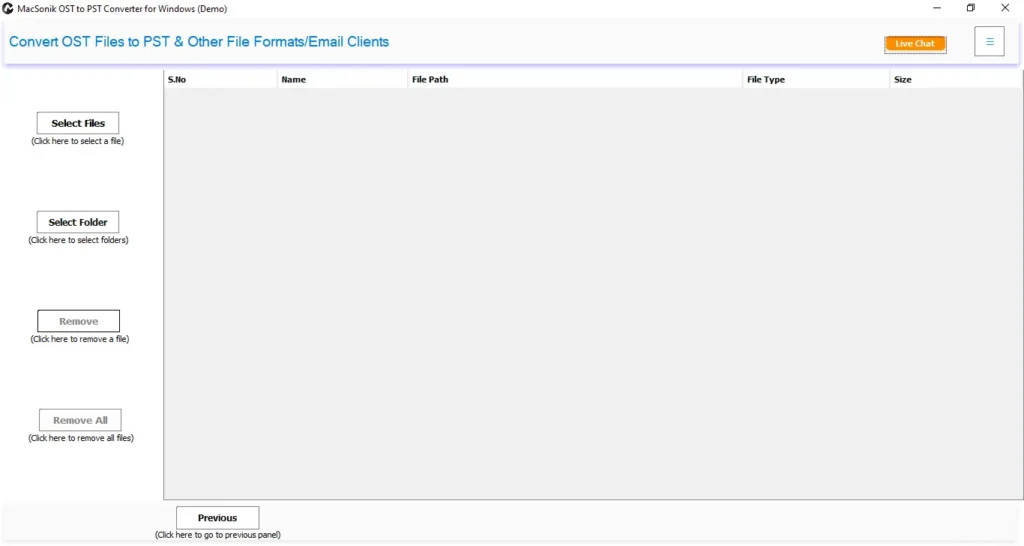
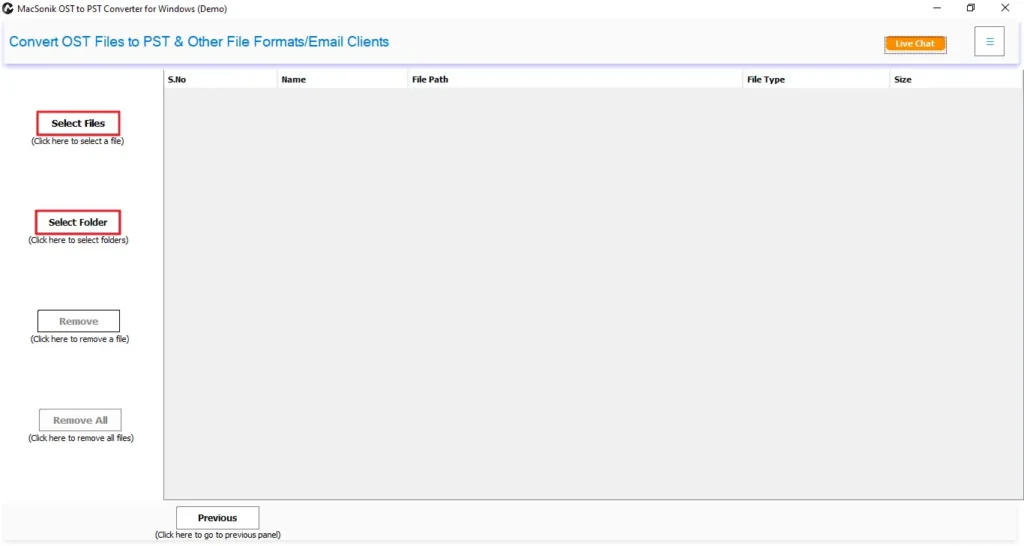
- After that, click on the Select File or Select Folder option to start browsing your OST files.
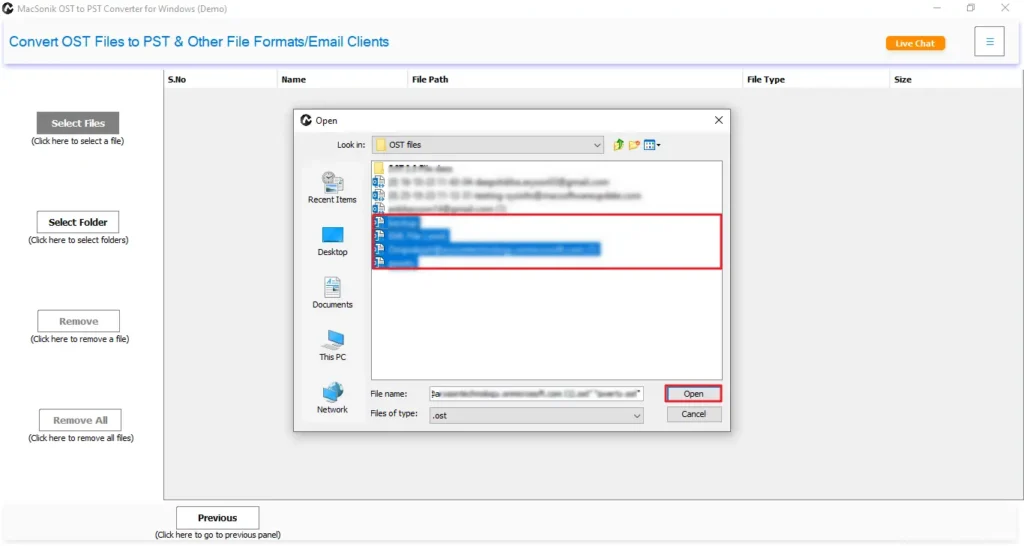
- Then, browse, select, and open the OST files in the software, and then click Next.
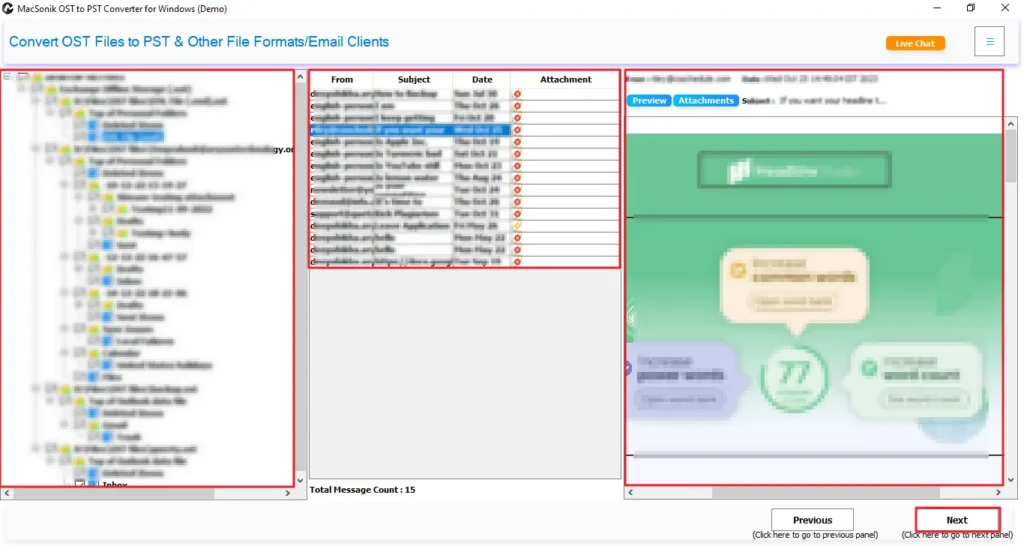
- Now, select the file or folder and preview data and attachments, then click Next.
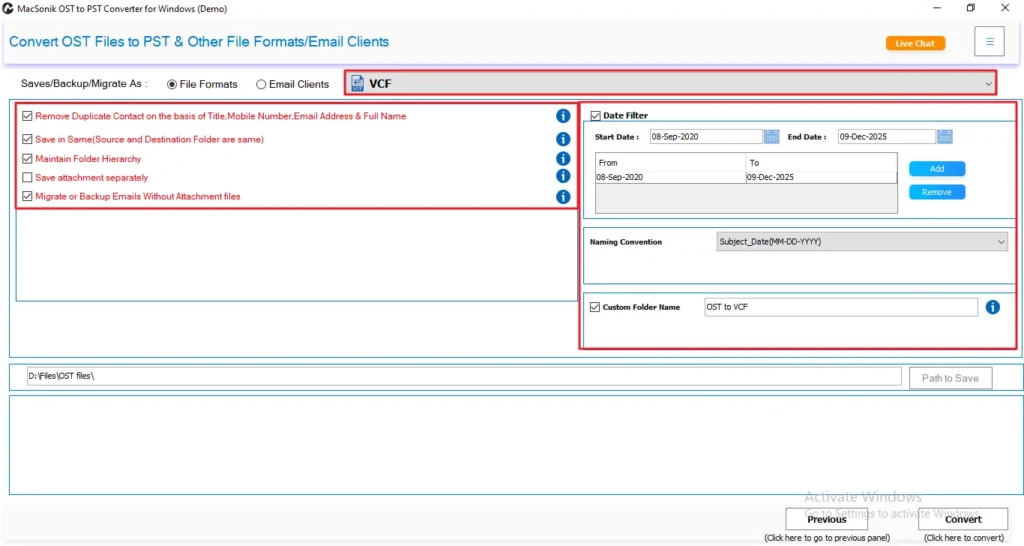
- Further, choose VCF from the list of File Formats and apply the required advanced filters.
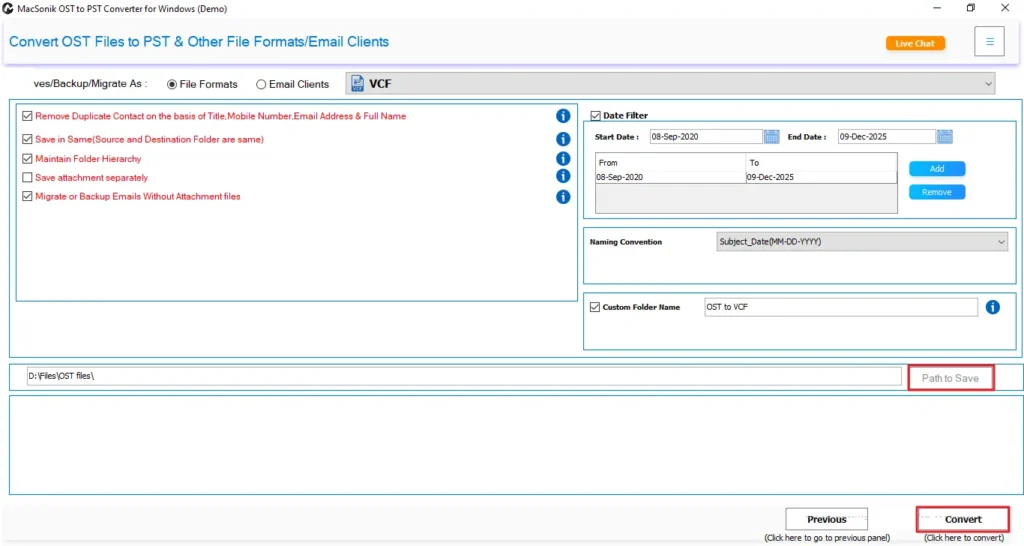
- Finally, select a Path to Save and click Convert to export OST to VCF.
Conclusion
OST files store important Outlook data, but opening or transferring contacts from them is sometimes challenging. Therefore, it’s better to convert OST to VCF because it provides complete flexibility, accessibility, and a safe local backup. Since manual methods are limited and work only for basic needs, we don’t recommend them to professionals. Hence, users who want a smooth and error-free conversion can choose the professional MacSonik OST to PST Converter Tool. Also, it produces accurate, bulk, and secure contact export while maintaining all fields and attributes.
Frequently Asked Questions
Q1. How to convert OST to VCF format for a specific date?
Q2. Is it possible to export OST to VCF with attachments?
Q3. Can we move OST to VCF format without any technical skills?
Q4. How to change files from OST to VCF in bulk?
Related Post
