How to Convert OST to MSG Files? A Complete Guide


Summary: OST files store only a cached copy of your mailbox. And if your exchange profile got deleted, you can not access OST files. Therefore, it is smart to keep your OST Files backed up in another format prior. On the other hand, MSG files are locally stored proprietary file formats developed by Microsoft. Hence, in this blog, we will we will cover the top methods to convert OST to MSG Files. This article will explain two free manual approaches. Plus, one expert recommended the MacSonik OST to PST Converter for bulk conversion.
My data is stuck in OST files, and I need to liberate them into individual MSG formats for better portability and sharing. Can you recommend a simple yet effective method to save OST File to MSG without losing any metadata or attachments?
-Alexis John Swift, IT Admin
Steps to Convert OST to MSG format with Attachment
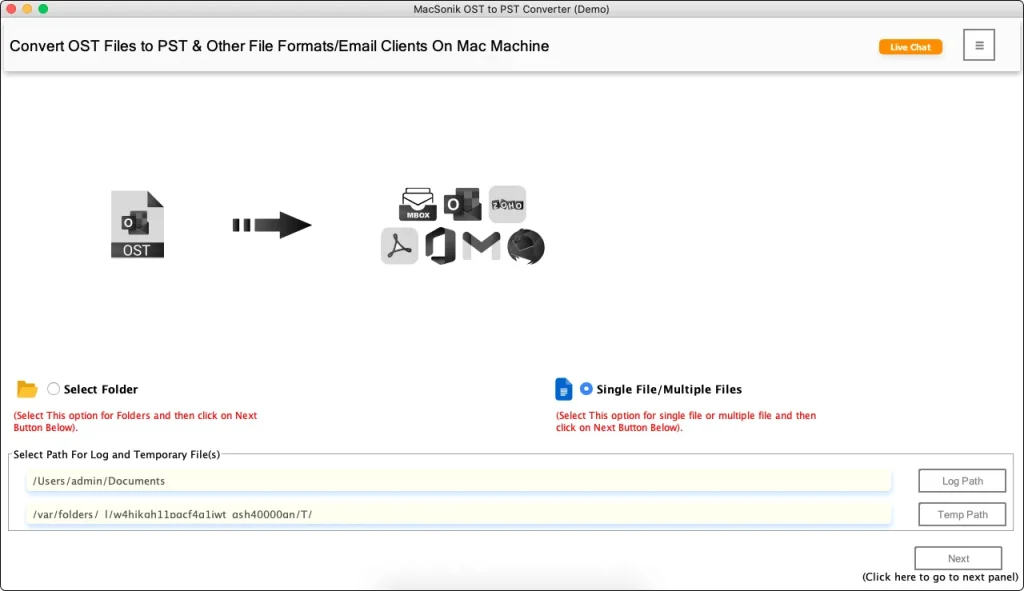
- Install and open MacSonik OST to PST Converter.
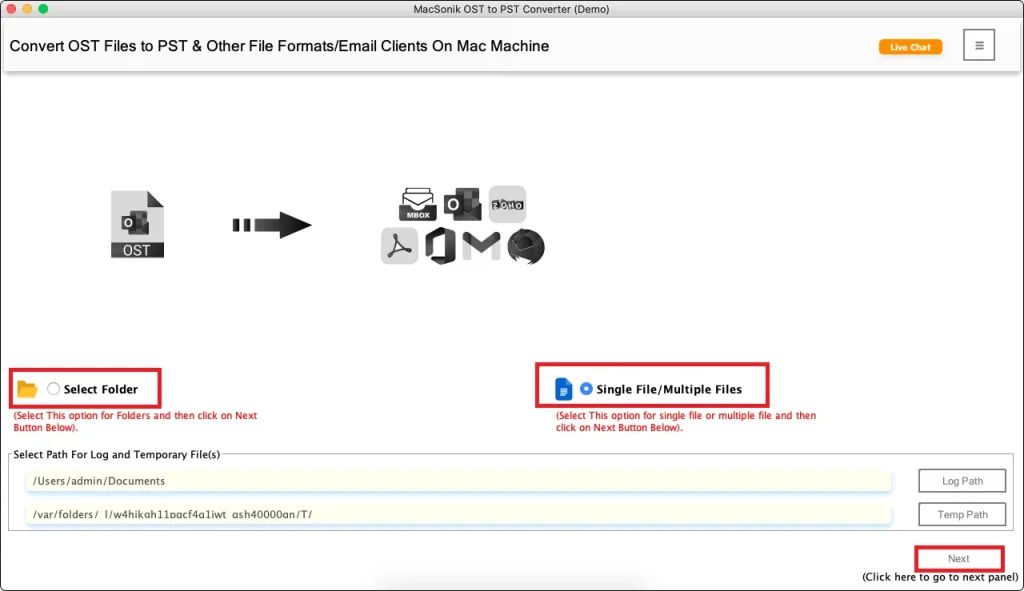
- After that, click Select Files to import your OST data
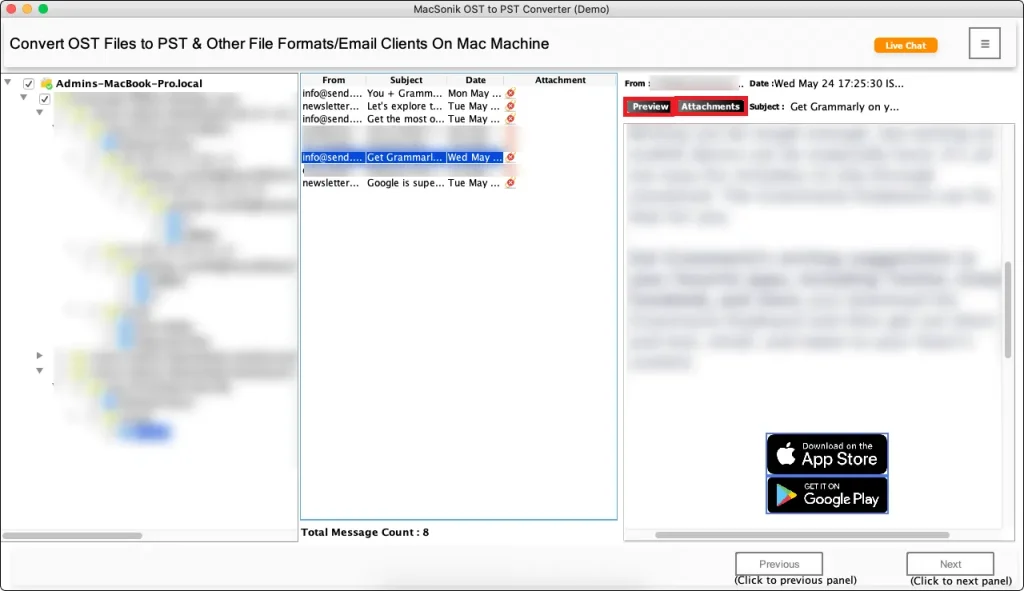
- Then, select specific folders/emails for conversion.
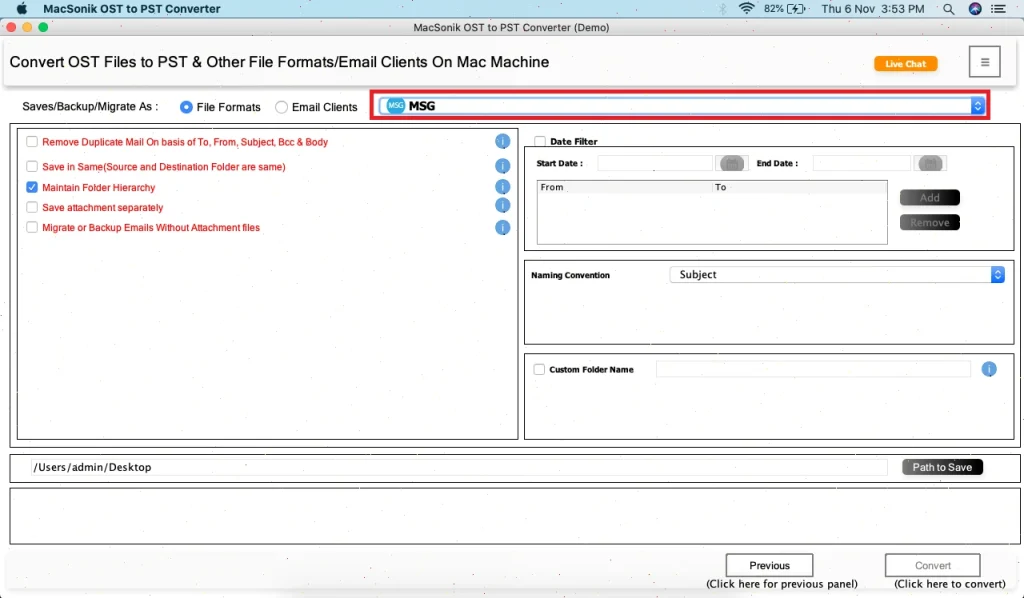
- Thereafter, select the MSG format and choose the destination folder.
- Lastly, click Convert to start the process.
Why Convert OST to MSG Files?
Now, if you are planning to move your OST files to MSG. You must understand how this is beneficial for users.
OST vs. MSG: Key Differences
|
Feature |
OST File |
MSG File |
|
Contents |
Entire mailbox folder (Inbox, Sent, Calendar, etc.) |
Single email item (with its attachments) |
|
Primary Use |
Offline access & caching for Exchange/M365 |
Sharing, archiving, or backing up individual emails |
|
Dependency |
Linked to a specific email account/profile |
Standalone; requires no original profile or server |
|
Ideal For |
Working offline with a full copy of your mailbox |
Saving, sharing, or legally archiving specific emails |
|
Portability |
Less portable; tied to Outlook profile |
Highly portable; can be opened by various email clients |
What are the Best Ways to Convert OST to MSG Files?
It becomes very crucial when users don’t have the right guide for OST file conversion. Therefore, this section of the blog will cover the top 03 ways to export OST to MSG files below. Before that, we will put together a simple checklist to make your OST to MSG conversion smooth and easy.
Checklist: Transfer OST Files to MSG Format
-
☐ Backup your OST file.
☐ Ensure Outlook is installed.
☐ Verify the file isn’t corrupted.
☐ Close Outlook apps.
☐ Check storage space.
After completing this checklist, you’re ready to move your OST files. Let’s dive directly into the methods.
01. Convert OST to MSG Files via Microsoft Outlook
This free method works very conveniently when your OST files are already accessible to your Outlook server (i.e., connected to its original profile). Read the steps below to know how to perform this conversion.
- Firstly, launch Microsoft Outlook on your system.
- Then, navigate to the folder containing the emails you wish to convert (e.g., Inbox).
- After that, select the desired emails by clicking on them.
- Further, drag the selected emails from Outlook.
- Lastly, drop them onto a Windows folder (e.g., your Desktop).
This action automatically creates individual .msg files on your system. It is a 100% free method. Alongside, it preserves the original message formatting and attachments.
Limitations
- Manually processing a high number of emails is not time-effective.
- Plus, it requires access to the original Outlook profile that generated the OST file.
- Furthermore, it cannot process orphaned or structurally damaged OST files.
02. Save OST File to MSG Using Outlook’s Save As Option
You can also transfer your OST files to MSG with Outlook’s built-in Save As option. This method effectively saves emails individually as MSG files.
- In Outlook, select the email you want to convert.
- Then, go to the File menu in the top-left corner.
- Thereafter, click Save As.
- Now, in the dialog box:
- Choose your desired save location.
- Ensure the Save as type is set to Outlook Message Format (*.msg).
- Lastly, click Save to create the .msg file.
Same as the first free method, this is also a zero-cost method. However, it comes with a few challenges.
Limitations
- Exporting emails one by one is tedious for big jobs.
- Moreover, it only works with the exact user profile that created the OST.
- Nevertheless, it will not work if the OST file is orphaned or corrupt.
These two methods require an active Outlook on your system to save OST files as MSG. However, the next method is best suitable when you have a large data.
03. Pro Way to Convert OST to MSG Files
The most opt solution for this conversion is to use the ultimate MacSonik OST to PST converter. This user-oriented software is designed to ensure a hassle-free migration while saving the metadata of your OST files. Moreover, additional features like batch conversion, preview, and smart filtering make the process more efficient.
Easiest Steps to Convert OST to MSG Format
- Firstly, install and open the Mac OST to PST Converter application.
- Thereafter, click Select Files or Select Folder to browse and add your source OST file.
- Then, review the loaded mailbox data and check the specific items (emails, folders) you want to convert.
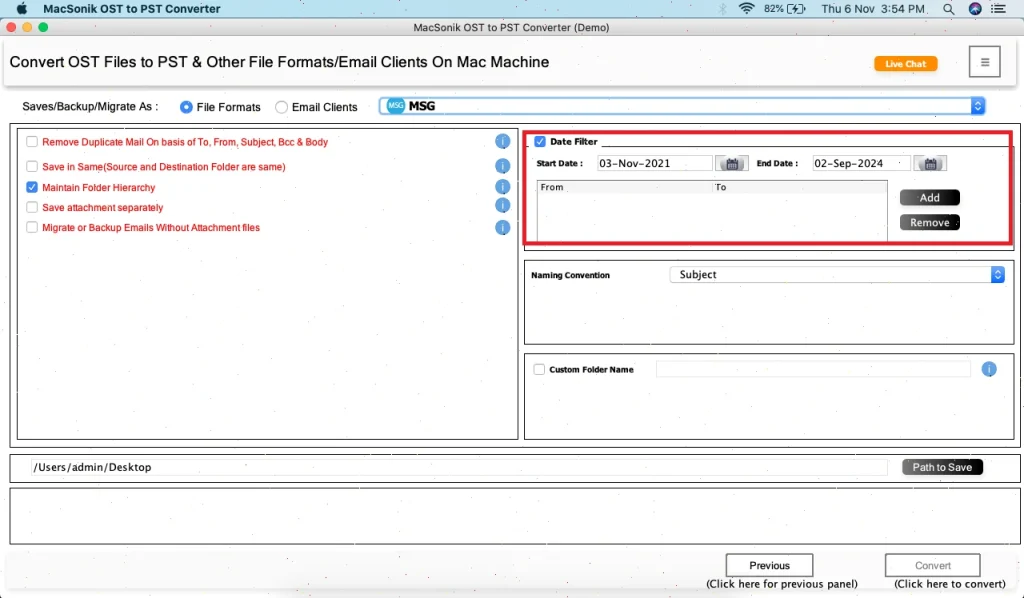
- After that, from the available saving options, select MSG as the output file format.
- Further, use options like Date Filter, Remove Duplicates, or exclude attachments to refine the conversion.
- At the end, initiate the process by clicking the Convert button to save OST data as MSG files.
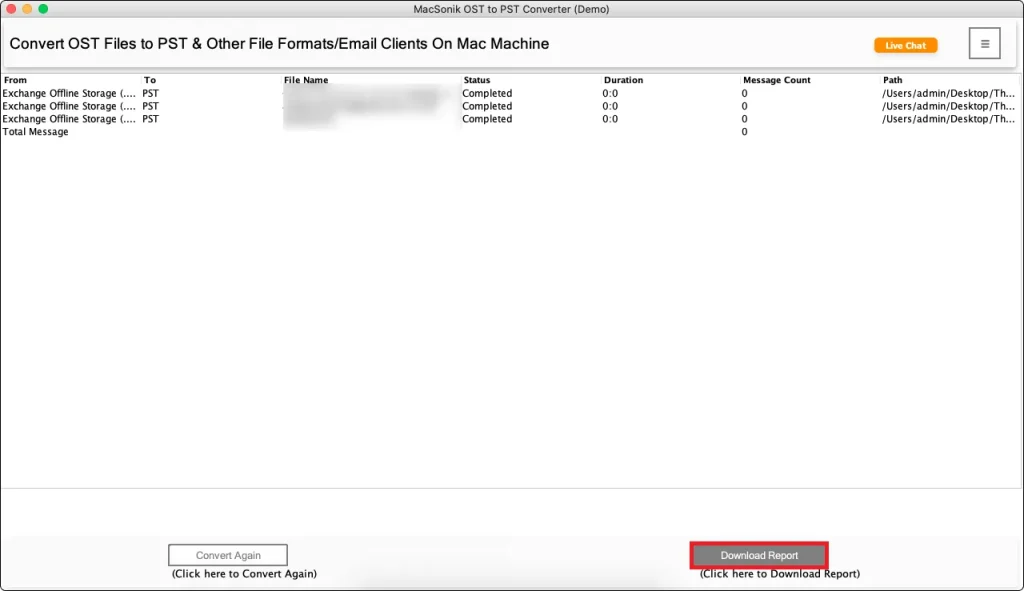
Now, you have converted all your OST data into MSG files without any hassle. This software comes with many other advantages.
Key Advantages of MacSonik OST to PST Converter
- It converts OST to PDF, MSG, EML, PST, MBOX, and more.
- It also handles multiple or large OST files simultaneously.
- Plus, you can choose specific folders or filter by date for targeted exports.
- Additionally, this tool maintains the original folder structure, metadata, and attachments.
- And this Software works independently, even with orphaned or corrupt OST files.
Final Suggestions
You’ve now navigated the complete roadmap to convert OST to MSG files. You can choose the manual drag-and-drop for a handful of emails. You can also empower yourself with a professional MacSonik OST to PST Converter for a bulk, no-compromise migration.
Download MacSonik OST to PST Converter now and back up your first 50 emails for FREE. Get 24×7 expert support!
Your OST files have now been transformed into portable, shareable, and permanently archived MSG files, complete with every attachment and detail intact. So go ahead and share that critical project email, present that evidence, or simply rest easy knowing your communications are securely backed up. Your data is now truly your own.
Frequently Asked Questions
Q1. How can I convert an OST file to PST format without using Outlook?
Q2. What is the best way to convert OST files to MSG with attachments?
Related Post
