A Complete Guide to Convert OST to HTML Format


Summary: Outlook OST files store your data locally, which allows you to work even without an internet connection. However, these files can only be opened inside Outlook, which creates difficulty when users can’t access their Outlook. Hence, to make them more accessible, many users prefer to convert OST to HTML because of its easy accessibility. This blog explains complete step-by-step conversion methods without losing formatting, attachments, or folder structure. Also, the easiest and most trusted MacSonik OST to PST Converter Tool is discussed, which accurately exports with zero data loss.
Why Should Users Convert OST files to HTML?
Here, we have discussed the valid reasons that support the OST to HTML conversion:
- HTML files open in any browser, like Chrome, Edge, and more, without needing Outlook or any email client.
- These files can be attached, emailed, or hosted online without compatibility issues.
- HTML keeps fonts, colors, tables, and inline images exactly as they appeared in Outlook.
- Markup languages take less space and can be stored on any device, including phones, tablets, and USB drives.
- Users mostly convert important emails to HTML for reporting, presentations, or official records.
Comparison Between OST & HTML
The table below gives a quick comparison to understand what changes when a user converts OST data to HTML format.
|
Point of Comparison |
OST Files |
HTML Files |
|
Type |
Outlook offline data file |
Web-compatible document |
|
Accessibility |
Requires Outlook installation |
Opens in any browser |
|
Security |
Stored within the Outlook profile |
Saved locally and protected by use |
|
Sharing |
Limited to Outlook platforms |
Share or upload HTML files easily |
|
Backup |
Outlook dependent |
Portable web-friendly backup format |
Free Methods to Convert OST to HTML
This section explains manual ways to save OST to HTML without any external software. These methods can help if you only need to export a few items.
Method 1: Export OST to HTML Manually
Follow the steps below to change OST to HTML manually:
- First, open the Microsoft Outlook application on your PC.
- After that, select the OST email you want to convert and click File > Save As.
- Further, choose HTML from the Save as type dropdown.
- Finally, click Save to store the email in HTML format.
Method 2: Drag & Drop to Save OST as HTML
You can also export OST emails manually by using the drag-and-drop technique:
- Initially, launch Outlook and open the mailbox containing OST data.
- After that, select the email you want to export.
- Then, drag the selected email and drop it into a folder on your computer.
- Lastly, the file will automatically be saved as .html.
Limitations of Manual Methods
- Although these free techniques are easy, they come with multiple drawbacks:
- They cannot change OST files to HTML in bulk, and do not preserve the original folder structure.
- Email attachments may not be saved correctly.
- There are no options for applying filters like date range or specific folders.
- The process is very slow for large OST files or multiple mailboxes.
Proficient Method to Convert OST to HTML Format
For users who want a safe, complete, and bulk conversion solution, the EmailDiver OST to PST Converter Tool is the most reliable choice. It helps you change OST files to HTML with all attachments, images, and email formatting. The tool also maintains the folder hierarchy exactly as the original OST file. Additionally, it supports converting OST to multiple formats and provides advanced options like date-range filters, skip duplicates, and selective folder export. The tool produces a completely safe backup, as it does not store any crucial data to maintain data privacy. Moreover, it provides users with options to convert OST to ICS and other file formats.
Professional Steps to Save OST to HTML Files
Follow the steps below to convert your OST mailbox to HTML using the CloudXena OST Converter Tool:
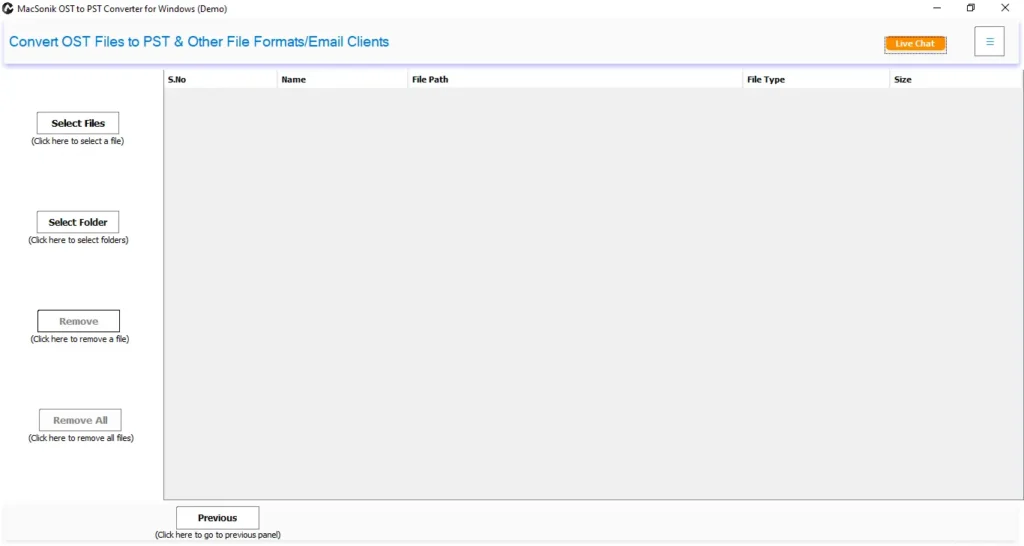
- First, install and launch the Converter Tool on your PC.
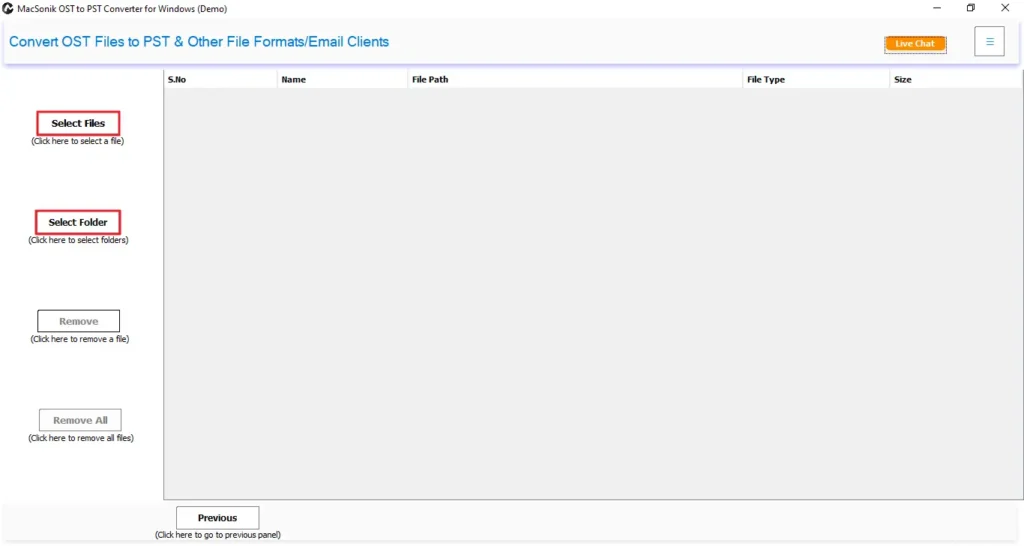
- After that, choose between the Select File or Select Folder button to start browsing your OST files.
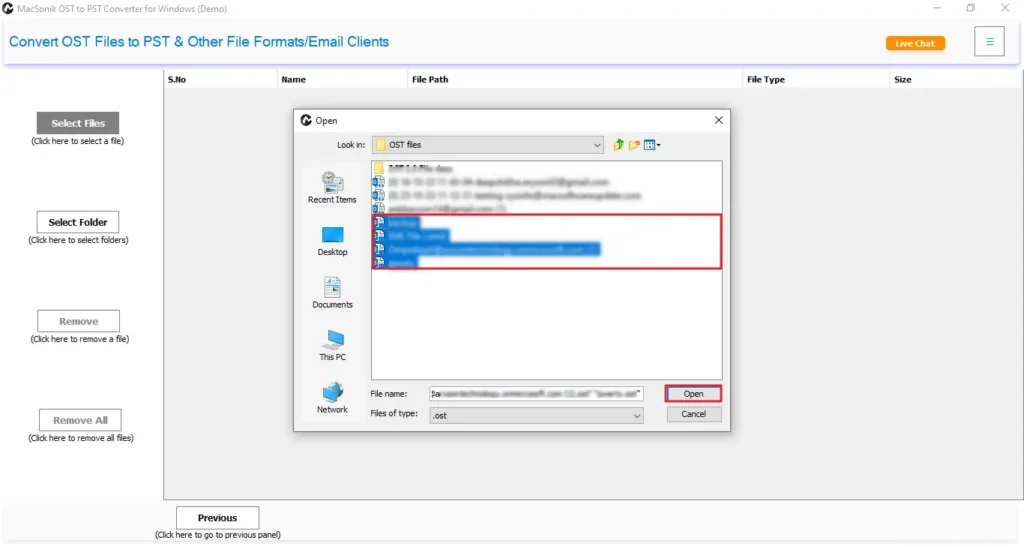
- Then, browse your OST file, select it, open the OST files in the software, and then click Next.
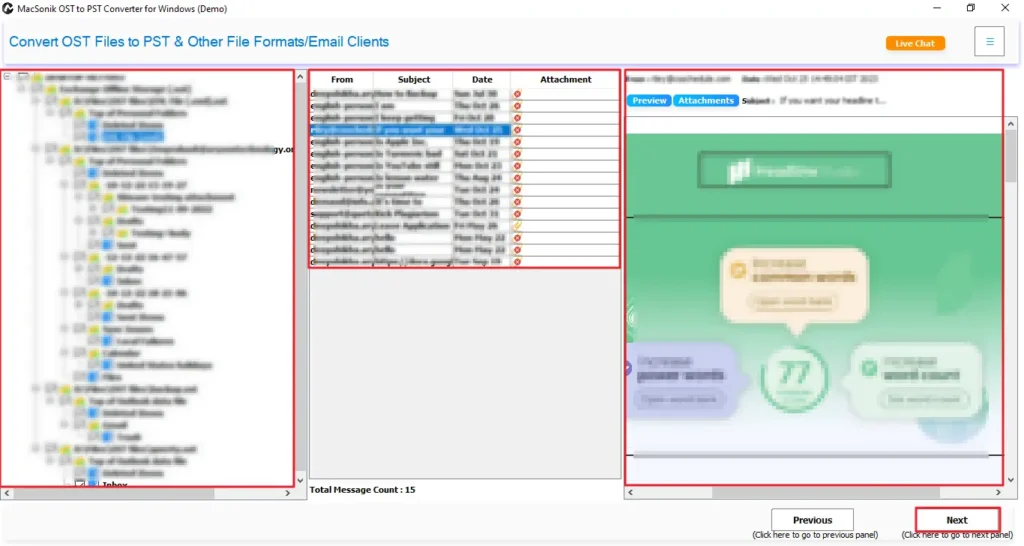
- Now, select the files or folders and preview their data and attachments, then click on the Next button.
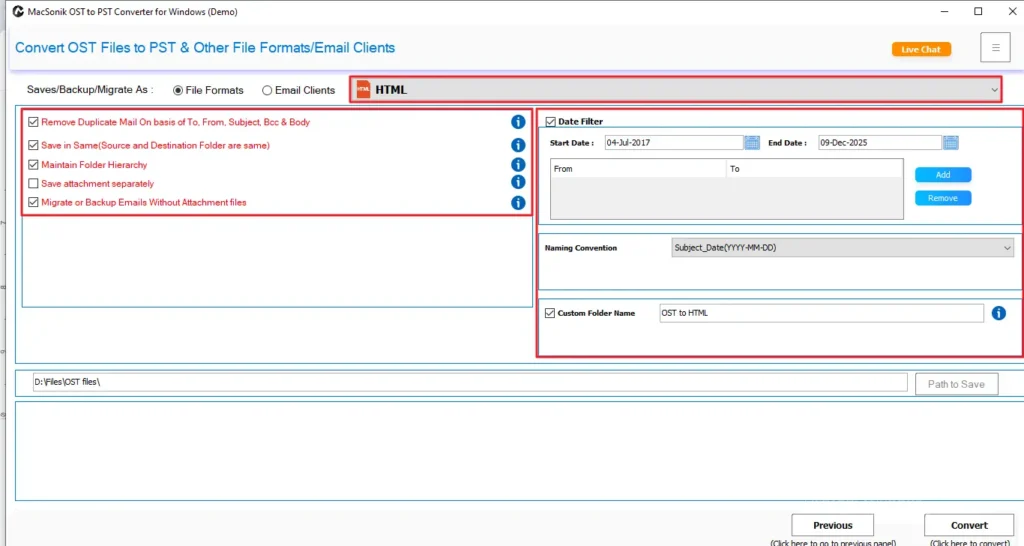
- Further, choose HTML as the output File Format and apply the required advanced filters.
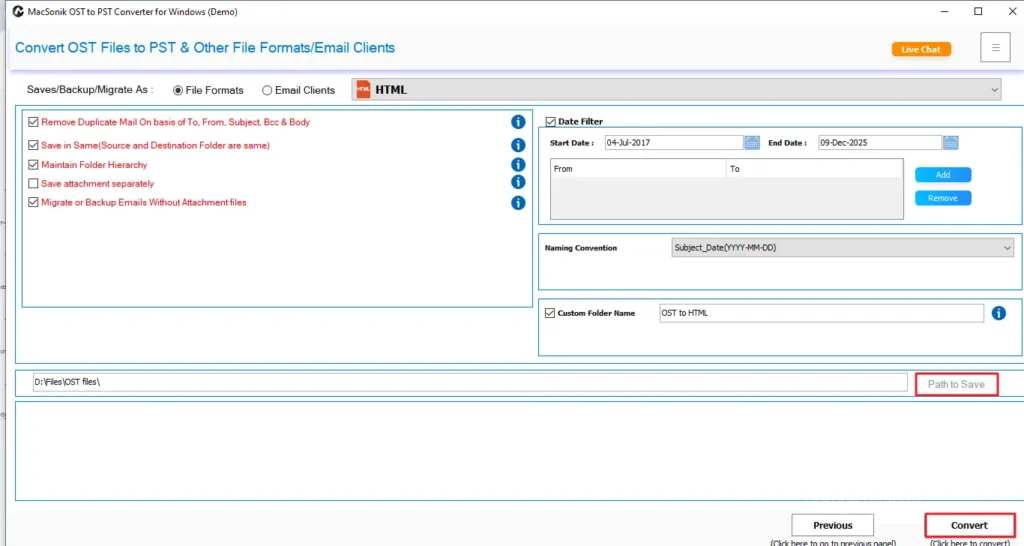
- Finally, choose the Path to Save and click Convert to start exporting OST to HTML.
Conclusion
OST files are useful for offline work but difficult to access without Outlook. Hence, their conversion to HTML makes your emails easier to open, share, and store. While manual methods work only for a few emails, they are not suitable for bulk or structured export. Therefore, the EmailDiver OST to PST Converter Tool is described for users who want a smooth, error-free, and complete conversion process. Moreover, it allows you to convert OST to HTML safely, maintaining attachments, formatting, and the original mailbox structure.
Frequently Asked Questions
Q1. How to convert OST to HTML in bulk?
Q2. Is it possible to convert OST files to HTML with attachments?
Q3. Are technical skills required to export OST to HTML?
Q4. Can you save OST to HTML for a specific date range?
Related Post
