A Complete Guide to Convert OST to CSV File Format


“Our compliance team is managing 20+ deactivated employee accounts that need to have their mailbox data extracted for internal audits. How can we batch convert OST into CSV, enabling simplified access into Excel without any loss?”
-Dakota Michael Johnson
Summary: OST files by Outlook are the Exchange data copies accessible offline, but behave like sealed vaults. They are locked inside the Outlook profiles in which they are created and are not at all suitable for analytics or research purposes. Hence, at the moment when you need email data for dashboards, audits, or large-scale reporting, OST files are a blocker. This makes it essential to convert OST to CSV to make the mailbox data instantly usable. Go through this guide below to find out the top free way and a smart MacSonik OST to PST Converter Tool for optimal results.
Factual Reasons to Convert OST File into CSV
Whether you belong to an enterprise, a business, or a home environment, the practical reasons for OST to CSV
conversion are:
|
Benefits |
Use Cases |
|
CSV allows for data analysis, data cleanup, and legal reviews. |
Ideal for input into the Power BI dashboards and data-driven workflows |
|
OST is Outlook-dependent, whereas CSV is platform-independent |
Suited for cross-platform compatibility, working everywhere |
|
Faster data access with CSV, especially for teams with larger mailboxes |
Helps with the management of large datasets and bulk data analysis |
|
CSV provides data access when Outlook is unavailable or the OST is damaged/corrupted |
Perfect backup to recover data instantly in case of inaccessible profiles or hampered/altered datasets |
|
Structured organization and export of emails, contacts, calendars, tasks, etc. |
Best for CRM imports, mailbox organization, and email archiving |
Now, the advantages of CSV (Comma Separated Values), a spreadsheet file format that stores data in rows and columns, over Outlook OST (Offline Storage Table) are clear. You can access data easily on “Microsoft Excel, Google Sheets, or any other Database Program” without any trouble.
Realistic Method to Convert OST to CSV Format
This manual method is only suitable if you have a healthy OST file connected to its original Outlook or Exchange profile. The steps for the free conversion are:
- Launch Outlook containing your OST and go to the File tab.
- Then, within Info, select Open & Export and after that, Import/Export.
- Further, choose Export to a File and tap the Next button in the wizard.
- Afterward, select a Comma-Separated Values (CSV) file and click Next.
- Now, pick the folder you wish to convert and choose to Include Subfolders.
- Click Next and then press Browse to select a destination for your CSV.
- Later, tap Next and select Map Fields to customize the specific columns.
- Finally, click Finish to export OST files into CSV and complete the process.
Loopholes of the Manual Method
- No support for bulk, corrupted, or orphaned OST files.
- You need to convert folder-by-folder, which is time-consuming.
- Mandatory Outlook profile connectivity for conversion.
- Repetition of steps is laborious and requires skills.
|
Common Challenges to Manually Convert OST File to CSV
|
Reliable and Scalable Method to Convert OST to CSV
If you want to overcome the manual limitations and skip the challenges with the OST to CSV file conversion. Then, download the all-in-one MacSonik OST Converter Tool, which streamlines the process in a few simple steps. It enables you to batch process OSTs into CSV with complete folder structure and data integrity preservation. Additionally, it doesn’t require MS Outlook installation and is very simple to use on all Mac and Windows OS. Moreover, it offers various advanced filters and a Demo Version for a few free conversions and software evaluation.
Quick Steps to Convert OST File to CSV
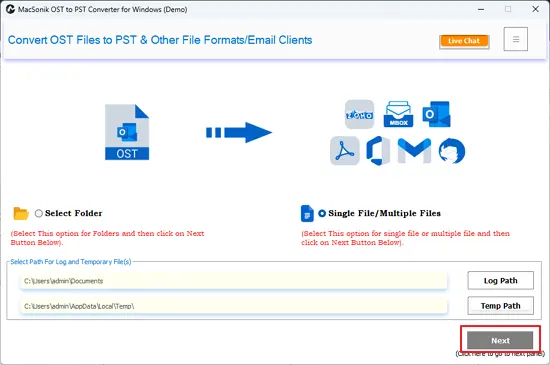
- Launch the OST File Converter Tool and click Next at the beginning.
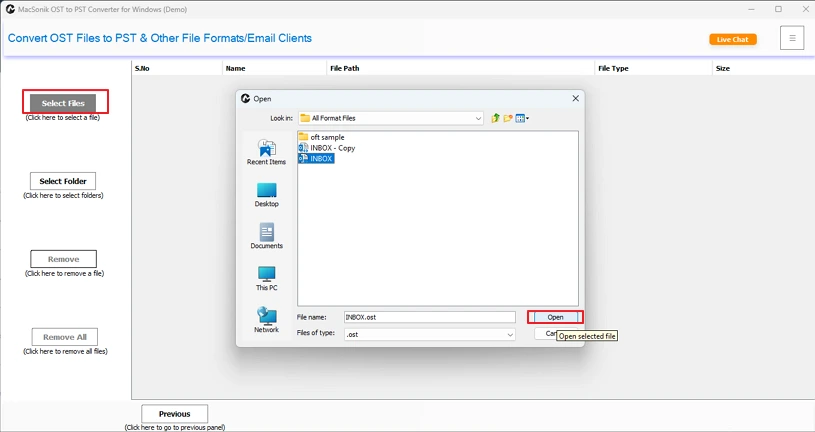
- Then, with the Select button, add OST files and folders. Click Next.
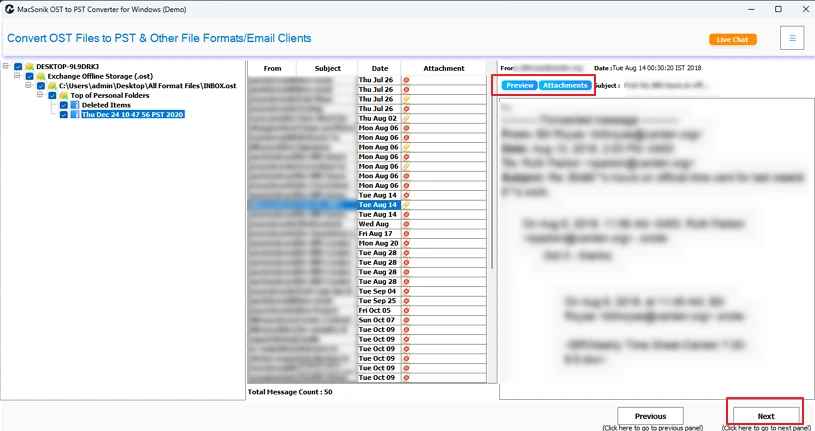
- Further, choose the emails from the tree view after preview. Tap Next.
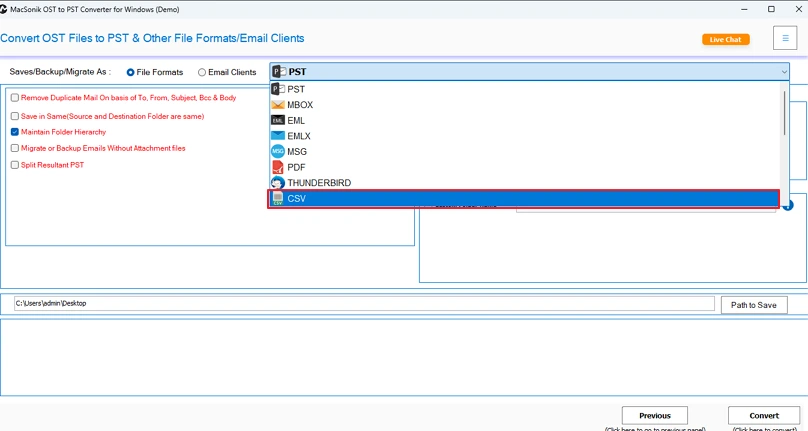
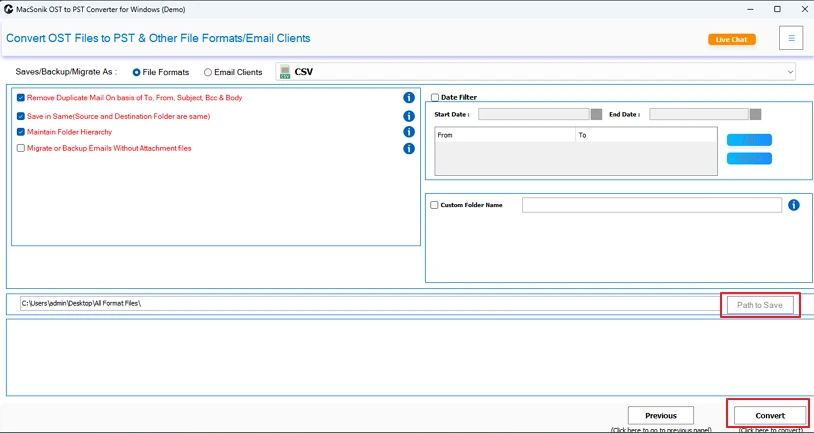
- After that, opt for the CSV file format from the list and apply filters.
- In the end, pick a Destination Path and click Convert to change the formats.
Suggested Read: Import OST to Windows Live Mail
Pro Tip: If you want to avoid the manual hassle and also skip the software installation, then avail MacSonik’s One-Time Service. Through this, your OST to CSV conversion will be taken care of by our professional experts in no time with full accuracy and precision.
Final Words
When you convert OST to CSV, you set Outlook mailbox data free to a flexible, analytics-ready file structure. It enables you to get insights from your data in real-time and is also useful in audits and other data-driven decision-making. Teams with a few OST files can use the native Outlook built-in feature for the conversion. But those handling large OST mailboxes, like enterprises, can use the OST to CSV Converter Tool for quick and efficient conversion without hassle or loss.
Frequently Asked Questions
Ans. To convert OST file into CSV without Outlook, use the OST File Conversion Tool. It doesn’t require Outlook installation and flawlessly converts the mailbox data into a structured CSV in one go with no loss.
Ans. Yes, using the OST to PST Converter Tool, you can bulk convert OST file to CSV, whether single or multiple, without size limit issues.
Ans. Both manual and professional solutions to export OST files into CSV work on all Windows OS, including Windows 11.
Related Post
