How to Convert MSG to PDF File Format? Quick Ways


User Query: “I need a proper way to convert my MSG files to PDF. I have hundreds of emails to hand over for a project, so I need a quick and dependable method.”
Summary: Converting MSG files to PDF becomes important when you’re dealing with a large number of Outlook messages. PDF is a universal format and can be opened on any device, while MSG files require Outlook to be installed. This is why many people convert MSG files when preparing legal documents, archiving old records, or submitting project data. In this blog, we’ll look at both manual and automated ways to convert MSG to PDF. You’ll also learn about a professional MacSonik MSG Converter Tool that makes the whole process simple and error-free.
Why Users Convert MSG Files to PDF?
Here are some common reasons why user want to convert their MSG file to PDF:
- PDFs can be opened anywhere or anytime without Outlook.
- Conversion of MSG into PDF offers better security because PDFs can be password-protected.
- The PDF format is Ideal for court or compliance work.
- PDFs are easy to share because there are no compatibility issues.
- Portable Document Format is reliable for long-term storage.
Some Manual Methods to Convert MSG to PDF
You can convert MSG files manually or with a specialised tool. Manual methods work, but they are slow and can convert only one file at a time. Below are the two manual ways you can try.
Method 1: Export MSG to PDF Using Outlook and Word
- To begin with, open the MSG email in Outlook.
- Then, go to File > Save As.
- Choose a location and save the file as HTML.
- Open the saved HTML file in MS Word.
- Go to File > Save As and choose PDF.
- At last, set the file name and save it.
Method 2: Change MSG file to PDF Using the Print Option
- Firstly, open your MSG file in Outlook.
- Thereafter, go to File > Print.
- Afterwards, select Microsoft Print to PDF.
- Or press Ctrl + P and choose Microsoft Print to PDF.
- Finally, click Print, choose a location, and save the file.
Limitations:
- You can convert only one file at a time.
- Formatting may change after conversion.
- Converting many files is slow and tiring.
- Requires Outlook installed on your system.
- No advanced features like filters or attachment handling.
Because of these drawbacks, most users prefer using an automated tool for bulk conversion.
Secure Method to Convert MSG to PDF Easily
If you’re looking for an efficient, dependable way to convert MSG files into PDF, then using a professional MSG to PDF Conversion Tool is the best choice. This tool has specifically been created to help users with batch conversion; therefore, you can expect much faster results and minimal effort when performing such a task. The professional MSG-to-PDF conversion tool also protects against any accidental loss of email attachments when performing conversions.
Steps to Convert Outlook MSG to PDF
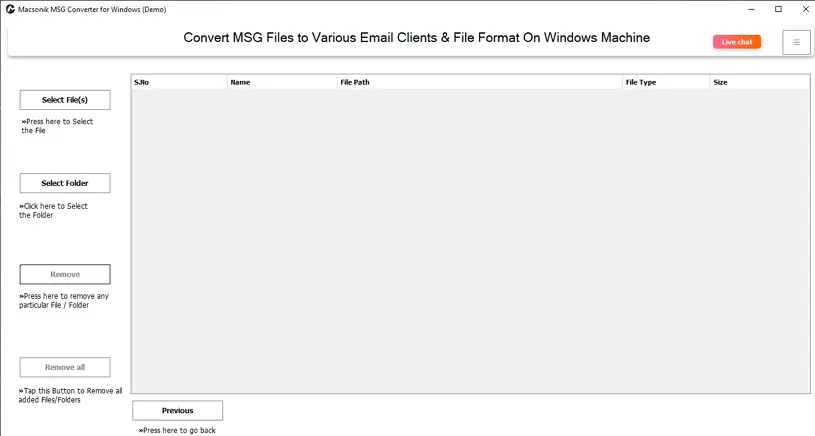
- Firstly, download and launch the MSG Converter Tool.
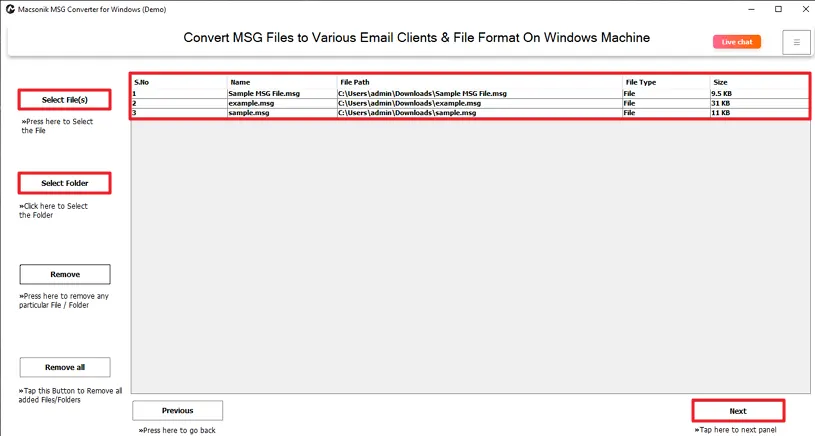
- Then, select the MSG file or folder you want to convert, then click Next.
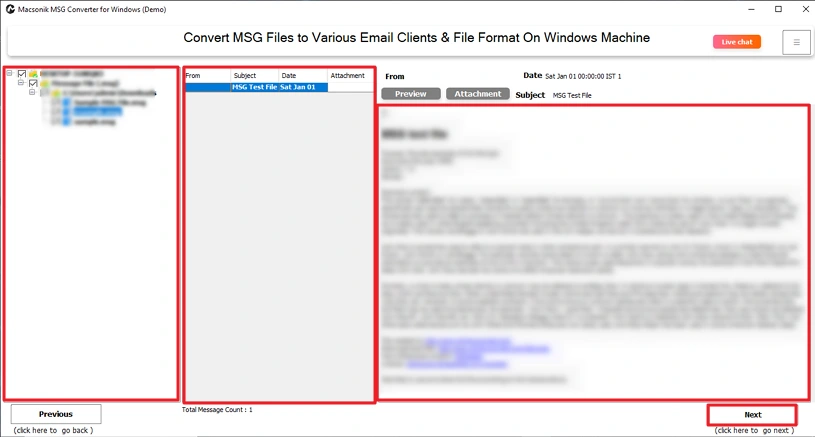
- Preview the MSG files, choose the ones you want to convert, and click Next.
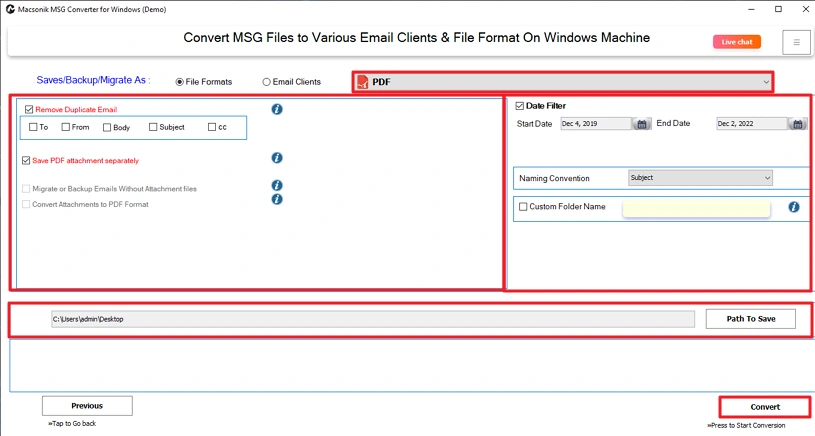
- Choose PDF as the output format, apply any needed filters, and click Convert to start the process.
Also Read convert MSG to PST.
Conclusion
When it comes to achieving better compatibility, ease of sharing, and secure storage of MSG files. The process to convert MSG to PDF will allow you for all of these things. For small amounts of MSG files, manual methods may work; however, for larger amounts of MSG files, using a professional tool will speed up the conversion process while ensuring the safety of your files as well.
Frequently Asked Questions
Q1. How to convert MSG to PST?
Q2. How can I convert MSG to PDF in batch?
Q3. Is it possible to convert specific MSG files to PDF?
Q4. What is the best method to export MSG to PDF?
Related Post
