How to Convert MSG to MBOX in Bulk? Best Methods


User Query: “I have hundreds of emails saved as MSG files from my old email client, but now I need to move all of them into Thunderbird. Are there any easy methods to convert bulk MSG files into MBOX safely and quickly?”
Summary: Email clients that utilise MBOX can only receive emails converted from MSG to the MBOX format. When converting from MSG to MBOX, you will create an MBOX file that will hold multiple MSG files in one folder. Once you convert MSG to MBOX file, you will be able to import it into email clients like Thunderbird or Apple Mail and other email clients. In this blog, there are many ways to convert your MSG files to MBOX, including using the MacSonik MSG Converter Tool and using some manual processes.
What Do We Convert MSG Files to MBOX?
- Some email programs can’t open MSG files, so we convert them into MBOX so the emails show up properly.
- MBOX keeps many emails in one single file, which is easier to handle.
- When moving from one email app to another that doesn’t support MSG, change msg files to mbox helps shift emails smoothly.
- This keeps your email folders and messages in the right order, so nothing gets lost or jumbled.
- Popular email clients like Thunderbird and Apple Mail prefer MBOX, making it simple to use your emails there.
- It also makes saving or sharing large email collections much easier without confusion.
Manual Method to Convert MSG to MBOX
This manual method is helpful if you have only a few MSG files and don’t want to use any special software. It’s best suited for basic conversions.
Step 1: Convert MSG Files to EML Format
- Find the MSG file on your computer and right-click it.
- Then, select Open with and choose MS Outlook.
- In Outlook, go to File -> Save As, then change the Save as type to .txt format.
- After that, choose a folder where you want to save the file and click Save.
- Now, go to that folder, right-click the saved .txt file, and select Rename.
- Thereafter, change the file extension from .txt to .eml.
Step 2: Import EML Files into Thunderbird
- Firstly, open Mozilla Thunderbird and create a new folder for these emails.
- Next, open Thunderbird and navigate to Tools -> Add-ons & Themes -> Extensions. Look for the “ImportExportTools NG” add-on, install it, and then restart Thunderbird to activate the extension.
- Right-click on the new folder, choose ImportExportTools NG -> Import all messages from a directory.
- Afterwards, select the folder containing the .eml files and import them.
Step 3: Export MSG to MBOX
- Right-click on the folder where you just imported the emails.
- Then, choose ImportExportTools NG -> Export folder.
- Select the location where you want to save the MBOX file, and finish the export.
Best Way to Convert MSG to MBOX in Bulk
Using a trusted MSG Converter Tool makes the conversion process much easier and saves your effort. This tool supports batch conversion, allowing you to convert many files at once. It also offers features like exporting to different formats, finding and removing duplicate emails, and keeping your data safe and unchanged. You can even convert large files, up to or more than 50GB.
Steps to Convert Outlook MSG to MBOX
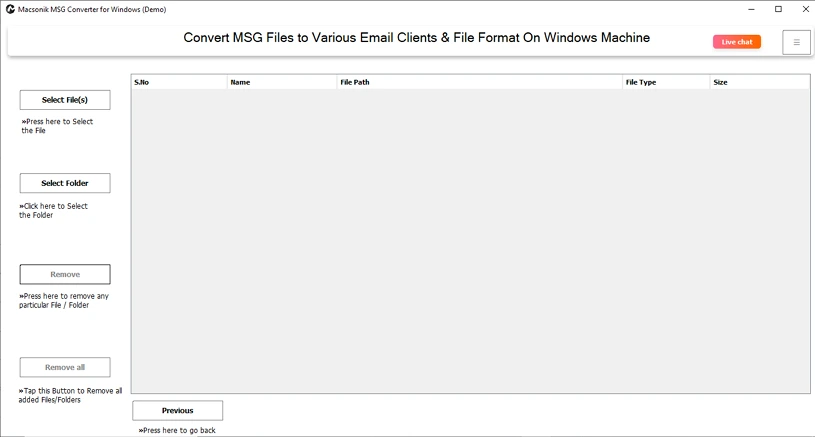
- Download and run the MSG Converter Tool.
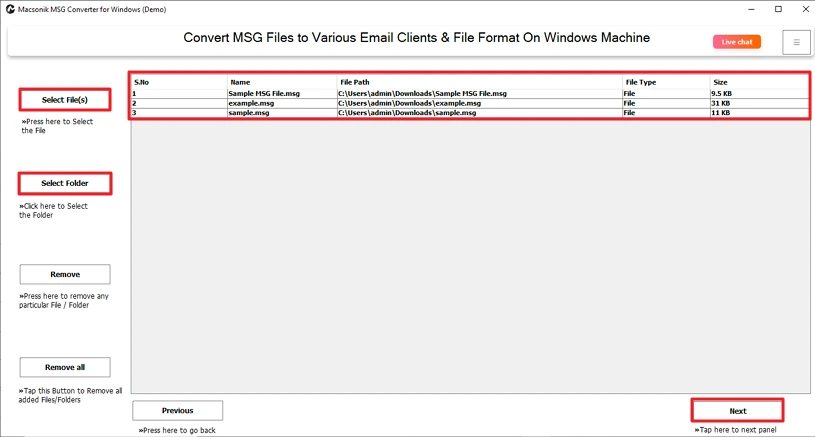
- Then, choose the MSG file or folder and click Next.
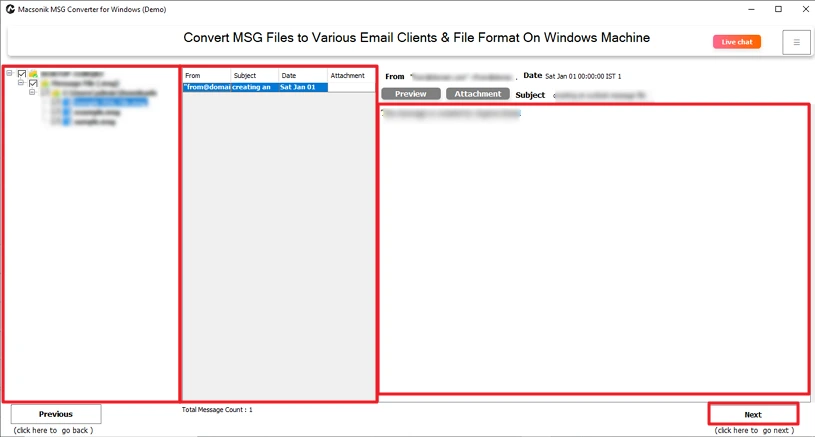
- After that, preview the MSG files and select the file to convert, and click Next.
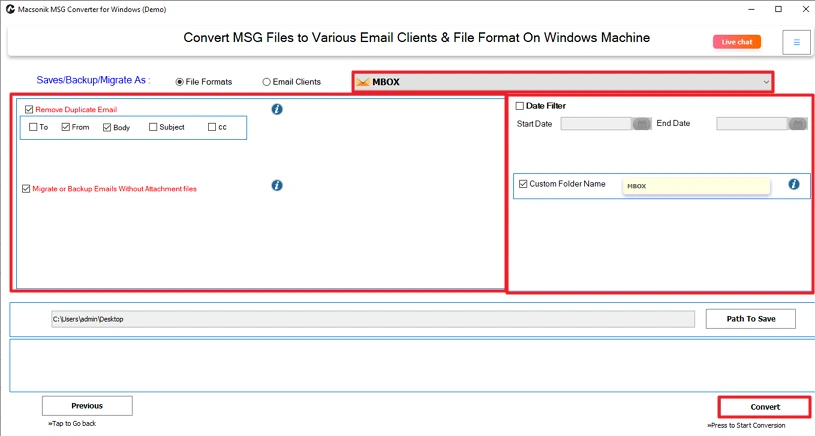
- At last, choose MBOX, apply the necessary feature, and click Convert.
Conclusion
Manually convert MSG to MBOX format can be tedious. MSG Converter Tools can convert files quickly and accurately. By using this utility, you can convert large amounts of data in one go without losing any information. When choosing a method for converting your files, choose one that fits your time frame and requirements; if you’re under pressure, choose an automated tool as the best choice.
Frequently Asked Questions
Q1. How can I convert MSG to MBOX without Outlook?
Q2. Can I convert MSG emails with attachments to MBOX?
Q3. Can I save MSG files to MBOX on Mac?
Q4. What is the best MSG to MBOX converter tool?
Related Post
