How to Convert MSG to HTML on Mac? Quick Ways


User Query: “Hi, I am looking for a solution that can help me convert my MSG files to HTML format. Also, make sure everything converts correctly! I’d appreciate a clear guide that covers both options.”
Summary: The process to convert MSG to HTML can seem tricky, but in reality, it is pretty straightforward. In this blog, we’ll walk you through easy manual methods you can do on your own. Plus, if you have lots of files or want a faster way, we’ll also introduce a handy MacSonik MSG Converter Tool that makes the whole process quick and simple. Whether you want to do it yourself step-by-step or use a tool, this guide has you covered
Why do User Want to Convert MSG Files to HTML?
Users can choose to convert the MSG files to HTML for some basic reasons, such as
- You don’t need Outlook or any additional application to open HTML files in any web browser.
- HTML files provide the ability to customize font, style, and layout, giving you more options than MSG files.
- In addition, HTML files can be viewed and changed at any time, with or without an internet connection.
- Compared to MSG files, HTML makes it easy to link and include attachments.
Traditional Approach to Convert MSG to HTML Format
You can convert MSG files to HTML manually. These methods take more time but give you full control over the process.
Method 1: Convert Outlook MSG to HTML Using MS Outlook
- To begin with, open the MSG file by double-clicking it in Outlook.
- Then, click the File menu at the top left.
- Select Save As from the options.
- In the Save as type dropdown, choose HTML.
- Finally, pick a folder where you want to save the file and click Save.
Method 2: Export MSG to HTML Via Copy & Paste in HTML Editor
- Firstly, open the MSG file in Outlook.
- Highlight and copy the email’s content, including text and images.
- Then, paste the copied content into an HTML editor like Notepad++ or an online HTML editor.
- Edit the HTML as needed to customize the layout and design.
- At last, save the file with an .html extension.
Limitations:
- Single file at a time: You can only convert one MSG file at a time, which makes bulk conversion impractical.
- Risk of errors: Copy-pasting content may miss some email elements like attachments, formatting, or embedded images.
- Requires Outlook: You must have Microsoft Outlook installed to open MSG files for conversion.
Efficient Method to Convert MSG to HTML in Bulk
The MSG to PDF Converter Tool is a professional solution to convert MSG files to HTML format. It preserves email formatting, attachments, and metadata during conversion. This tool works independently without needing Microsoft Outlook, making it convenient for all users. The easy interface allows both technical and non-technical users can quickly convert MSG files to clean, accessible, and browser-friendly formats. Additionally, you can also use this tool to convert MSG to PDF.
Steps to Save MSG Files into HTML
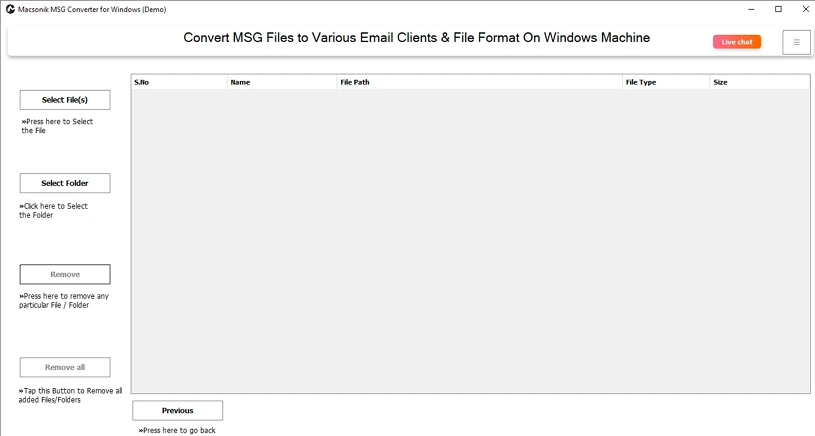
- To begin with, download and run the MSG Converter Tool.
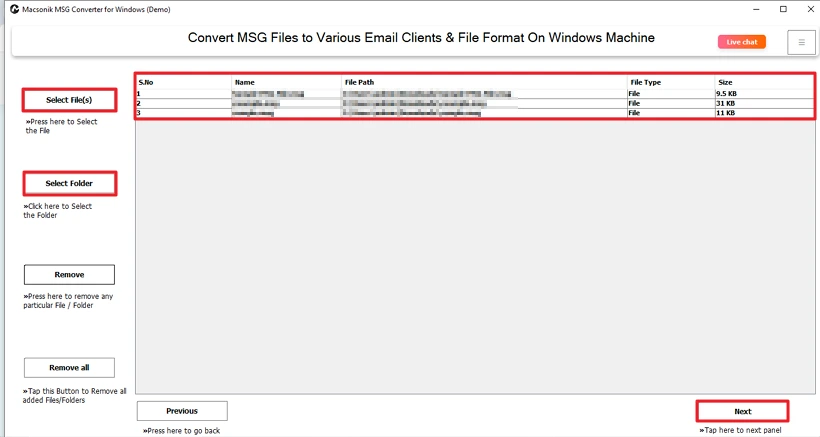
- Then, select the MSG file or folder from your device and click Next.
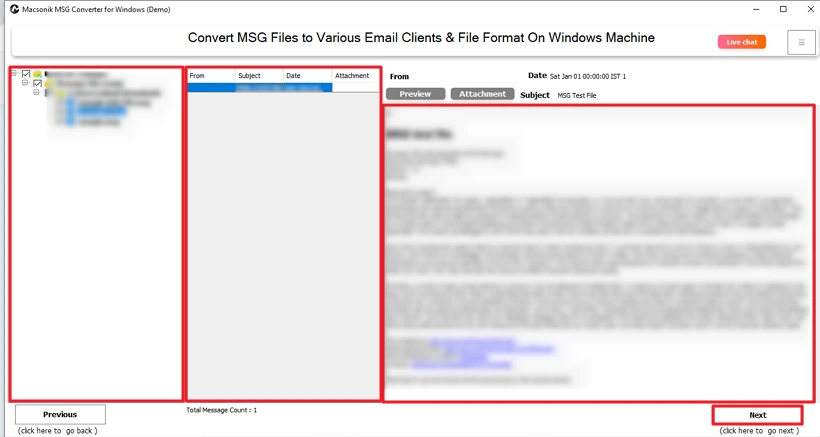
- After that, preview the file content & attachment, then select it, and click Next.
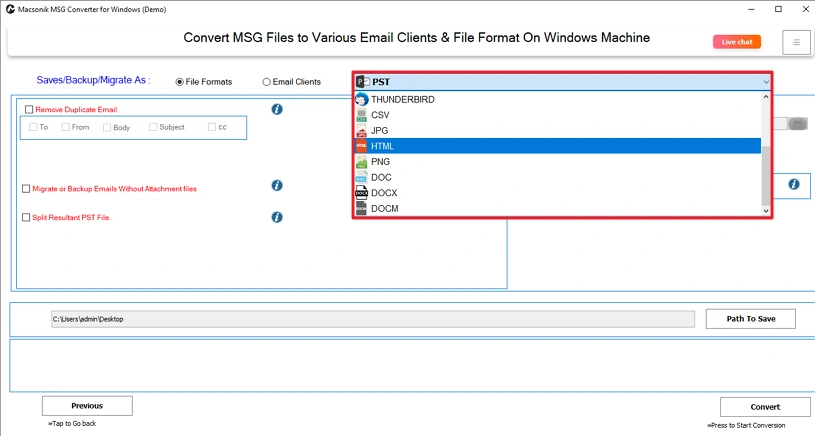
- Choose HTML as the file format.
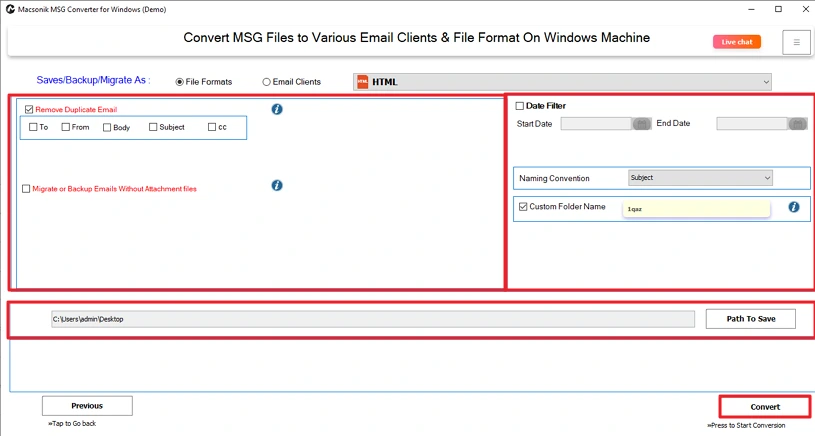
- Finally, apply filters, choose a path to save, and click Convert.
Conclusion
In this blog, you learned about different ways to convert MSG to HTML format. The options are divided into 2 categories: manual methods using either MS Office Outlook or an HTML basic viewing/editor application, and automated methods using an EmailDiver MSG Converter Software. Both categories contain methods designed for specific situations, depending on the number of files to be converted. Users can determine which option is best for them to utilize.
Frequently Asked Questions
Q1. How do I convert MSG Files to HTML in bulk?
Q2. Is it possible to export specific MSG files to HTML?
Q3. Does converting MSG to HTML keep the attachments?
Q4. Is there any direct method to convert MSG files to HTML?
Related Post
