Top Solutions to Convert PST to HTML Format in Bulk?


User Query: I have many old stored PST files, and I am not able to open them in a browser or send them to someone without needing Outlook. Is there a free way to convert them to HTML without losing emails or attachments?
Summary: PST files can be an issue if you are not using Outlook anymore. You can’t just open one in a browser or send it to someone and expect it to work. HTML is a lot more practical. Any browser can open it, no software needed. So if you want your old Outlook emails to actually be readable without installing anything, converting PST to HTML is the best option. In this blog, we’ll go through a manual way to convert PST to HTML and also look at the MacSonik PST Converter Tool for when the manual route feels like too much work.
Why Do Users Convert PST File to HTML?
- HTML works in any browser without extra software, and you can open PST only in Outlook.
- Some users just want to read old emails without reinstalling or purchasing Outlook again.
- HTML format makes it simple to upload emails to a website or internal company portal.
- Migrating to a new email client is smoother when emails are already in a readable HTML format.
- Legal teams sometimes need emails in HTML for documentation, review, or compliance-related purposes.
- Old PST files from retired accounts are easier to archive and access when saved as HTML.
Manual Method: Convert PST to HTML Using MS Outlook
Before you start, make sure MS Outlook is already installed on your computer. This method won’t work without it.
Steps to Change PST to HTML
- Open MS Outlook on your computer to get started.
- Click on the “File” tab from the top menu bar in Outlook.
- Select “Save As” and then pick “HTML” from the format dropdown.
- Choose a location on your computer where you want the converted file to be saved.
- Create a new folder and give it a name you’ll actually remember, making it easier to find later.
- In the “Save As” dropdown, select that newly created folder as the destination.
- Hit “Save” and let Outlook save PST emails to HTML.
- Go to your new folder, find the .HTML file, right-click it, and open it in any web browser you prefer.
Limitations
- This method only works if MS Outlook is installed on your computer.
- You can only convert one PST file at a time, which gets tedious if you have several files.
- Some attachments and embedded images may not carry over properly into the HTML output.
- If your PST file is corrupted or orphaned, Outlook may not even be able to open it at all.
- The whole process has to be repeated manually for every single calendar or folder you want to export.
Advanced Method to Convert PST to HTML Format in Bulk
The PST Converter Tool lets you convert PST files to HTML and several other formats like OST, MBOX, and MSG. It is not limited to just one output format, which is useful if you need flexibility. You can also use it to move emails over to platforms like Google Workspace, Office 365, or an IMAP server without too much hassle. Moreover, check out this reference to convert PST to TXT easily with no hassle.
One-Time Conversion Service
Some people just do not want to download or install anything on their computer. In that case, a one-time conversion service is worth looking into. You simply share your PST files securely with the conversion team, and they handle the whole process on their end. The emails come back to you as clean, ready-to-open HTML files without you having to touch any settings or figure out any tools.
Steps to Convert Outlook PST to HTML
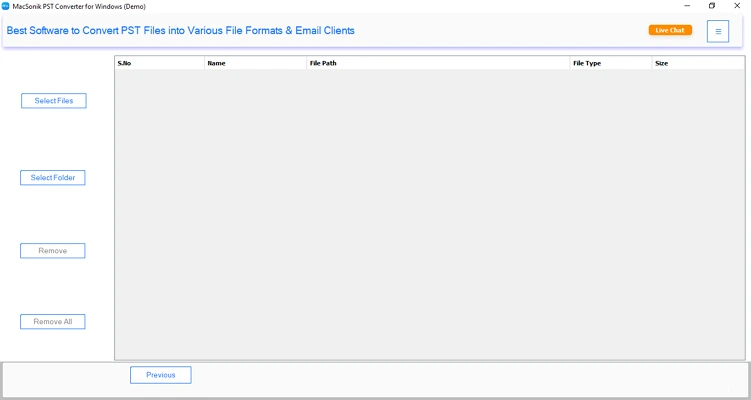
- Download the PST Converter Tool.
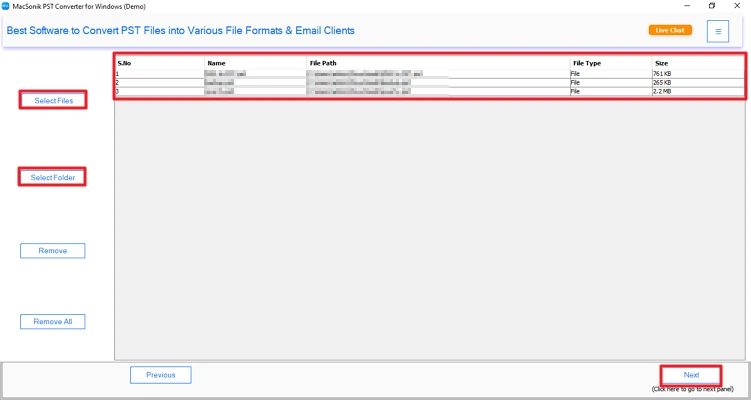
- Then, add the PST files and click the Next button.
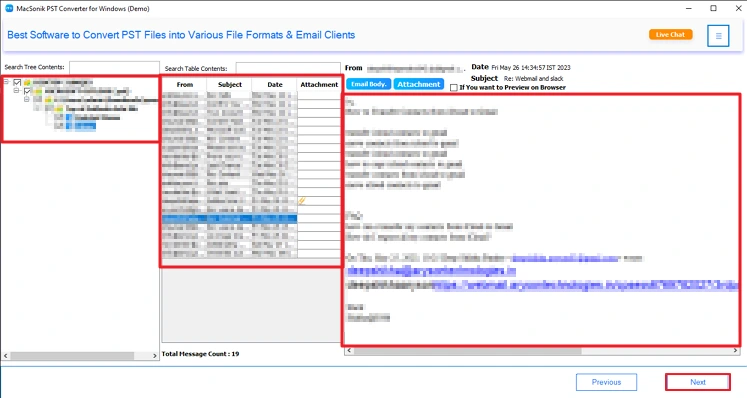
- Preview and select your PST files and click Next.
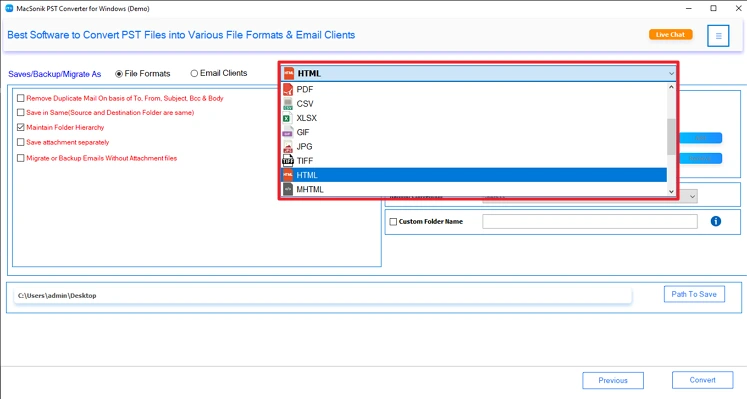
- Further, choose the HTML file format.
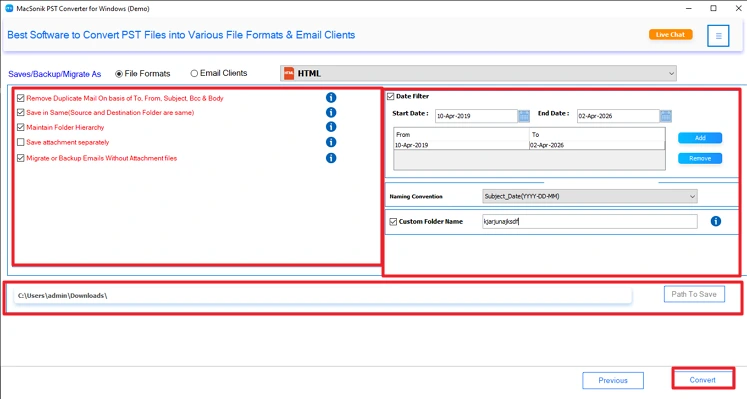
- Lastly, apply filters, set the path to save, and click the Convert button.
Conclusion
We covered a couple of ways to convert PST to HTML. The manual method works, but honestly, it takes a while and can get confusing if you are not familiar with Outlook. If you just want to get through it without the back and forth, the converter tool is the easier path. And if you are not sure about it yet, there is a free demo version you can try first before spending anything.
Frequently Asked Questions
Ans: You can use Outlook’s Save As option, but it’s limited. A simpler approach is using the PST Converter Tool to quickly convert PST files to HTML in just a few steps.
Ans: HTML makes emails accessible in any browser without Outlook. Many users prefer the PST Converter Tool to convert PST files for easy viewing, sharing, archiving, and migration purposes.
Ans: Manual methods may lose formatting or attachments, but the PST Converter Tool helps maintain original email structure, formatting, and embedded elements during PST to HTML conversion.
Ans: Yes, reliable tools like PST Converter Tool ensure secure conversion by keeping your data intact locally, without modifying original PST files or risking data loss.
Ans: Manual methods don’t support duplicate removal, but the PST Converter Tool includes advanced filters that help identify and remove duplicate emails during PST to HTML conversion easily.
Related Post
