A Complete Guide to Import Gmail to Thunderbird Account?


“Hi, I have recently set up my Thunderbird account a few days ago, but how can I get my Gmail email messages within it? Is there any way possible to access all my Gmail mailbox data in Mozilla without much hassle?”
-Amrinda Galpin
Summary: Gmail is a powerful, cloud-first email communication platform deeply integrated with Google’s ecosystem. In contrast, Thunderbird is a free, open-source email client offering local access, offline storage, and multi-account flexibility. This is why most users tend to import Gmail to Thunderbird for long-term access, platform independence, and easy archiving. This technical guide explains how you can import emails for free or with a MacSonik Gmail Backup Tool for streamlined migration without loss or downtime.
Common Factors to Import Gmail Emails to Thunderbird
The substantial reasons to typically transfer Gmail mailboxes are mentioned below:
- Offline access to Gmail emails with local mailbox backup
- Handling multiple email accounts in a single interface is convenient
- Avoiding browser dependency with better control over search and indexing
- Long-term archival and compliance of critical client communications
- Wide integration with advanced features and improved security
- Simplified mail management with add-ons, features, and a combined mailbox
- Intuitive and flexible interface suitable for all technical and novice users
- Remote employees can easily access data without an internet connection
These are the primary reasons motivating users to migrate from Gmail to Thunderbird. Further, explore the manual and professional solutions to make the transfer. But, ensure the following prerequisites are fulfilled first.
|
Pre-Migration Checklist ☐ Gmail has IMAP enabled with admin permissions.☐ 2FA is configured, and an App Password is generated. ☐ Thunderbird is active and updated to the latest version. ☐ You have sufficient mailbox storage in Thunderbird locally. ☐ Clean or merge the Gmail labels for easy viewing. (Optional) |
Cost-Free Import Gmail to Thunderbird
There are two popular manual methods you can try to make the transfer between email applications. These are:
Way 1: Transfer Gmail Emails to Thunderbird by Takeout
Google Takeout is a well-known free solution for importing Gmail emails into Thunderbird. Since Thunderbird secures data in its native MBOX format and Takeout exports data in MBOX, it is a perfect solution for one-time migration. Steps are:
- Launch https://takeout.google.com/ and sign in to your Gmail account.
- Then, from the options, find Mail, select it, and deselect the rest.
- Click Next Step and choose Export Once frequency, file size, and ZIP type.
- Afterward, select Send download link via Gmail as your destination.
- Later, click Create Export and wait for the process to finish.
- Once you receive the download link in your Gmail, click Download.
- It will save a ZIP file on your local system with all email data.
- At last, unzip the file to extract the Gmail email contents in MBOX format.
|
Note: After receiving the MBOX file, use the ImportExportTools NG extension and add the MBOX file within Thunderbird for data access. |
Loopholes:
- You can migrate the entire data only once.
- It is time-consuming based on the size of the ZIP file.
- The formatting and attachments may not be retained intact.
Way 2: Import Gmail to Thunderbird via IMAP
Follow the steps below to use the IMAP protocol as the connection for a secure transfer:
- Launch the Mozilla Thunderbird email application and navigate to More.
- Then, click Add Account and in the open dialog, enter your Gmail email.
- Further, press Continue and ensure to input the correct IMAP settings:
- imag.gmail.com with Port 993 and SSL as Incoming Server
- smtp.gmail.com with Port 465 and SSL as Outgoing Server
- After that, click Done to sync the Gmail account with Thunderbird.
- Once Gmail labels appear on the left of Thunderbird, open them.
- Finally, drag and drop them into a Thunderbird Local folder to save.
Loopholes:
- You need strong internet connectivity to make the transfer.
- If the connection breaks, the data may be lost, untransferred, or corrupted.
- Slow process for large mailboxes and not ideal for a one-time archive.
- Requires technical skills and expertise for the secure conversion.
Risk-Free Migrate Gmail to Thunderbird
While two manual methods are available for the transfer, they are not suitable for large-scale imports with precision. MacSonik Gmail Backup Tool is a smart and dependable solution that enables users to move their entire Gmail mailbox with preserved labels at once. Additionally, it has no file size limitations and keeps the data structure preserved as in the original mailbox.
Quick Guide to Import Gmail to Thunderbird Account
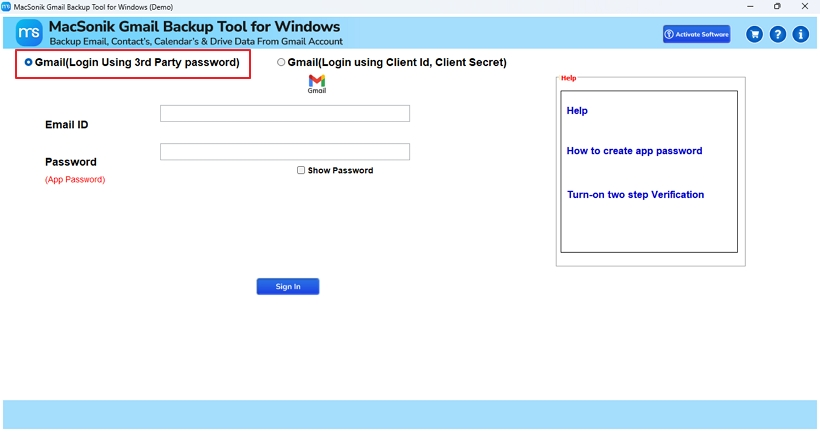
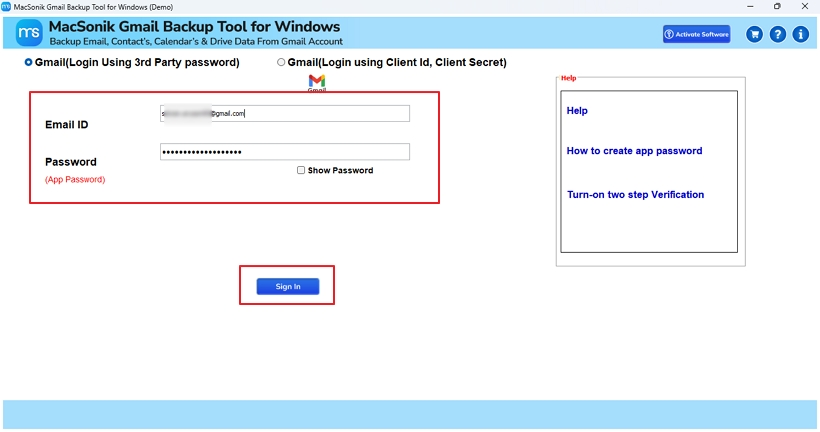
- Launch Gmail Email Backup Software and select Login with App Password.
- Then, enter the credentials and click the Sign In button.
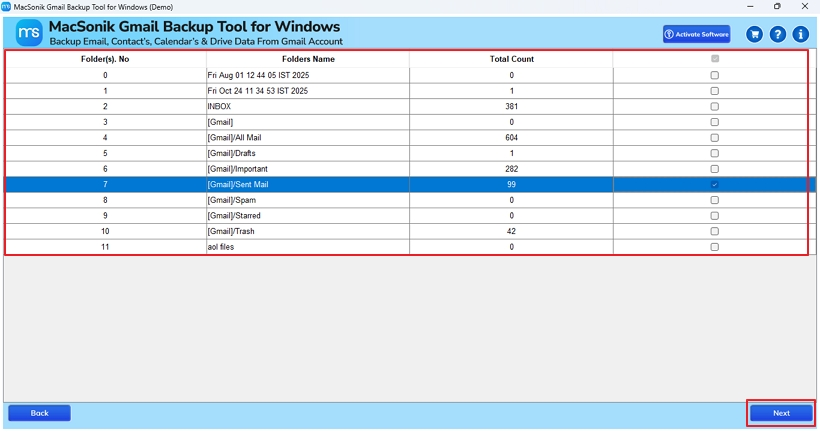
- Further, select the folders to migrate and click on the Next button.
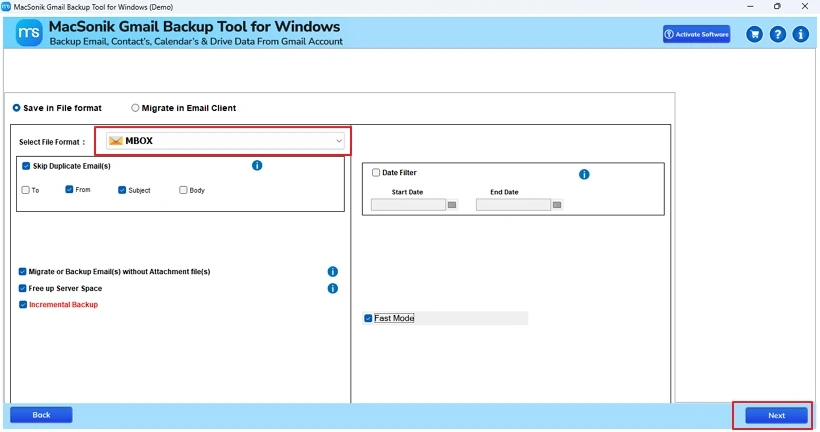
- After that, choose MBOX format, apply the filters, and click Next.
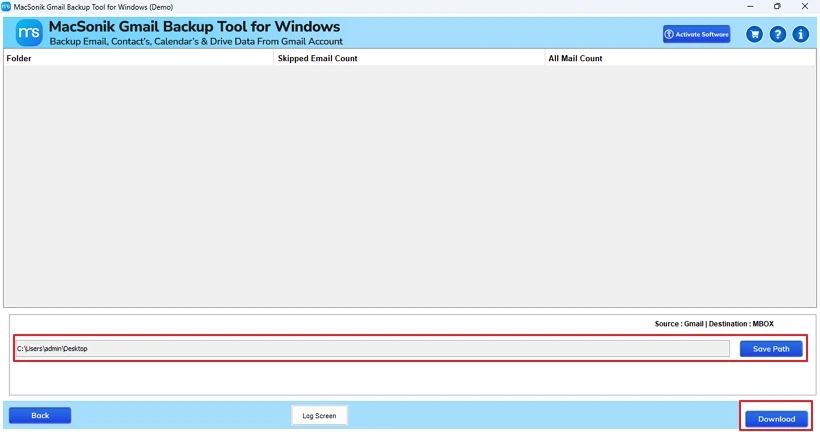
- Finally, choose a Save Path for your data and click Download to import.
|
Note: This process will reliably make the import within a few steps. Also, you need not worry about the data since it has no storage and uses secure Google API OAuth authentication to access the Gmail mailbox. |
Advanced Features of Gmail Backup
- User-friendly interface for all beginners and expert users.
- Option to download all the Inbox, Sent items, Drafts, Trash, Archive, etc.
- Export Gmail contacts to CSV and data in many other file formats.
- Advanced date range filter with preview for selective transfers.
- Remove the duplicate facility to keep only the relevant data.
- Migrate with or without attachments and many more custom filters.
- Support for all the latest and older Windows and Mac OS versions.
- A Demo Version for evaluation and free conversion of upto 50 emails.
Conclusion
The Gmail to Thunderbird import signifies a platform change for more scalability, advanced features, and offline data access. This shift is not just an email client transition but about securing emails for the long-term. The process to import Gmail to Thunderbird account is straightforward when using the right approach. The manual methods are beneficial at a small scale but have cons and can result in errors. In comparison, the automated Gmail Migration Tool is an excellent choice for flexible, bulk conversion with 100% accuracy and data preservation.
Frequently Asked Questions
Q1. Can I migrate Gmail to Thunderbird with Attachments?
Q2. Is it possible to apply a date filter while transferring Gmail to Thunderbird?
Q3. What is the best approach to import Gmail to Thunderbird?
Q4. How to transfer Gmail Emails to Thunderbird in bulk?
Related Post
