How to Easily Convert ICS to PDF File Format? Best Methods


Summary: ICS files work well for moving calendar events between different apps, but they’re not great if you want to print them or keep them as long-term records. Because of that, a lot of people prefer converting them into PDF format instead. PDFs are easy to open, share, and are perfect for documents such as schedules, meeting records, or audit reports. In this blog, we’ll look at a few simple ways to convert ICS to PDF. Also, we will use the MacSonik ICS File Converter Tool so as not make things complicated.
User Query: “I have a bunch of ICS calendar files that work fine for sharing events. But these files are not reliable for printing and sharing. How can I convert my ICS files into the PDF format with no hassle?”
Advantages to Convert ICS Calendar to PDF
- You can open a PDF on almost any device, and there’s no need to have Outlook, Google Calendar, or any calendar app installed.
- Sharing it is simple. You can email it, upload it somewhere, or print it out without stressing about format issues or missing info.
- Calendar files sometimes change or sync oddly, but a PDF stays the same unless someone actually edits it.
- For keeping records long term, PDFs are easier since you don’t have to worry about apps changing, updates, or support ending later on.
Difference Between ICS and PDF
|
Feature |
ICS File |
PDF File |
|
Main purpose |
Used to share calendar events between apps |
Used to view, print, and store information |
|
Best for |
Importing events into calendar tools |
Sharing schedules and keeping records |
|
Readability |
Not easy to read without a calendar app |
Easy to read on any device |
|
Printing |
Not ideal for printing |
Print-friendly |
|
Editing |
Can change when synced with calendars |
Stays the same unless edited manually |
|
App dependency |
Needs Outlook, Google Calendar, etc. |
No special app needed |
|
Layout |
Depends on the calendar app |
Fixed and clean layout |
|
Sharing |
Mostly shared between calendar users |
Can be shared with anyone |
|
Long-term storage |
Not great for archiving |
Better for long-term records |
Manual Methods to Convert ICS to PDF File Format
You can easily convert the calendar files to PDF by simply printing or exporting them. These processes just need to open your ICS file in Outlook and Google Calendar. It works for basic needs.
Method 1: Convert ICS file to PDF Using Microsoft Outlook
- Firstly, start by opening Outlook and loading the ICS file. Go to File > Open > Open Calendar and select the file.
- Then, once the calendar opens, switch to any view you prefer, like day, week, or month.
- After that, select the calendar and click File > Print.
- Thereafter, choose Microsoft Print to PDF as the printer.
- Finally, click Print, pick a location on your system, and save the PDF.
Method 2: Save ICS file to PDF Using Google Calendar
- First, upload the ICS file to your Google Calendar.
- Further, once it’s imported, open the calendar in Month or Agenda view.
- Thereafter, press Ctrl + P or use the print option from the settings.
- After that, set the destination to Save as PDF.
- Finally, save the file to your computer.
Drawbacks of Manual Methods
- Some event details can get cut off or look cramped.
- No option to customize the output much.
- Not practical if you’re dealing with bulk or frequent conversions.
Pro Method to Convert ICS to PDF Format Easily
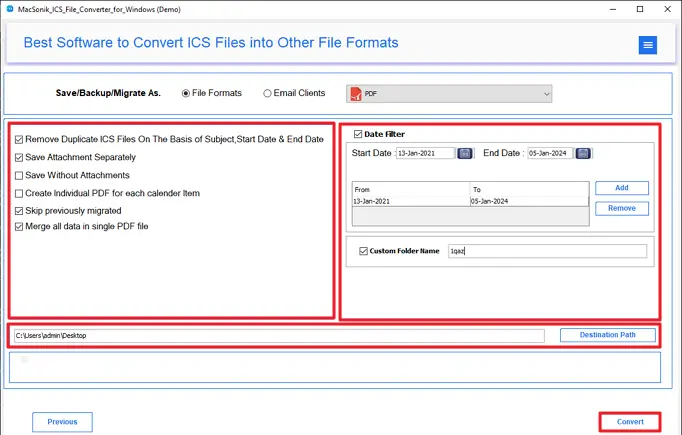
ICS File Converter Tool helps you save multiple ICS files at once without messing up the data. It lets you choose which files to convert and skip the ones you don’t need. The tool keeps the original event details and structures them in the same way as the source file. It works in a straightforward way and gives accurate results without changing the data. This makes it useful when you need to convert ICS to PST.
Steps to Convert iCalendar File to PDF
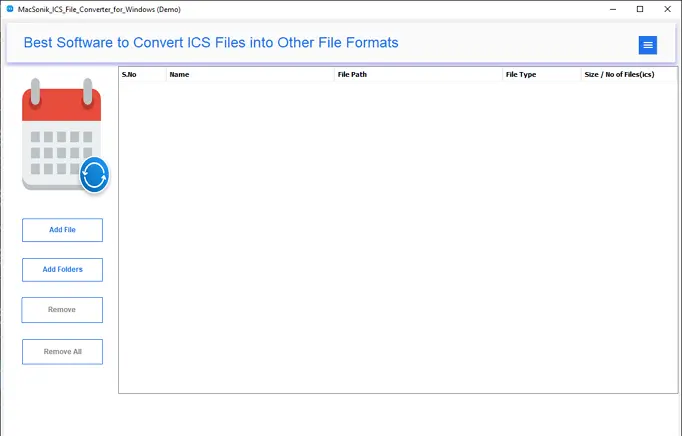
- Firstly, download the ICS File Converter Tool.
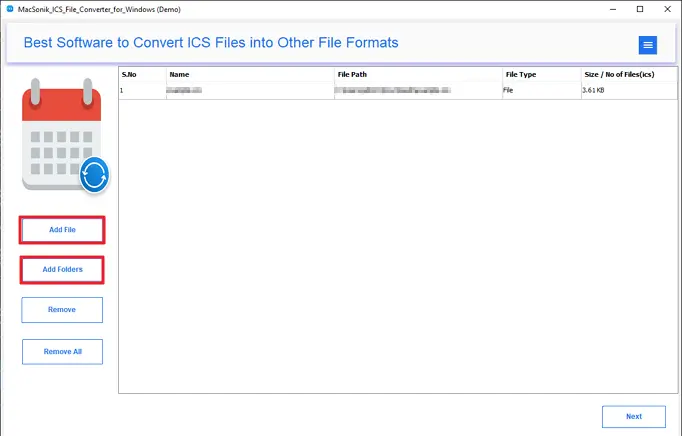
- Then, add the ICS file and click Next.
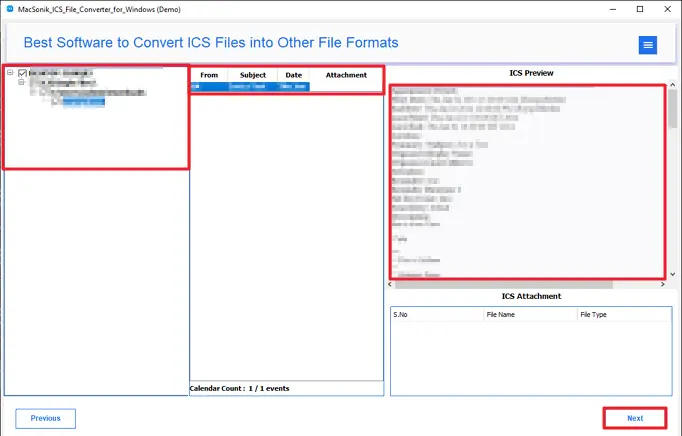
- Further, select and preview your ICS file and click Next.
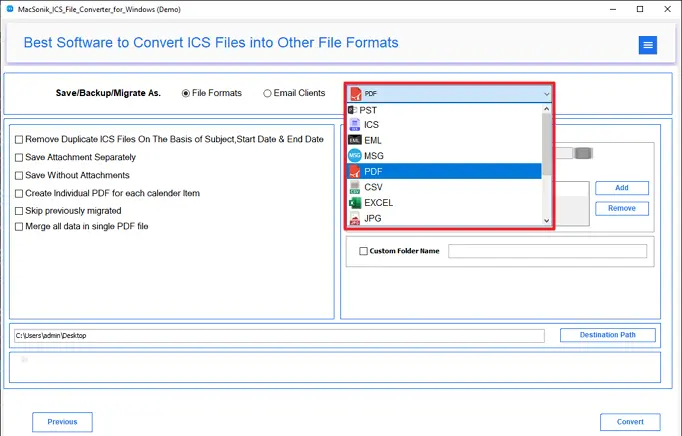
- After that, choose the PDF file format.
- At last, apply the filters, select the destination, and click Convert.
Conclusion
In the end, the process to convert ICS to PDF may look confusing to the user at first, but in reality, it is very simple. Once you know what to do, it’s just about following some easy steps, mainly when you are using a professional tool. The advanced tool is useful when you have limited time and need to manage data in bulk with 100% accuracy.
Frequently Asked Questions
Q1. How do I convert ICS file to PDF directly?
Q2. Can I remove duplicates while converting ICS to PDF?
Q3. Which is the best method to convert ICS to PDF in bulk?
Q4. Is it possible to save an ICS file to PDF according to a date range?
Related Post
