A Complete Solution to Convert ICS to PST in Bulk?


William Query: “I’ve saved a lot of calendar events in ICS format and want to bring them into Outlook. What is the most effective and safest way to convert my ICS files to PST safely?”
Summary: Many users use many calendar apps, which keep files in the ICS format, and the ICS file format does not work in Outlook. You need to convert ICS to PST so Outlook can handle them along with your emails and contacts. In this blog, I’ll show you two ways to do this: one you can try yourself, and one using the MacSonik ICS Converter Tool.
Why Users Need to Convert ICS file to PST?
- ICS files don’t work well with Outlook by default.
- Converting ICS to PST lets you see all your events in one place.
- It helps avoid missing important calendar details.
- Makes it easier to back up and move calendar data.
- Keeps everything organized inside Outlook.
- Needed when switching from other calendar apps to Outlook.
- Saves time by having all your calendar info ready to use.
Learn the Difference Before You Save ICS file to PST
|
Feature |
ICS File |
PST File |
|
Used by |
Many calendar apps (Google, Apple, Thunderbird) |
Microsoft Outlook |
|
File Type |
Plain text calendar format (iCalendar) |
Proprietary Outlook data file |
|
Content |
Events, appointments, reminders |
Emails, calendar events, contacts, tasks |
|
Compatibility |
Works across many calendar apps |
Works mainly with Outlook |
|
Size |
Usually small |
Can be large, depending on mailbox size |
|
Can Store Multiple Data Types? |
No, calendar data only |
Yes, multiple mailbox items |
|
Editing |
Can be edited with text editors or calendar apps |
Edited only within Outlook |
|
Purpose of Conversion |
To share calendar events |
To import/export entire mailbox data |
How to Convert ICS to PST Using Outlook Manually?
For a limited number of ICS files, you can import them into Outlook yourself. It’s not automatic, but it works if the file count is low.
Step 1: Import ICS into Outlook
- Firstly, open Outlook and go to the File Section of Outlook.
- Afterward, click on Open & Export > and select the Import/Export option.
- Then, choose Import an iCalendar (.ics) and click Next.
- After that, find your ICS file and select it.
- Thereafter, pick whether to open it as a new calendar or add it to your current one.
- You’ll see the events added to Outlook’s calendar.
Step 2: Convert ICS Calendar to PST
- Then, move back to File > Open & Export and select the Import/Export.
- Further, choose Export to a file > Outlook Data File (.pst).
- After that, select the Calendar folder and click Next.
- Thereafter, choose where to save the PST file and give it a name.
- At last, click Finish to export.
Limitations
- Firstly, you need to have Outlook installed and set up properly.
- This process can be slow if you have many or large ICS files.
- You have to import files one by one; no bulk import option.
- Contacts and emails won’t be included—only calendar events are exported.
- Lastly, the method doesn’t remove duplicate events automatically.
Professional Method to Convert ICS to PST in Bulk
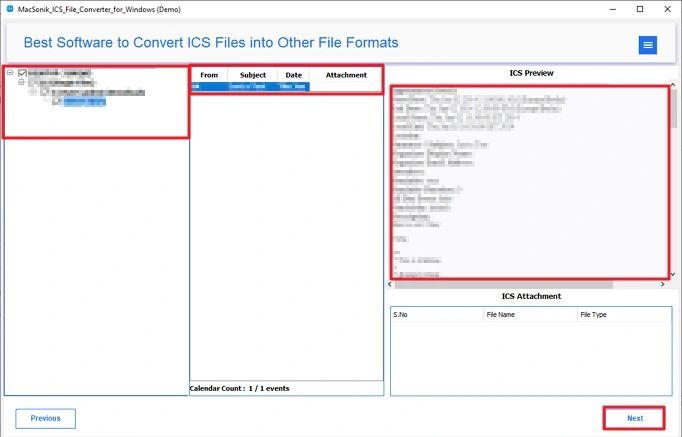
When users have a lot of files to convert or handle, that time using an ICS Converter Tool is easier than importing each file separately. It allows you to convert multiple files to PST at once. The folder structure stays the same during the process. The tool also shows a preview of the files before conversion and allows basic filtering. It is mainly used to save time when working with large numbers of ICS files.
Steps to Export ICS File to PST
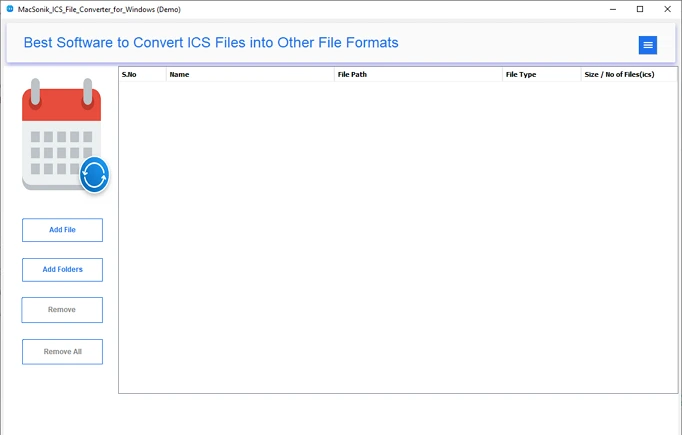
- Download the ICS Converter Tool.
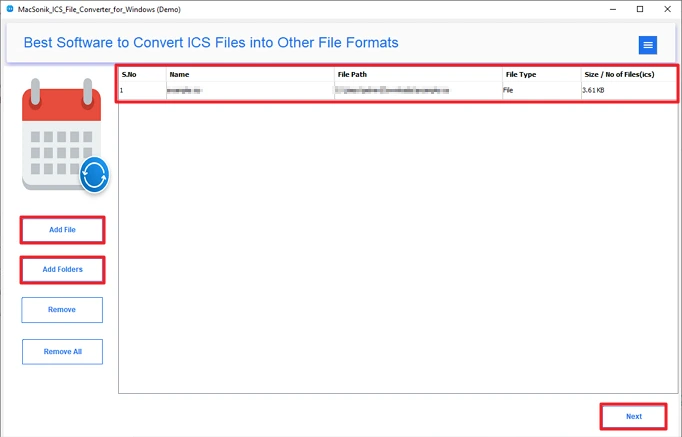
- After that, browse and add your ICS file and hit Next.
- Thereafter, preview and select files and click the Next button.
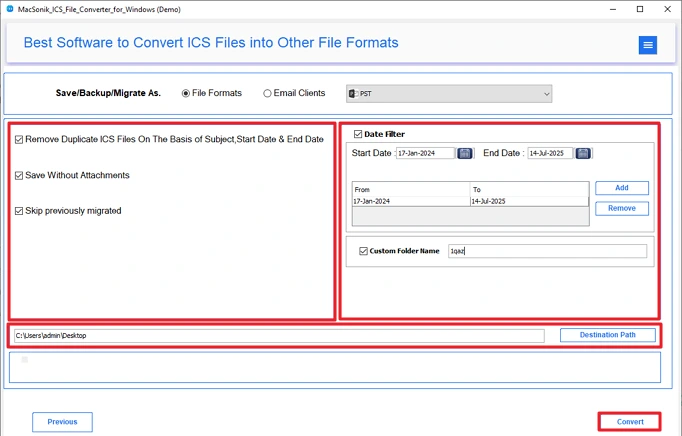
- Further, choose the PST file format.
- Finally, use the filters and set the path, and click Convert.

Conclusion
When everything is spread across different calendar files, using them in Outlook becomes difficult. That’s why people usually convert ICS to PST. The manual way is available, but these methods are slow and not effective all the time. Manually, you cannot handle a large number of files. That time, experts always recommends to use advance tool like the ICS Converter Tool.
Frequently Asked Questions
Q1. Can I convert ICS file to PST in Outlook directly?
Q2. Is it safe to convert ICS to PST using a tool?
Q3. Is it possible to preview ICS file before Conversion?
Q4. Can I convert ICS file to PST with specific date range?
Related Post
