How to Import OST to Hotmail? Simple Guide


Summary: Offline Outlook data management becomes challenging when users need to access their emails on a cloud platform like Hotmail. Hence, users look for a reliable way to import OST to Hotmail for easy access and to manage their OST mailbox from any device. Hotmail offers secure cloud storage, making it ideal for users who require universal access to their important emails.
Therefore, this guide will assist users in safely migrating their OST files to Hotmail without losing attachments, formatting, or folder hierarchy. Here, you will learn both free and professional approaches. The professional MacSonik OST to PST Converter Tool offers a safe and quick way to upload OST emails to Hotmail without data loss.
User Query: “I have my Outlook data stored in an OST file, and now I want to access it in my Hotmail account. Is there any error-free and effortless way to complete this migration without losing any data?”
-William Branson
Differences Between OST and Hotmail Email Client
The table below highlights how data access and security change when you move OST files to Hotmail.
|
Point of Comparison |
OST Files |
Hotmail |
|
Type |
Offline Outlook data file |
Cloud-based email service |
|
Accessibility |
Requires Outlook and the same profile |
Accessible anywhere with internet |
|
Security |
Depends on the local system |
Protected by a Microsoft account |
|
Sharing |
Limited without conversion |
Easy to share, forward, or manage |
|
Backup |
Stored locally |
Stored on cloud servers |
Free Methods to Import OST to Hotmail
Below are the available manual methods to transfer OST files to Hotmail. However, these methods have limitations, but they may help in small migration cases.
Method 1: Migrate OST to Hotmail with Email Forwarding
This method works only if your OST file is readable in Outlook.
Steps:
- First, open Microsoft Outlook on your system.
- After that, make sure that the OST file is configured with your current profile.
- Then, select the email(s) you want to move to Hotmail.
- Further, click on the Forward button and send them to your Hotmail address.
- Finally, open your Hotmail account to access the emails.
Method 2: Import OST Files to Hotmail via Outlook
If you can access the OST file in Outlook, follow these steps:
- Initially, open Outlook and go to File > Open & Export > Import/Export.
- Then, choose Export to a file and select the Outlook Data File (.pst) and export the mailbox.
- Further, add your Hotmail account to Outlook.
- At last, import the PST file into Hotmail from the Outlook interface.
Limitations of the Manual Methods
- These methods cannot migrate OST to Hotmail in bulk.
- Damaged, orphaned, or inaccessible OST files are not supported during manual migration.
- The folder hierarchy may not stay intact.
- Always a risk of partial data transfer or missing attachments.
- Moreover, it requires Outlook installation and technical knowledge.
- Do not offer any filter options for selective migration.
Proficient Method to Import OST to Hotmail (Recommended)
For users who want a secure, quick, and accurate solution, the MacSonik OST Converter Tool for Windows is the best option. Also, this tool allows you to import OST files to Hotmail with complete email details, attachments, formatting, and metadata. Additionally, it maintains the original folder structure and offers multiple advanced features like:
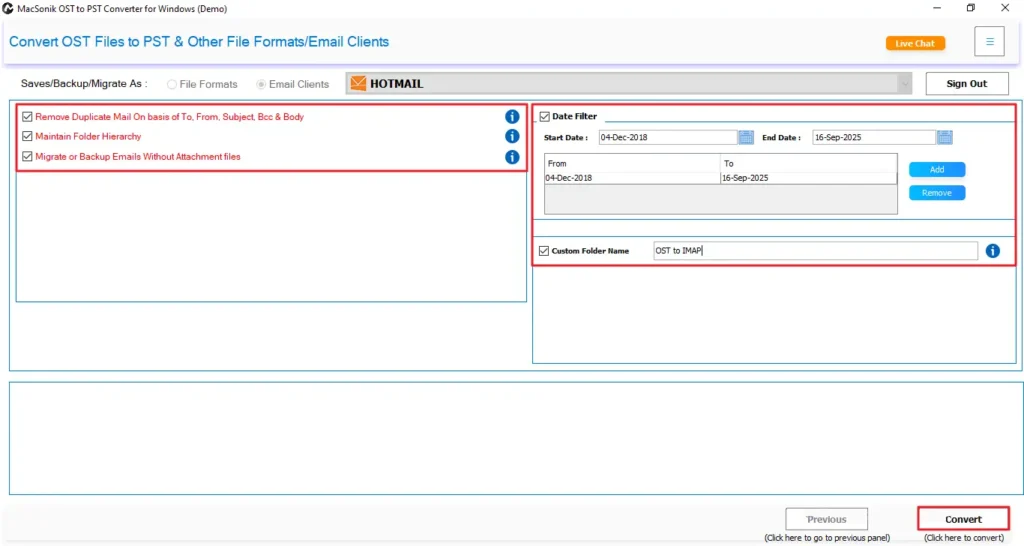
- Date filter for selective OST to Hotmail transfer
- Skip duplicate option
- Support for large and multiple OST files
- Smooth migration without Outlook dependency
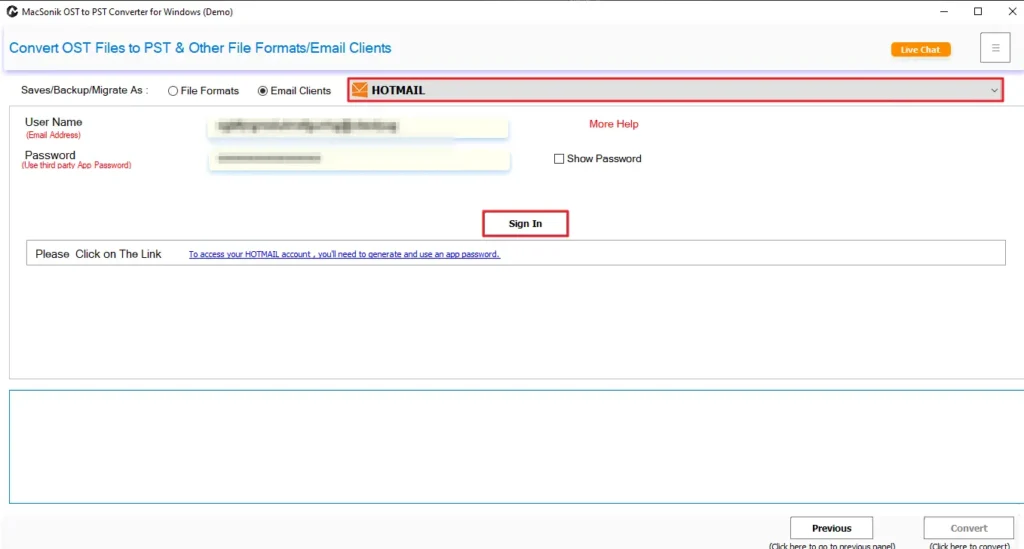
- Secure login for Hotmail account
- 100% clean and safe import process
Moreover, using this tool, users can easily import OST to Windows Live Mail or other email clients without errors or data loss.
Professional Steps to Move OST Files to Hotmail
Follow the steps below to transfer OST files to Hotmail using the professional method:
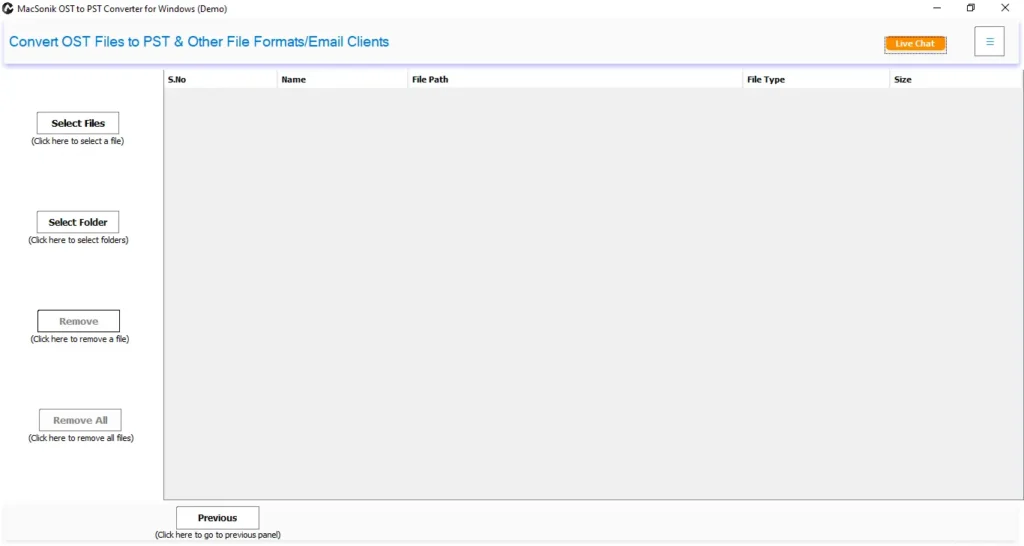
- First, install and launch the OST to PST Converter Tool on your PC.
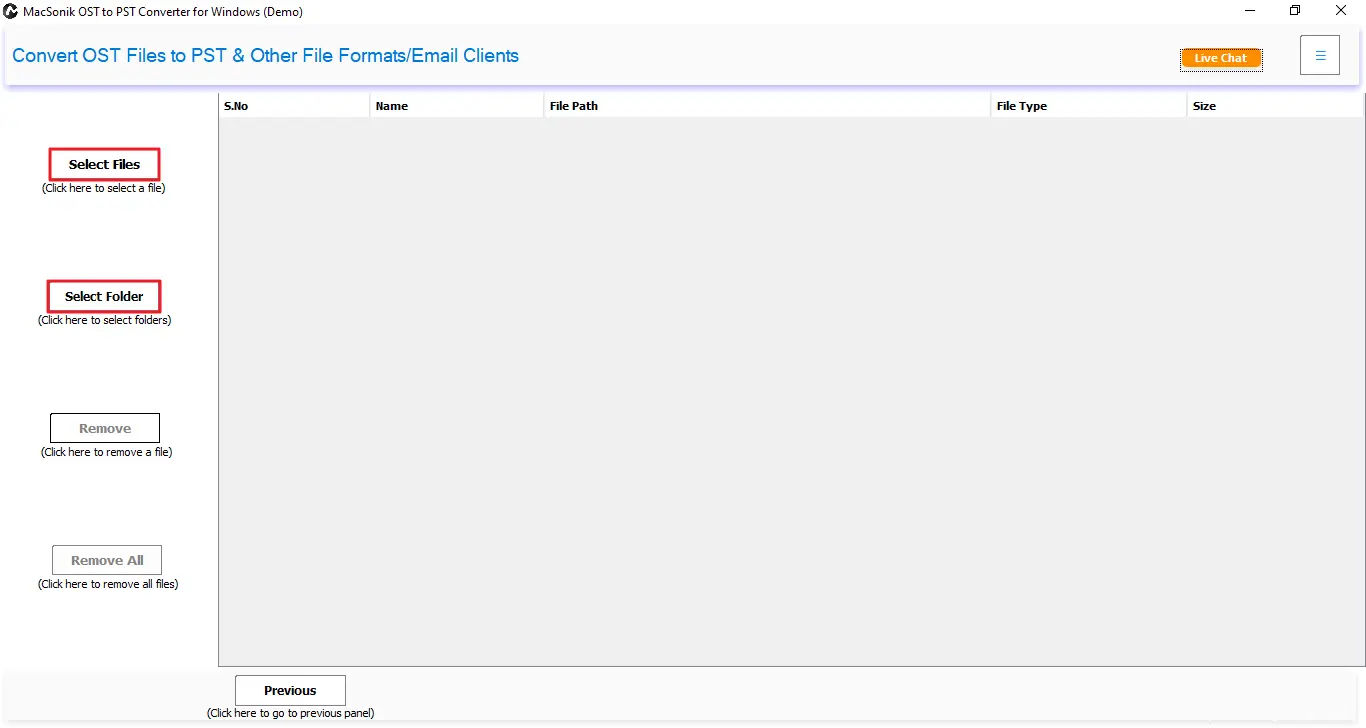
- After that, click on the Select File or Select Folder option to start browsing your OST files.
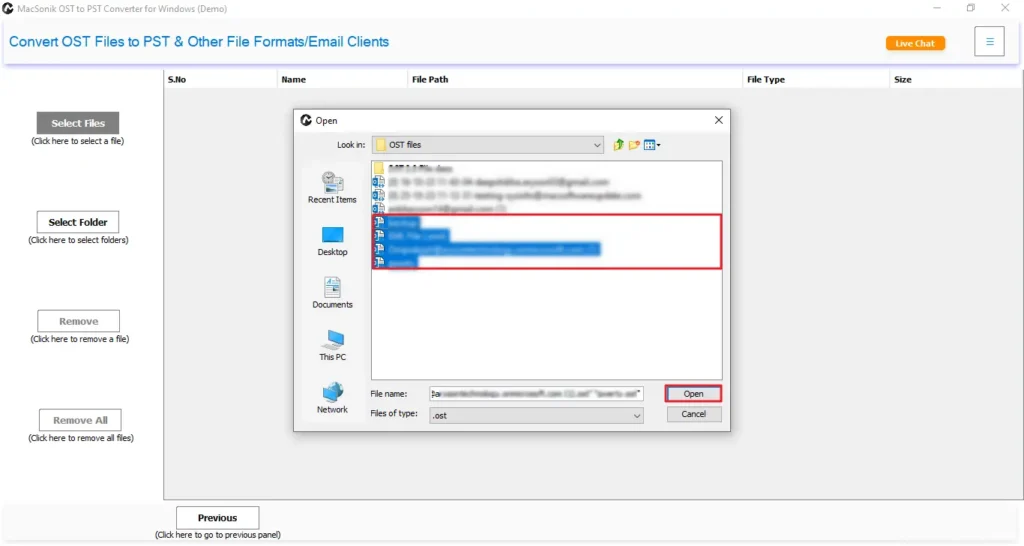
- Then, browse, select, and open the OST files in the software, and then click Next.
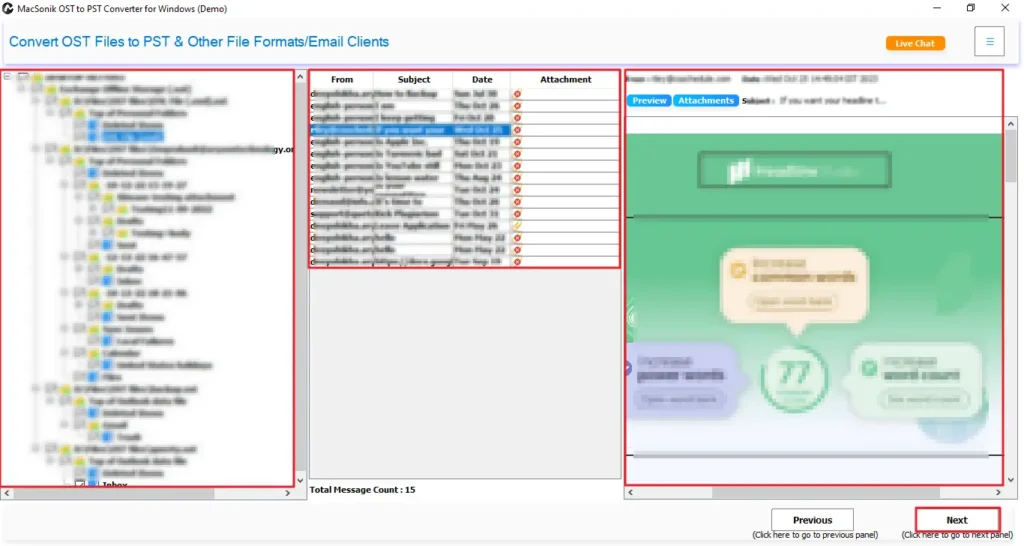
- Now, select the file or folder and preview data and attachments, then click Next.
- Further, choose Hotmail from the list of Email Clients and sign in with your Valid Hotmail credentials.
- Finally, choose the advanced filters and click Convert to start the OST to Hotmail Migration.
Conclusion
OST files store your Outlook mailbox locally, which limits accessibility and flexibility. So, the process to import OST to Hotmail provides you with cloud access, better security, and easy email management. While manual methods can work for small needs, they come with many limitations. Henceforth, for users who need a smooth, error-free, and bulk migration, the MacSonik OST Converter Tool is the most effective solution. Also, it guarantees complete accuracy, maintains email structure, and safely transfers all data to Hotmail without any loss. Moreover, for users to test its capability, a demo version is also available with limited migration unlocked.
Frequently Asked Questions
Q1. How to transfer OST files to Hotmail for a specific date?
Q2. Can I import OST files to Hotmail in bulk?
Q3. Are technical skills required to import OST to Hotmail?
Q4. How to migrate OST to Hotmail with 100% accuracy?
Related Post
