Effective Methods to Import OST to Google Workspace


User Query: “I have some legacy Outlook OST files from my old job, and now I am using Google Workspace. What is the easiest way to import these OST files to Google Workspace without losing any data or attachments?”
-Richard Stone
Summary: Users search for a reliable method to import OST to Google Workspace when they need their Outlook data online. Google Workspace offers cloud storage, collaboration tools, and access from any device. However, OST files are stored locally in Outlook, making it difficult to transfer them directly. Hence, convert your OST data without losing attachments or folder hierarchy in a safe way with this guide. For smooth and effective migration, we have also explained the professional MacSonik OST to PST Converter Software.
How Outlook OST Files And Google Workspace Differ?
The table below shows points of comparison when users change OST to Google Workspace.
|
Point of Comparison |
OST File |
Google Workspace |
|
Type |
Local Outlook data file |
Cloud-based email & storage |
|
Accessibility |
Opens only on the same system/profile |
Access from any browser or device |
|
Security |
Depends on the local machine |
Google’s advanced cloud security |
|
Sharing |
Limited to Outlook setup |
Share and sync across devices easily |
|
Backup |
Stored on a local Windows PC |
Auto-sync and cloud backup |
Reliable Methods to Import OST to Google Workspace
This section covers manual and professional ways to transfer OST file to Google Workspace. First, the manual method is described, which is best for small or limited migrations. After that, the professional tool to handle bulk migration is discussed. Users can choose any of the methods depending on their migration requirements.
Manual Method to Import OST files to Google Workspace
This is the manual method for OST file migration to Google Workspace, best for occasional or limited transfers. If your OST is orphaned or inaccessible, convert it to PST first.
|
Note: This method requires the original Outlook profile. It does not work with orphaned or corrupted OST files. |
- First, open Outlook → click File > Open & Export > Import/Export.
- Then, choose Export to a File → select PST as the format.
- After that, select the folders you want to export and save the PST file.
- Further, download and install Google Workspace Migration for Microsoft Outlook (GWMMO).
- Next, sign in using your Google Workspace account.
- Afterwards, choose the PST file that you exported earlier.
- Finally, start the migration to upload your PST file into Google Workspace.
Limitations of the Manual Method
- The manual method requires Outlook and an active OST profile (not orphaned).
- OST file attachments and formatting may not transfer like the original.
- The process is slow and not suitable for bulk OST files.
- Does not offer advanced filters like date range, skip duplicates, or selective import.
Proficient Method to Import OST to Google Workspace
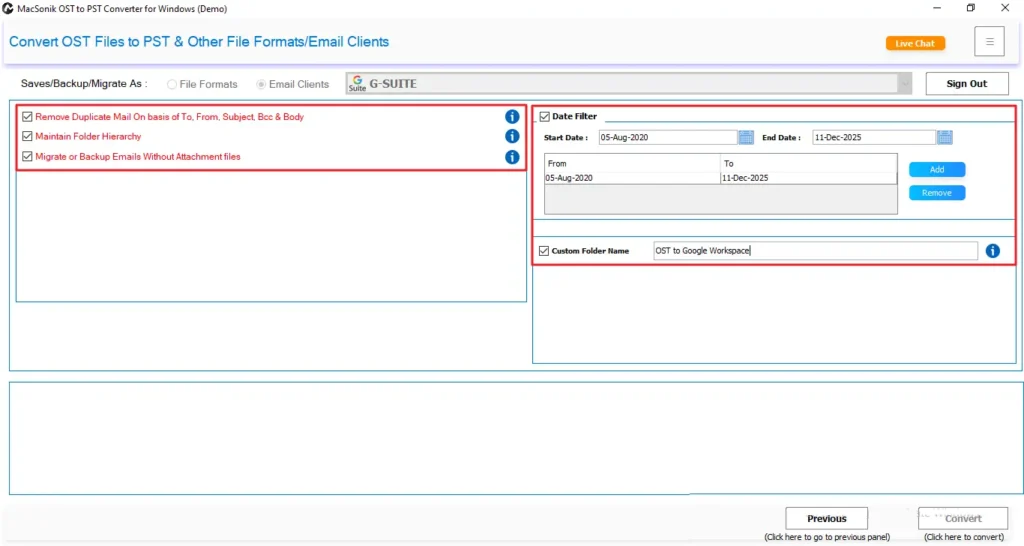
For users who want a secure and error-free process, the MacSonik OST to PST Converter is the most effective solution. Also, it is a simple and direct way, even if the OST file is inaccessible or orphaned. The tool automatically extracts emails, attachments, contacts, calendars, and all mailbox data from OST files and uploads them to your Google Workspace account. It also maintains the original folder structure throughout the migration. Additionally, the tool offers advanced filters like date range, folder selection, and duplicate prevention for a clean migration. Apart from these, users can easily import OST into Office 365 and other email clients.
Professional Steps to Move OST to Google Workspace
Follow the easy steps below to import your OST data using the professional tool:
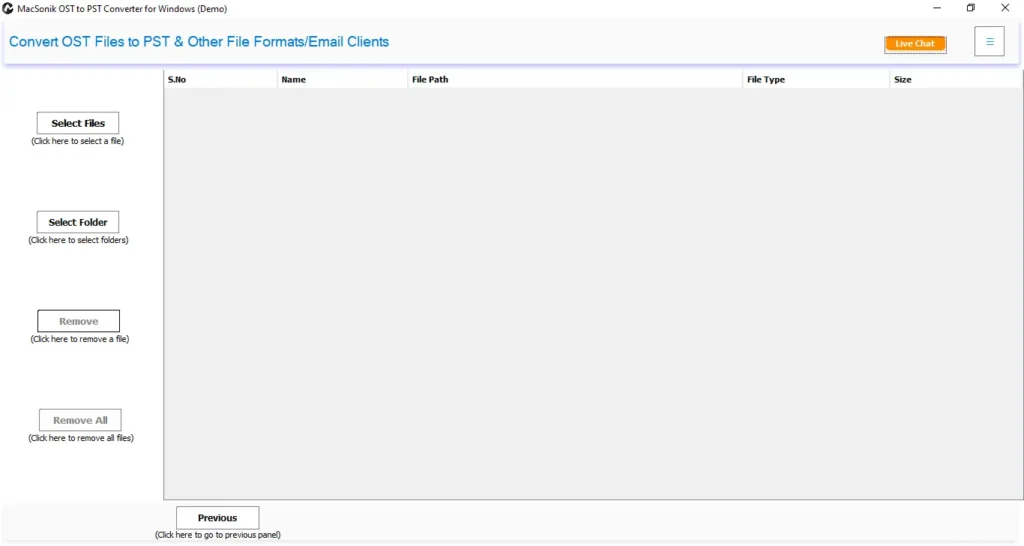
- First, install and launch the OST to PST Converter Tool on your PC.
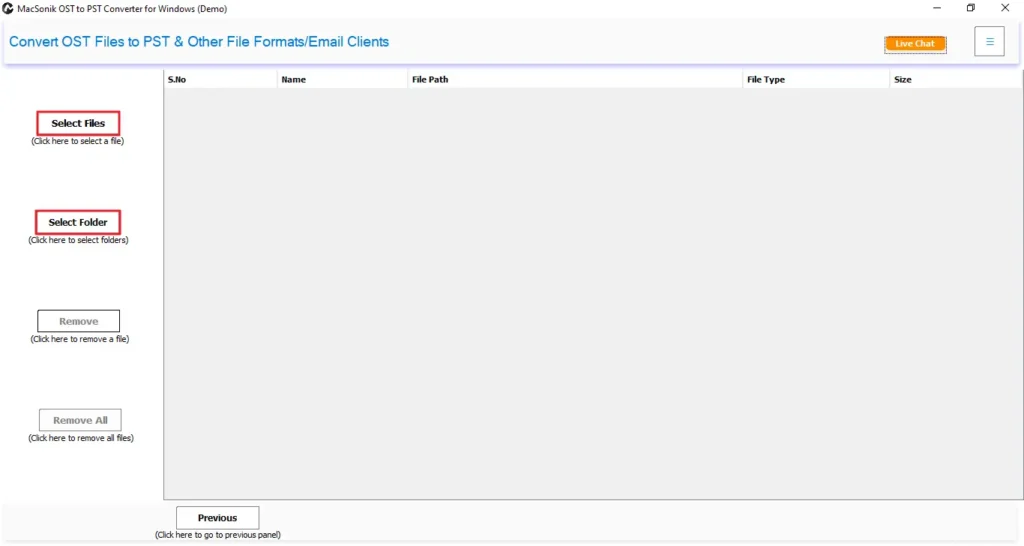
- After that, click on the Select File or Select Folder option to start browsing your OST files.
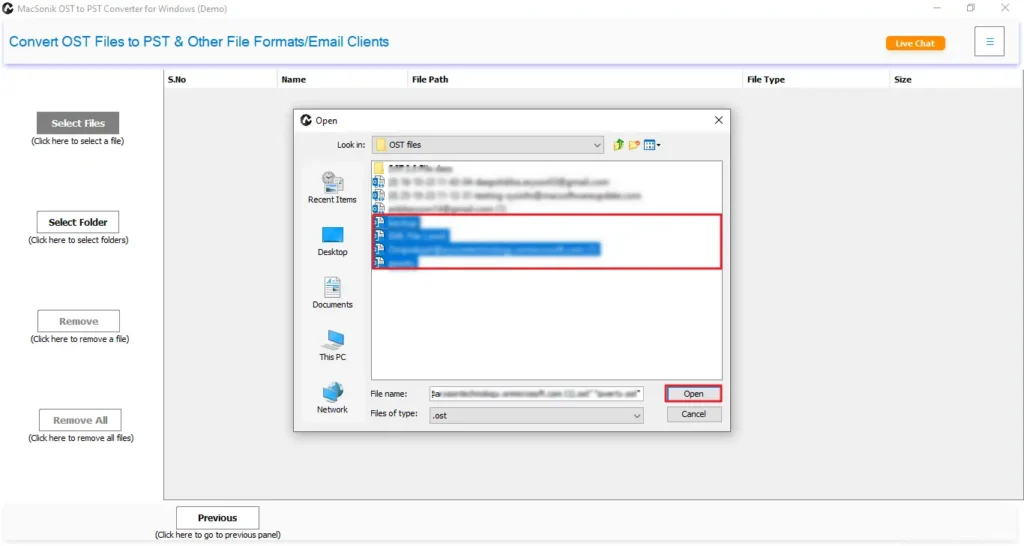
- Then, browse, select, and open the OST files in the software, and then click Next.
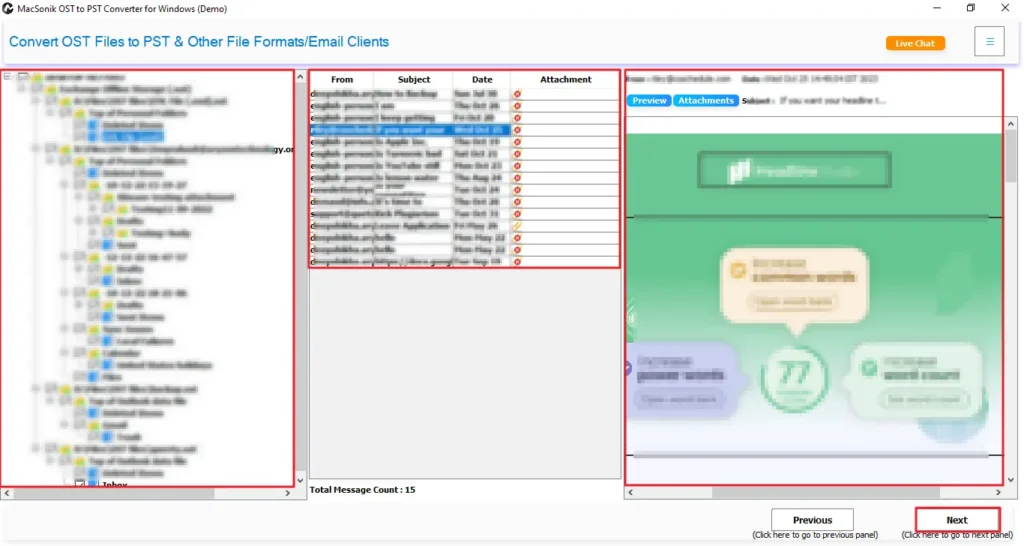
- Now, select the file or folder and preview data and attachments, then click Next.
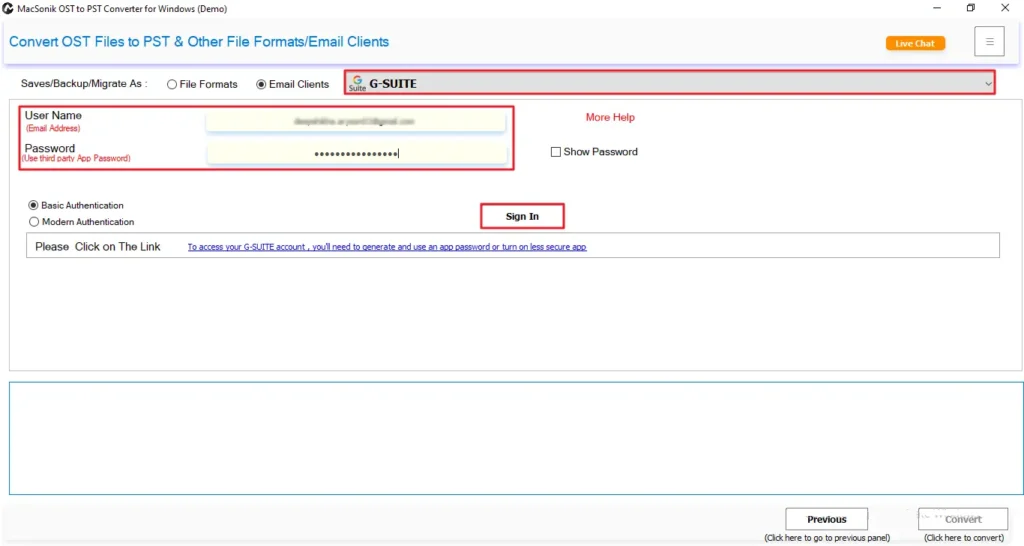
- Further, choose G Suite from the list of Email Clients and sign in with your email and app password.
- Then, choose the required advanced features and date filters to filter and sort your migration.
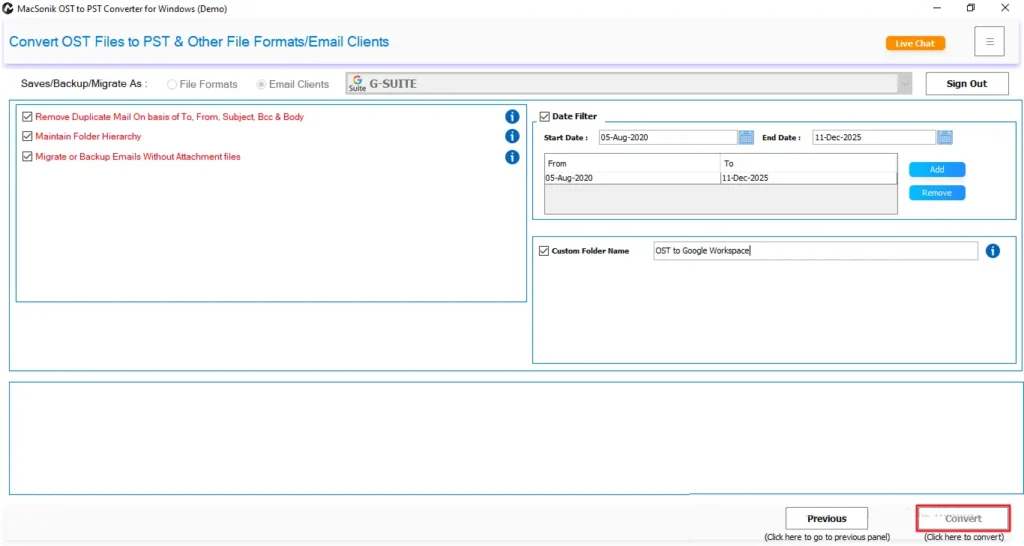
- Finally, select a Path to Save and click Convert to export OST to VCF.
Conclusion
OST files are stored locally in Outlook, which makes it difficult to access or share them across different platforms. However, if you import OST to Google Workspace, you gain complete cloud access, security, and easy management across multiple devices. While manual methods work only in limited situations, they do not support bulk import or orphaned OST files. Therefore, for users who need a reliable and quick solution, the MacSonik OST to PST Converter is the best method. Additionally, the tool provides multiple advanced features and filters that produce 100% accurate results.
Frequently Asked Questions
Q1: How to import OST to Google Workspace with attachments?
Q2: Is it possible to import OST files to Google Workspace in bulk?
Q3: Are technical skills required to move OST to Google Workspace?
Q4: Can you change OST to Google Workspace with 100% accuracy?
Related Post
